Dhaptar berkas
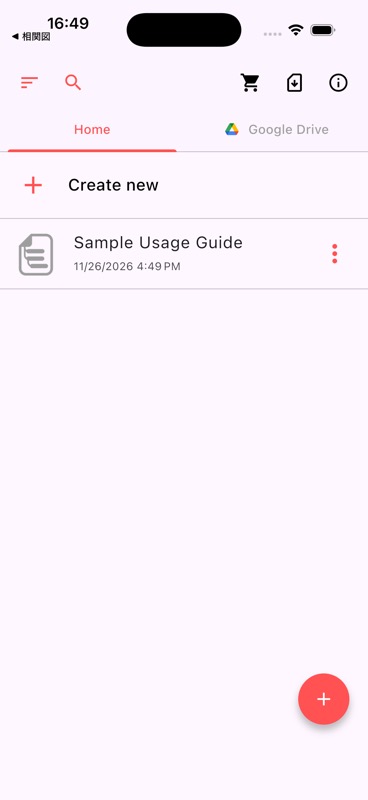
Create an outline file
- Select + Create new in the file list.
- Enter a name and select OK to open the outline editor.
Ngganti urutan berkas
- Gunakake kontrol pangurutan ing sisih ndhuwur dhaptar berkas. Ing layar cilik, bukak menu pangurutan.
- Pilih ngurutake adhedhasar tanggal pangowahan utawa jeneng berkas.
Search for a file by name
- Open Home or Google Drive, depending on where the file is stored, and select the Search icon.
- Enter part of the name in Search by file name. Select Close to see the full list again.
Nggandakake berkas
- Bukak menu telung titik ing berkas banjur pilih Gandakake.
- Bukak salinan sing ditambahake ing dhaptar kanggo nyunting tanpa ngowahi berkas asli.
Mbusak berkas
- Bukak menu telung titik ing berkas banjur pilih Busak.
- Priksa pesen konfirmasi banjur pilih OK.
Kanggo berkas sing dituduhake marang sampeyan, menu bisa uga nyedhiyakake pilihan kanggo mbatalake enggo bareng.
Ngganti jeneng berkas
- Bukak menu telung titik ing file banjur pilih Ganti jeneng.
- Lebokna jeneng anyar banjur konfirmasi.
Kanggo ngganti jeneng file Google Drive sing dienggo bareng karo sampeyan, sampeyan kudu duwe idin kanggo nyunting.
Import an outline file
- Select Import in the file list and select OK to open the file picker.
- Choose an outline file (.bmind). You can also import a JSON file containing data in the same format.
Nyimpen menyang Google Drive
- Pilih Google Drive ing dhaptar file banjur tindakna pituduh kanggo nyambungake Akun Google sampeyan.
- Gawe file anyar saka dhaptar Google Drive. Yen pilihan iki kasedhiya, sampeyan uga bisa mindhah file lokal menyang Google Drive liwat menu telung titik ing file kasebut.
Kanggo mbukak file ing piranti liyane, sambungna Akun Google sing digunakake kanggo nyimpen file kasebut.
Mindhah file antarane piranti lan Google Drive
- Ing aplikasi sing wis diinstal, sambungna Akun Google sampeyan banjur bukak menu telung titik ing file.
- Gumantung ing panggonan file disimpen, pilih Pindhah menyang Google Drive utawa Pindhah menyang Home, banjur konfirmasi.
Nyunting berkas
Add topics at the same level or one level below
- Tap a topic to select it. Use the add buttons at the bottom to insert a topic at the same level or add a child topic below it.
- Type the new topic’s text. To change an existing topic, select it and tap it again.
When the root topic is selected, you can add a child topic.
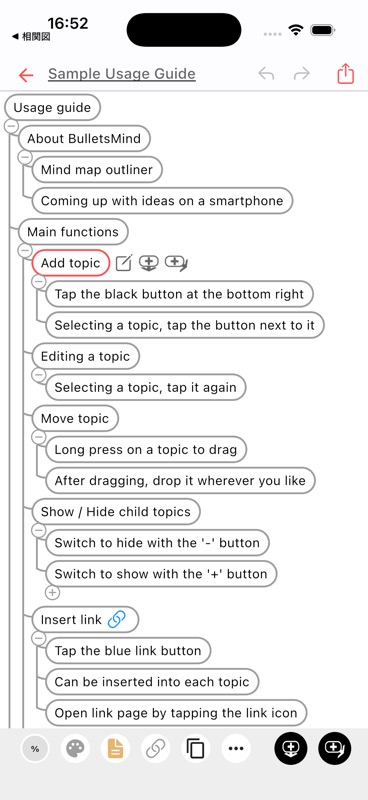
Collapse and expand child topics
- Tap the minus sign next to a topic with children to collapse that branch.
- Tap the plus sign to expand it again. Collapse detailed branches when you want an overview of the headings.
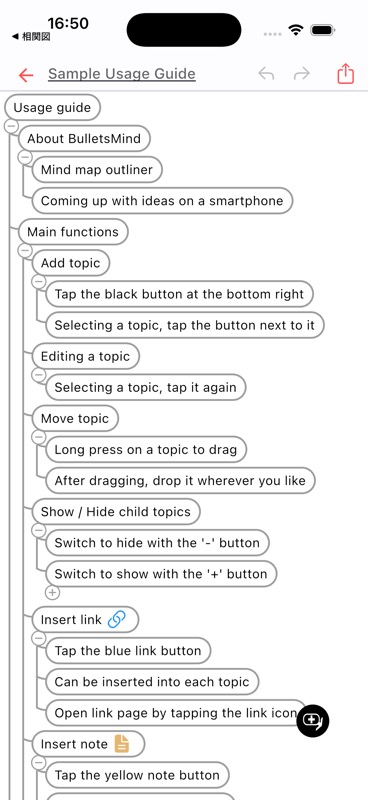
Reorder topics or move them to another level
- Press and hold the topic you want to move, then drag it.
- Check the drop position before releasing. You can reorder topics or move a topic under a different parent.
Add a note to a topic
- Select the topic and choose Note in the bottom toolbar. On a narrow screen it may be in the three-dot menu.
- Enter the details. You can view the note later using the note icon next to that topic.
Export a BulletsMind outline
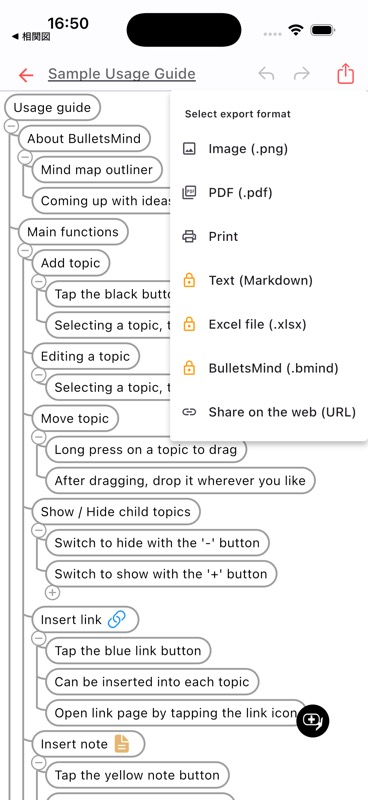
- Select the share icon in the top-right corner.
- Choose an image or PDF to preserve the appearance, Markdown to reuse the text, or Excel to open the data in a spreadsheet. Choose BulletsMind (.bmind) to reimport and edit the outline.
Export formats marked with a lock require Pro.
Tuku
Tuku paket berbayar
- Pilih lambang kranjang blanja ing dhaptar file.
- Priksa paket lan rega ing layar tuku, banjur pilih paket sing arep sampeyan tuku.
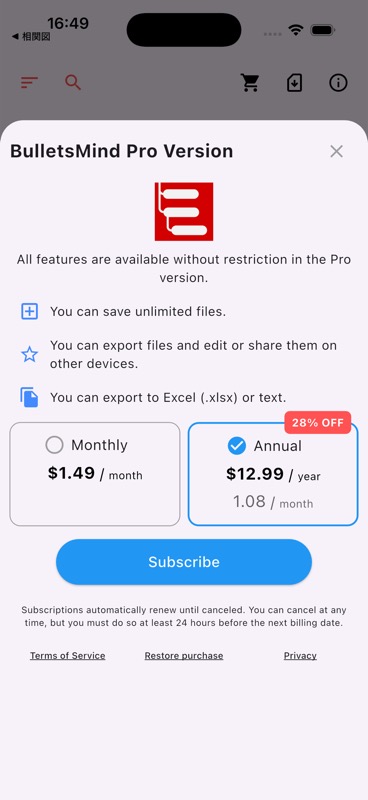
Mulihake tuku
- Yen tuku liwat toko aplikasi, mlebu nganggo akun toko sing digunakake kanggo tuku paket kasebut.
- Bukak layar tuku ing aplikasi, pilih «Mulihake tuku», banjur priksa asile.
Ngatur tuku utawa langganan
- Yen menu informasi ing dhaptar file nyedhiyakake pilihan kanggo ngatur tuku, bukak pilihan kasebut.
- Gunakake toko utawa layanan sing sampeyan gunakake kanggo tuku paket kanggo mriksa utawa mbatalake langganan.
Akun berbayar
Nyambungake tuku menyang akun Google
- Mlebu menyang akun Google ing piranti sing duwe tuku aktif.
- Yen pilihan kanggo nyambungake tuku menyang akun Google katon ing menu, pilih pilihan kasebut lan konfirmasi akun kasebut.
- Kanggo nggunakake paket berbayar ing piranti liyane sing didhukung, mlebu nganggo akun Google sing wis disambungake.
Ngalih akun Google
- Priksa akun Google sing lagi aktif ing menu informasi dhaptar file.
- Yen ana pilihan kanggo metu saka akun, pilih pilihan kasebut, banjur bukak Google Drive lan mlebu nganggo akun sing arep sampeyan gunakake.
Ing piranti liyane, gunakake akun sing disambungake karo tuku utawa file Drive sing arep sampeyan akses.