Failų sąrašas
Create a sequence diagram file
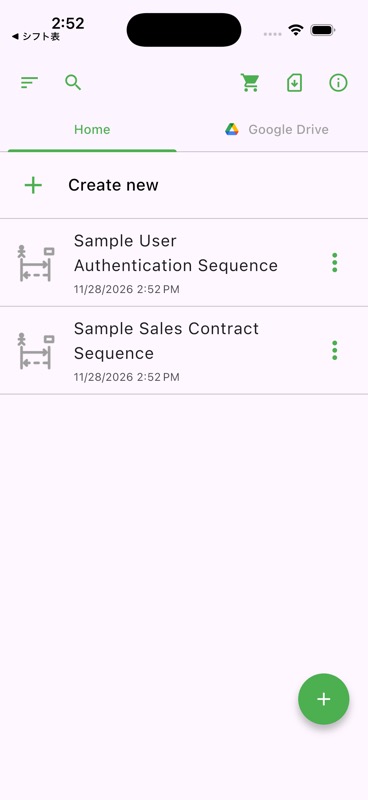
- Select + Create new in the file list.
- Enter a name and select OK to open the sequence diagram editor.
Keisti failų rikiavimo tvarką
- Naudokite failų sąrašo viršuje esantį rikiavimo valdiklį. Mažame ekrane atidarykite rikiavimo meniu.
- Pasirinkite rikiavimą pagal pakeitimo datą arba failo pavadinimą.
Search for a file by name
- Open Home or Google Drive, depending on where the file is stored, and select the Search icon.
- Enter part of the name in Search by file name. Select Close to see the full list again.
Dubliuoti failą
- Atidarykite failo trijų taškų meniu ir pasirinkite „Dubliuoti“.
- Atidarykite į sąrašą įtrauktą kopiją, kad galėtumėte ją redaguoti išsaugodami originalą.
Ištrinti failą
- Atidarykite failo trijų taškų meniu ir pasirinkite „Ištrinti“.
- Patikrinkite patvirtinimo pranešimą ir pasirinkite „OK“.
Jei failas bendrinamas su jumis, meniu gali būti parinktis pašalinti bendrinimą.
Pervadinti failą
- Atverkite failo trijų taškų meniu ir pasirinkite „Pervadinti“.
- Įveskite naują pavadinimą ir patvirtinkite.
Norint pervadinti su jumis bendrinamą Google Drive failą, reikia turėti redagavimo teises.
Import a Mermaid diagram
- Select Import in the file list and select OK to open the file picker.
- Choose a Mermaid file (.mermaid or .mmd), then open it from the file list.
Išsaugoti Google Drive
- Failų sąraše pasirinkite Google Drive ir vadovaukitės pateiktais nurodymais, kad susietumėte savo Google paskyrą.
- Sukurkite naują failą Google Drive sąraše. Jei tokia parinktis yra, vietinį failą taip pat galite perkelti į Google Drive naudodami jo trijų taškų meniu.
Norėdami atverti failą kitame įrenginyje, susiekite Google paskyrą, kurią naudojote jam išsaugoti.
Perkelti failus iš įrenginio į Google Drive ir atvirkščiai
- Įdiegtoje programėlėje susiekite savo Google paskyrą ir atverkite failo trijų taškų meniu.
- Atsižvelgdami į failo saugojimo vietą, pasirinkite „Perkelti į Google Drive“ arba „Perkelti į pradžią (Home)“ ir patvirtinkite.
Failų redagavimas
Describe participants and their messages to create a sequence diagram
- Open Sequence at the top, tap the input field at the bottom, and choose Edit.
- Describe the participants and messages in order. For example, “The customer sends an order to the store. The store checks stock with the warehouse, then confirms the order to the customer.” Select Send.
- Review who sends each message and check the direction and order of the arrows.
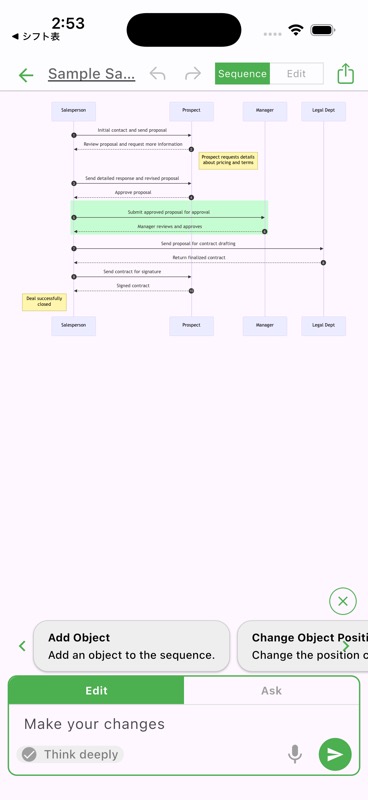
Ask AI about the sequence diagram
- On Sequence, tap the input field at the bottom and choose Ask.
- Send a question such as “Who does the store contact after checking stock?” and read the reply in the chat window.
Edit participants and messages in Mermaid
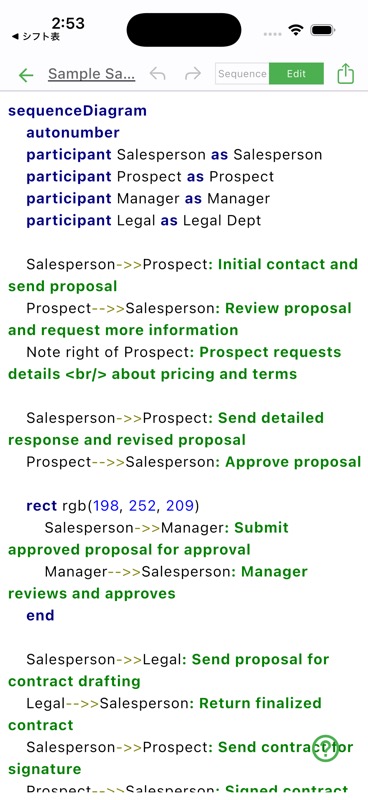
- Choose Edit at the top to open the Mermaid source.
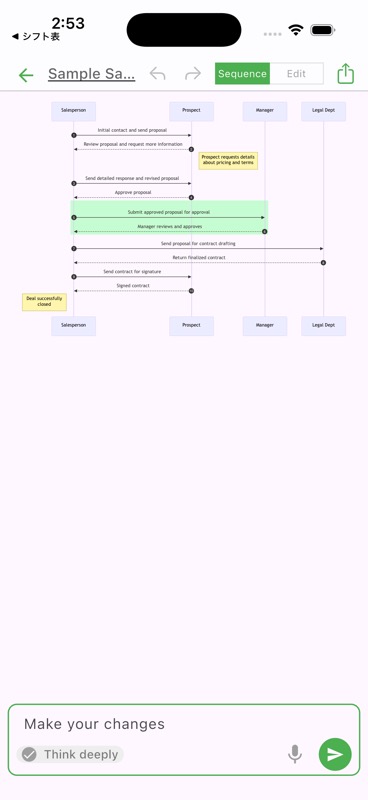
- Update participant names, message text, or message order. Switch back to Sequence to check the diagram.
Export the diagram as an image, Mermaid, or HTML
- Select the share icon in the top-right corner of the editor.
- Choose an image to place the diagram in another document, Mermaid (.mermaid) to edit the source later, or HTML to open the file in a browser.
Pirkiniai
Įsigyti mokamą planą
- Failų sąraše pasirinkite krepšelio piktogramą.
- Pirkimo ekrane peržiūrėkite planus ir kainas, tada pasirinkite norimą įsigyti planą.
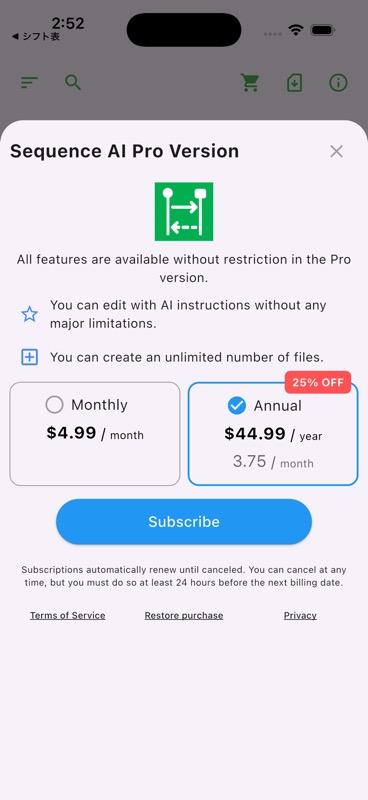
Atkurti pirkinį
- Jei pirkote programėlių parduotuvėje, prisijunkite prie parduotuvės paskyros, kurią naudojote planui įsigyti.
- Programėlėje atidarykite pirkimo ekraną, pasirinkite „Atkurti pirkinius“ ir patikrinkite rezultatą.
Tvarkyti pirkinį arba prenumeratą
- Jei failų sąrašo informacijos meniu yra pirkinių tvarkymo parinktis, ją atidarykite.
- Norėdami peržiūrėti arba atšaukti prenumeratą, naudokitės parduotuve ar paslauga, kurioje įsigijote planą.
Mokama paskyra
Susieti pirkinį su „Google“ paskyra
- Įrenginyje, kuriame turite aktyvų pirkinį, prisijunkite prie savo „Google“ paskyros.
- Jei meniu rodoma parinktis susieti pirkinį su „Google“ paskyra, ją pasirinkite ir patvirtinkite paskyrą.
- Norėdami naudoti mokamą planą kitame palaikomame įrenginyje, prisijunkite prie susietos „Google“ paskyros.
Perjungti „Google“ paskyras
- Failų sąrašo informacijos meniu patikrinkite, kuri „Google“ paskyra šiuo metu aktyvi.
- Jei yra atsijungimo parinktis, ją pasirinkite, tada atidarykite „Google Drive“ ir prisijunkite prie norimos naudoti paskyros.
Kitame įrenginyje naudokite paskyrą, susietą su pirkiniu arba „Drive“ failais, kuriuos norite pasiekti.