Failų sąrašas
Create a flowchart
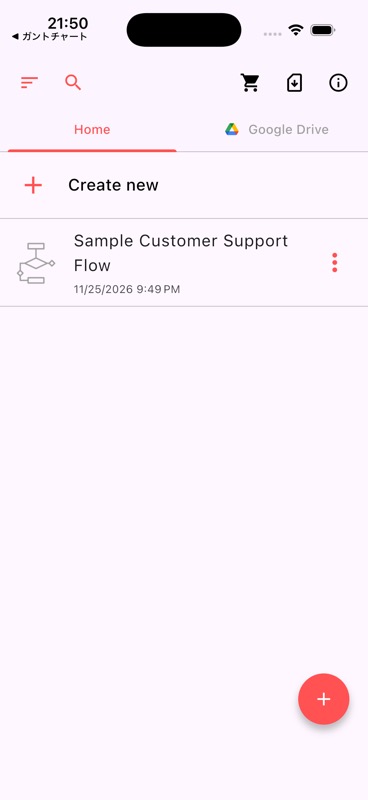
- Tap the + Create new row in the file list.
- Enter a file name and select OK to open the diagram editor.
Keisti failų rikiavimo tvarką
- Naudokite failų sąrašo viršuje esantį rikiavimo valdiklį. Mažame ekrane atidarykite rikiavimo meniu.
- Pasirinkite rikiavimą pagal pakeitimo datą arba failo pavadinimą.
Search for a file by name
- Open Home or Google Drive, depending on where the file is stored, and select the Search icon.
- Enter part of the name in Search by file name. Select Close to see the full list again.
Dubliuoti failą
- Atidarykite failo trijų taškų meniu ir pasirinkite „Dubliuoti“.
- Atidarykite į sąrašą įtrauktą kopiją, kad galėtumėte ją redaguoti išsaugodami originalą.
Ištrinti failą
- Atidarykite failo trijų taškų meniu ir pasirinkite „Ištrinti“.
- Patikrinkite patvirtinimo pranešimą ir pasirinkite „OK“.
Jei failas bendrinamas su jumis, meniu gali būti parinktis pašalinti bendrinimą.
Pervadinti failą
- Atverkite failo trijų taškų meniu ir pasirinkite „Pervadinti“.
- Įveskite naują pavadinimą ir patvirtinkite.
Norint pervadinti su jumis bendrinamą Google Drive failą, reikia turėti redagavimo teises.
Import a flowchart
- Select Import in the file list, then select OK to open the file picker.
- Choose a Simple Flowchart file (.sflowchart).
Išsaugoti Google Drive
- Failų sąraše pasirinkite Google Drive ir vadovaukitės pateiktais nurodymais, kad susietumėte savo Google paskyrą.
- Sukurkite naują failą Google Drive sąraše. Jei tokia parinktis yra, vietinį failą taip pat galite perkelti į Google Drive naudodami jo trijų taškų meniu.
Norėdami atverti failą kitame įrenginyje, susiekite Google paskyrą, kurią naudojote jam išsaugoti.
Perkelti failus iš įrenginio į Google Drive ir atvirkščiai
- Įdiegtoje programėlėje susiekite savo Google paskyrą ir atverkite failo trijų taškų meniu.
- Atsižvelgdami į failo saugojimo vietą, pasirinkite „Perkelti į Google Drive“ arba „Perkelti į pradžią (Home)“ ir patvirtinkite.
Failų redagavimas
Add shapes and edit their text
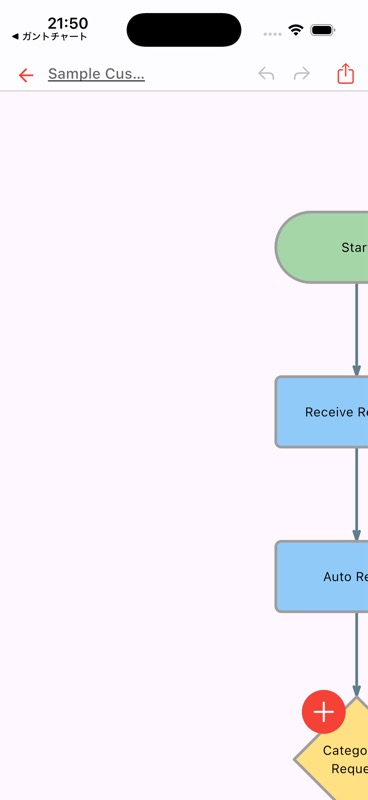
- Tap the red + button to add a shape. If a shape is already selected, the app also connects it to the new shape.
- Select the shape and tap the edit icon at the bottom to change its text.
- Use Change shape in the bottom toolbar to choose a shape for a process, decision, or other step.
Connect shapes with a line
- Tap the shape where the line should start.
- Tap Connection Line. When prompted, tap the destination shape.
- Select the new line to adjust its style or arrow.
Adjust a shape’s position or size
- Select a shape and choose Adjust position or Change size in the bottom toolbar.
- Use the controls that appear to adjust the shape, then confirm the change.
Export a flowchart
- Select the share icon in the top-right corner of the editor.
- Use Image (.png) or PDF to share a visual copy. Select Mermaid (.mermaid) to use the diagram with Mermaid, or SimpleFlowchart(.sflowchart) to reimport it into the app.
Export formats marked with a lock require Pro.
Pirkiniai
Įsigyti mokamą planą
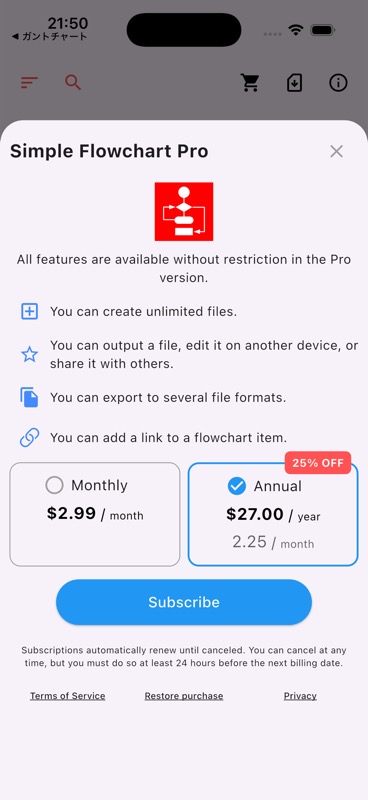
- Failų sąraše pasirinkite krepšelio piktogramą.
- Pirkimo ekrane peržiūrėkite planus ir kainas, tada pasirinkite norimą įsigyti planą.
Atkurti pirkinį
- Jei pirkote programėlių parduotuvėje, prisijunkite prie parduotuvės paskyros, kurią naudojote planui įsigyti.
- Programėlėje atidarykite pirkimo ekraną, pasirinkite „Atkurti pirkinius“ ir patikrinkite rezultatą.
Tvarkyti pirkinį arba prenumeratą
- Jei failų sąrašo informacijos meniu yra pirkinių tvarkymo parinktis, ją atidarykite.
- Norėdami peržiūrėti arba atšaukti prenumeratą, naudokitės parduotuve ar paslauga, kurioje įsigijote planą.
Mokama paskyra
Susieti pirkinį su „Google“ paskyra
- Įrenginyje, kuriame turite aktyvų pirkinį, prisijunkite prie savo „Google“ paskyros.
- Jei meniu rodoma parinktis susieti pirkinį su „Google“ paskyra, ją pasirinkite ir patvirtinkite paskyrą.
- Norėdami naudoti mokamą planą kitame palaikomame įrenginyje, prisijunkite prie susietos „Google“ paskyros.
Perjungti „Google“ paskyras
- Failų sąrašo informacijos meniu patikrinkite, kuri „Google“ paskyra šiuo metu aktyvi.
- Jei yra atsijungimo parinktis, ją pasirinkite, tada atidarykite „Google Drive“ ir prisijunkite prie norimos naudoti paskyros.
Kitame įrenginyje naudokite paskyrą, susietą su pirkiniu arba „Drive“ failais, kuriuos norite pasiekti.