የፋይሎች ዝርዝር
Create a tournament bracket
- Select the + Create new row in the file list.
- Enter a name, such as the event name, and select OK to open the bracket.
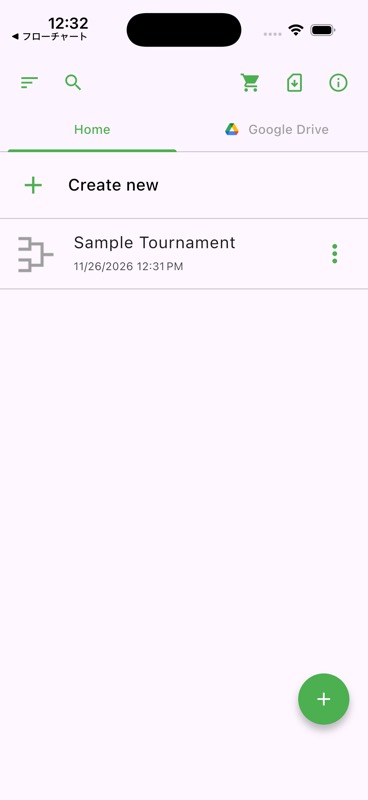
የፋይሎችን የመደርደሪያ ቅደም ተከተል መቀየር
- በፋይሎች ዝርዝር አናት ላይ ያለውን የመደርደሪያ መቆጣጠሪያ ይጠቀሙ። በትንሽ ማያ ገጽ ላይ የመደርደሪያ ምናሌውን ይክፈቱ።
- በተሻሻለበት ቀን ወይም በፋይል ስም ለመደርደር ይምረጡ።
Search for a file by name
- Open Home or Google Drive, depending on where the file is stored, and select the Search icon.
- Enter part of the name in Search by file name. Select Close to see the full list again.
ፋይል ማባዛት
- የፋይሉን የሦስት ነጥብ ምናሌ ይክፈቱ እና «አባዛ»ን ይምረጡ።
- ዋናውን ፋይል እንዳለ ለማቆየት፣ ወደ ዝርዝሩ የተጨመረውን ቅጂ ከፍተው ያርትዑ።
ፋይል መሰረዝ
- የፋይሉን የሦስት ነጥብ ምናሌ ይክፈቱ እና «ሰርዝ»ን ይምረጡ።
- የማረጋገጫ መልዕክቱን ይመልከቱ እና «እሺ»ን ይምረጡ።
ከእርስዎ ጋር ለተጋራ ፋይል፣ ምናሌው ማጋራቱን ለማስወገድ የሚያስችል አማራጭ ሊያሳይ ይችላል።
የፋይል ስም መቀየር
- የፋይሉን የሦስት ነጥብ ምናሌ ይክፈቱና «ስም ቀይር» የሚለውን ይምረጡ።
- አዲሱን ስም ያስገቡና ያረጋግጡ።
ከእርስዎ ጋር የተጋራን Google Drive ፋይል ስም ለመቀየር የማርትዕ ፈቃድ ያስፈልግዎታል።
Import a tournament bracket
- Select Import in the file list and select OK to open the file picker.
- Choose an iTournament file (.itourn).
በGoogle Drive ላይ ያስቀምጡ
- በፋይሎች ዝርዝር ውስጥ Google Driveን ይምረጡና የGoogle መለያዎን ለማገናኘት መመሪያዎቹን ይከተሉ።
- ከGoogle Drive ዝርዝር አዲስ ፋይል ይፍጠሩ። አማራጩ ካለ፣ በመሣሪያዎ ላይ ያለን ፋይል ከሦስት ነጥብ ምናሌው ወደ Google Drive ማዛወርም ይችላሉ።
ፋይሉን በሌላ መሣሪያ ላይ ለመክፈት፣ ለማስቀመጥ የተጠቀሙበትን የGoogle መለያ ያገናኙ።
በመሣሪያዎ እና በGoogle Drive መካከል ፋይሎችን ያዛውሩ
- በተጫነው መተግበሪያ ውስጥ የGoogle መለያዎን ያገናኙና የፋይሉን የሦስት ነጥብ ምናሌ ይክፈቱ።
- ፋይሉ በተቀመጠበት ቦታ መሠረት «ወደ Google Drive አዛውር» ወይም «ወደ መነሻ አዛውር» የሚለውን ይምረጡና ያረጋግጡ።
ፋይሎችን ማርትዕ
Enter players or teams
- Select a first-round slot in the bracket to open Team Edit.
- Enter a name and select OK. If you need more slots, use + at the bottom of the editor to expand the bracket.
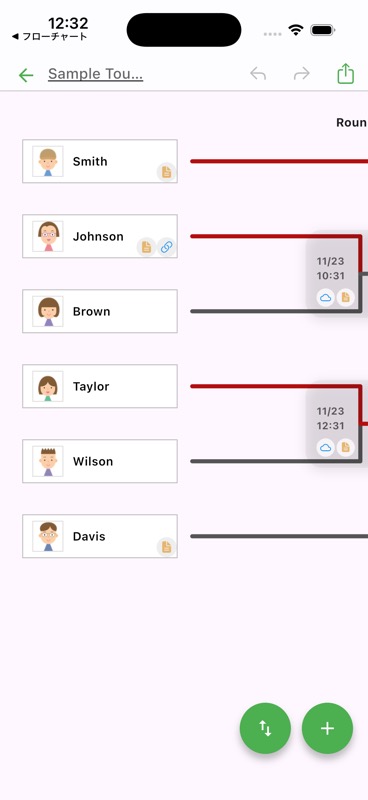
Swap players or teams in the bracket
- Use the up-and-down arrows at the bottom of the editor to open the team list.
- Select the arrows next to one team, then select the arrows next to the team that should swap places with it.
Record scores and the winner
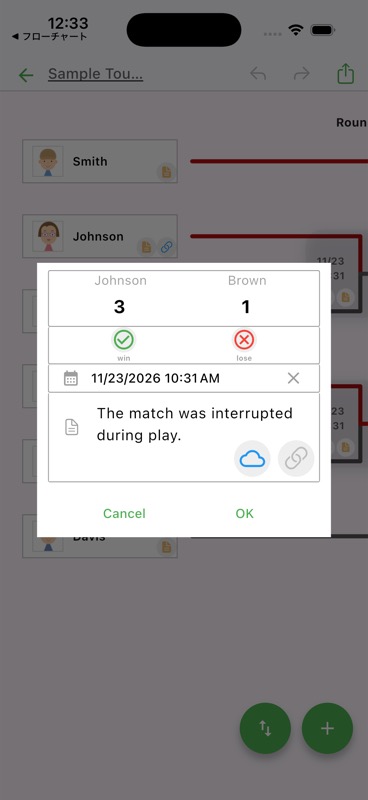
- Once both teams are known, tap the date and score area on the match card in the bracket.
- Enter both scores. Use Win Loss Settings to review or change the winner if needed, then select OK and check the next round.
Export a tournament bracket
- Select Export in the top-right corner of the editor.
- Choose Image (.png) to distribute the bracket, CSV or Excel for analysis, or iTournament (.itourn) to reimport it later.
Export formats marked with a lock require Pro.
ግዢዎች
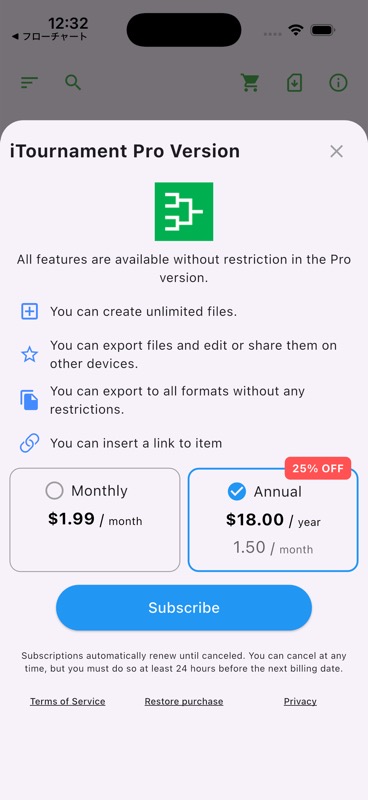
ክፍያ የሚጠይቅ ዕቅድ ይግዙ
- በፋይሎች ዝርዝር ውስጥ የግዢ ጋሪ አዶውን ይምረጡ።
- በግዢ ማያ ገጹ ላይ ያሉትን ዕቅዶችና ዋጋዎች ይመልከቱ፣ ከዚያም መግዛት የሚፈልጉትን ዕቅድ ይምረጡ።
ግዢን መልሰው ያግኙ
- ዕቅዱን ከመተግበሪያ መደብር ገዝተው ከሆነ፣ ለግዢው በተጠቀሙበት የመደብር መለያ ይግቡ።
- በመተግበሪያው ውስጥ የግዢ ማያ ገጹን ይክፈቱ፣ «ግዢዎችን መልሶ ማግኘት» የሚለውን ይምረጡና ውጤቱን ያረጋግጡ።
ግዢን ወይም ደንበኝነትን ያስተዳድሩ
- በፋይሎች ዝርዝር የመረጃ ምናሌ ውስጥ ግዢን የማስተዳደር አማራጭ ካለ፣ ይክፈቱት።
- ደንበኝነትዎን ለመመልከት ወይም ለመሰረዝ፣ ዕቅዱን የገዙበትን መደብር ወይም አገልግሎት ይጠቀሙ።
የሚከፈልበት መለያ
ግዢዎን ከGoogle መለያ ጋር ያገናኙ
- ግዢዎ በሥራ ላይ ባለበት መሣሪያ ላይ ወደ Google መለያዎ ይግቡ።
- ግዢዎን ከGoogle መለያ ጋር የማገናኘት አማራጭ በምናሌው ውስጥ ከታየ፣ ይምረጡትና መለያውን ያረጋግጡ።
- ክፍያ የሚጠይቀውን ዕቅድዎን በሌላ የሚደገፍ መሣሪያ ላይ ለመጠቀም፣ ከግዢው ጋር በተገናኘው የGoogle መለያ ይግቡ።
የGoogle መለያዎችን ይቀይሩ
- በፋይሎች ዝርዝር የመረጃ ምናሌ ውስጥ የትኛው የGoogle መለያ በአሁኑ ጊዜ ጥቅም ላይ እንዳለ ያረጋግጡ።
- ከመለያ የመውጣት አማራጭ ካለ፣ ይምረጡት፤ ከዚያ Google Driveን ከፍተው ሊጠቀሙበት በሚፈልጉት መለያ ይግቡ።
በሌላ መሣሪያ ላይ ከግዢው ወይም ሊደርሱባቸው ከሚፈልጉት የDrive ፋይሎች ጋር የተያያዘውን መለያ ይጠቀሙ።