檔案清單
Create a stock list
- Select + Create new in the file list and give the list a name, such as the storage location you want to track.
- Select OK to open the stock list.
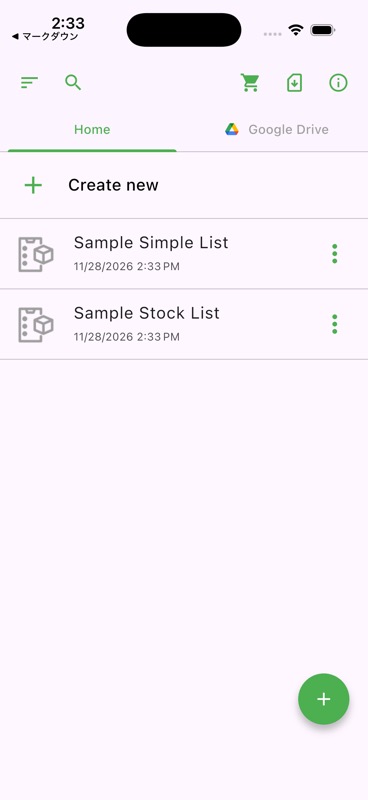
變更檔案排序方式
- 使用檔案清單頂端的排序控制項。在較小的螢幕上,開啟排序選單。
- 選擇依修改日期或檔案名稱排序。
Search for a file by name
- Open Home or Google Drive, depending on where the file is stored, and select the Search icon.
- Enter part of the name in Search by file name. Select Close to see the full list again.
製作檔案複本
- 開啟檔案的三點選單,並選取「製作複本」。
- 開啟清單中新增的複本,即可在保留原始檔案的情況下進行編輯。
刪除檔案
- 開啟檔案的三點選單,並選取「刪除」。
- 確認提示訊息後,選取「確定」。
對於他人與你分享的檔案,選單中可能會提供取消分享的選項。
重新命名檔案
- 開啟檔案的三點選單,選擇「重新命名」。
- 輸入新名稱並確認。
您需要具備編輯權限,才能重新命名與您共用的 Google Drive 檔案。
Import a stock list file
- Select Import in the file list and select OK to open the file picker.
- Choose a Simple Stock List file (.sstock). You can also import a JSON file containing data in the same format.
儲存至 Google Drive
- 在檔案清單中選擇 Google Drive,並依照提示連結您的 Google 帳戶。
- 在 Google Drive 清單中建立新檔案。如果有此選項,也可以透過本機檔案的三點選單將其移至 Google Drive。
若要在其他裝置上開啟檔案,請連結儲存該檔案時使用的 Google 帳戶。
在裝置與 Google Drive 之間移動檔案
- 在已安裝的 App 中連結您的 Google 帳戶,然後開啟檔案的三點選單。
- 依照檔案的儲存位置,選擇「移至 Google Drive」或「移至首頁」,然後確認。
編輯檔案
Add an item and set its unit
- Tap + in the lower-right corner to add a row at the end of the list. Tap the name in the new row to edit it.
- Enter the item name and a unit such as “pieces” or “boxes,” then select OK. Add a label or note if needed.
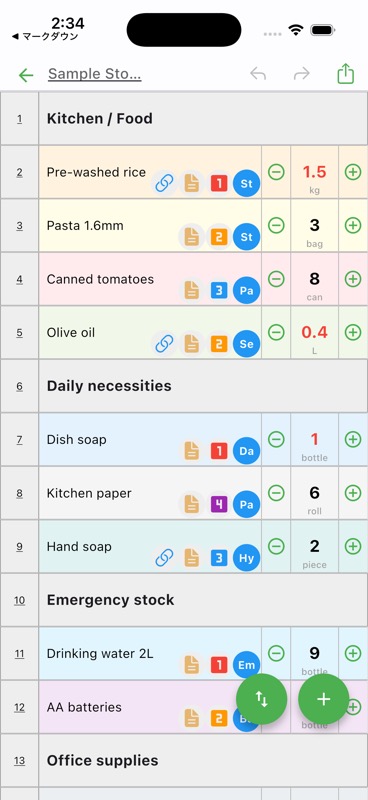
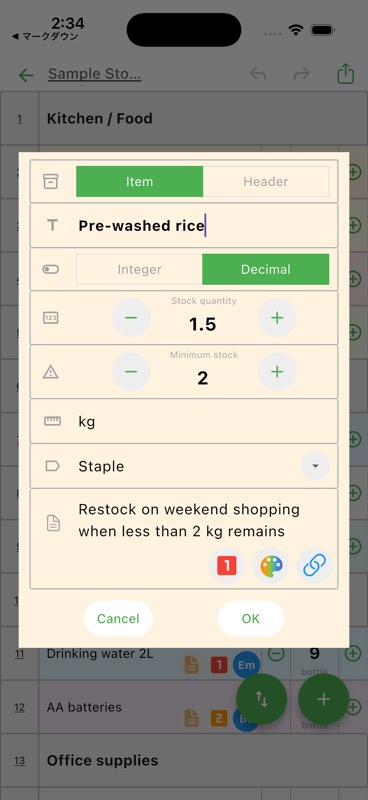
Increase, decrease, or enter stock directly
- Use − or + on an item’s row to change its stock quantity by one.
- When you know the exact count, tap the quantity, enter the number in Stock quantity, then select OK.
Set a minimum stock level and spot items to replenish
- Tap an item name or quantity. Enter the threshold in Minimum stock and select OK.
- The quantity turns red when it falls below the threshold, so you can spot items to replenish in the list.
Group and reorder items
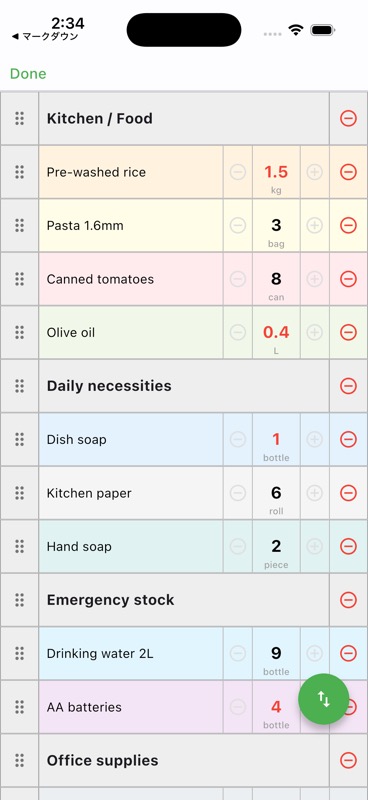
- Open the item you want to use as a heading, select Header, and give it a name.
- Tap the up-and-down arrows in the lower-right corner, then drag the handle on the left of a row. Select Done at the top when you finish.
Export a stock list to CSV or Excel
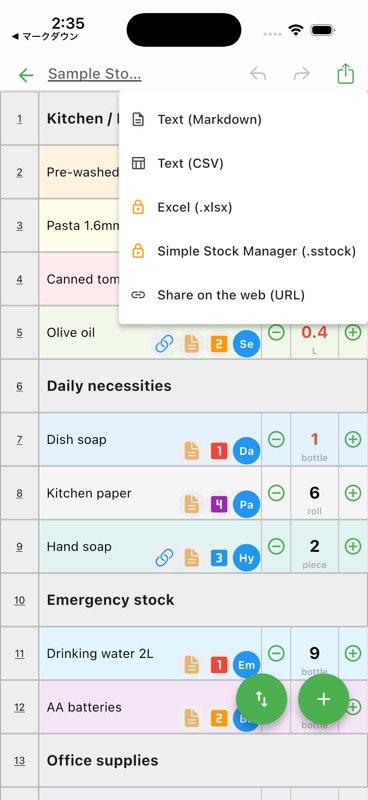
- Open the share menu in the top-right corner. Choose CSV or Excel to work with the quantities in another app.
- Choose the .sstock format if you want to import the file back into the app.
Export formats marked with a lock require Pro.
購買
購買付費方案
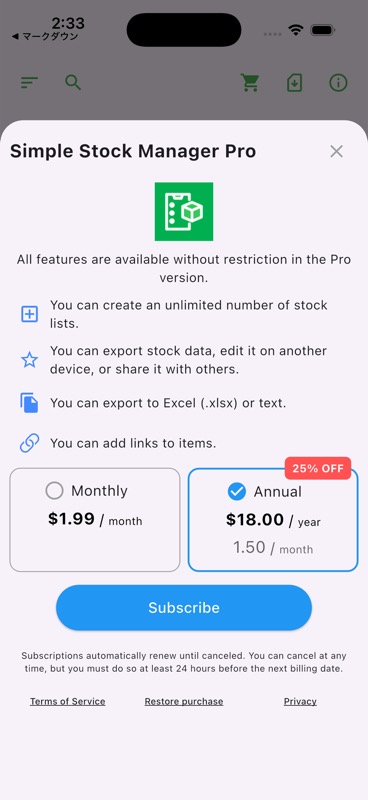
- 在檔案清單中選取購物車圖示。
- 在購買畫面查看各方案及價格,接著選取要購買的方案。
回復購買項目
- 如果是透過 App 商店購買的,請使用購買該方案時所用的商店帳號登入。
- 開啟 App 內的購買畫面,選取「回復購買項目」,並確認結果。
管理購買項目或訂閱
- 如果檔案清單的資訊選單中有購買管理選項,請開啟該選項。
- 請透過購買方案時使用的商店或服務查看或取消訂閱。
付費帳號
將購買項目連結至 Google 帳號
- 在購買項目仍有效的裝置上登入你的 Google 帳號。
- 如果選單中出現將購買項目連結至 Google 帳號的選項,請選取該選項並確認帳號。
- 若要在其他支援的裝置上使用付費方案,請使用已連結的 Google 帳號登入。
切換 Google 帳號
- 在檔案清單的資訊選單中確認目前使用的 Google 帳號。
- 如果有登出選項,請選取該選項,接著開啟 Google Drive 並登入要使用的帳號。
在其他裝置上,請使用與購買項目或要存取的 Drive 檔案相關聯的帳號。