รายการไฟล์
Create a stock list
- Select + Create new in the file list and give the list a name, such as the storage location you want to track.
- Select OK to open the stock list.
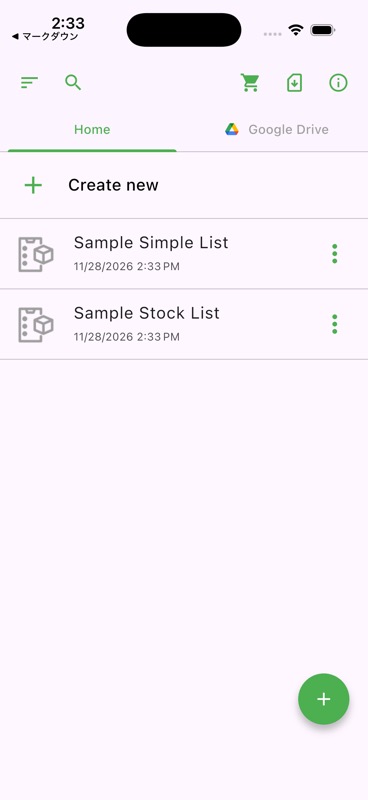
เปลี่ยนลำดับการจัดเรียงไฟล์
- ใช้ตัวเลือกการจัดเรียงที่ด้านบนของรายการไฟล์ หากใช้หน้าจอขนาดเล็ก ให้เปิดเมนูจัดเรียง
- เลือกจัดเรียงตามวันที่แก้ไขหรือชื่อไฟล์
Search for a file by name
- Open Home or Google Drive, depending on where the file is stored, and select the Search icon.
- Enter part of the name in Search by file name. Select Close to see the full list again.
ทำสำเนาไฟล์
- เปิดเมนูจุดสามจุดของไฟล์ แล้วเลือก «ทำสำเนา»
- เปิดสำเนาที่เพิ่มเข้ามาในรายการเพื่อแก้ไขโดยยังคงไฟล์ต้นฉบับไว้
ลบไฟล์
- เปิดเมนูจุดสามจุดของไฟล์ แล้วเลือก «ลบ»
- ตรวจสอบข้อความยืนยัน แล้วเลือก OK
สำหรับไฟล์ที่มีผู้อื่นแชร์ให้คุณ เมนูอาจมีตัวเลือกให้ยกเลิกการแชร์
เปลี่ยนชื่อไฟล์
- เปิดเมนูจุดสามจุดของไฟล์แล้วเลือก เปลี่ยนชื่อ
- ป้อนชื่อใหม่แล้วยืนยัน
คุณต้องมีสิทธิ์แก้ไขจึงจะเปลี่ยนชื่อไฟล์ Google Drive ที่แชร์กับคุณได้
Import a stock list file
- Select Import in the file list and select OK to open the file picker.
- Choose a Simple Stock List file (.sstock). You can also import a JSON file containing data in the same format.
บันทึกไปยัง Google Drive
- เลือก Google Drive ในรายการไฟล์ แล้วทำตามคำแนะนำเพื่อเชื่อมต่อบัญชี Google ของคุณ
- สร้างไฟล์ใหม่จากรายการ Google Drive หากมีตัวเลือกนี้ คุณยังสามารถย้ายไฟล์ในอุปกรณ์ไปยัง Google Drive ได้จากเมนูจุดสามจุดของไฟล์
หากต้องการเปิดไฟล์บนอุปกรณ์อื่น ให้เชื่อมต่อบัญชี Google ที่ใช้บันทึกไฟล์นั้น
ย้ายไฟล์ระหว่างอุปกรณ์ของคุณกับ Google Drive
- ในแอปที่ติดตั้งบนอุปกรณ์ ให้เชื่อมต่อบัญชี Google ของคุณแล้วเปิดเมนูจุดสามจุดของไฟล์
- เลือก ย้ายไปยัง Google Drive หรือ ย้ายไปยังหน้าหลัก ตามตำแหน่งที่บันทึกไฟล์ แล้วจึงยืนยัน
การแก้ไขไฟล์
Add an item and set its unit
- Tap + in the lower-right corner to add a row at the end of the list. Tap the name in the new row to edit it.
- Enter the item name and a unit such as “pieces” or “boxes,” then select OK. Add a label or note if needed.
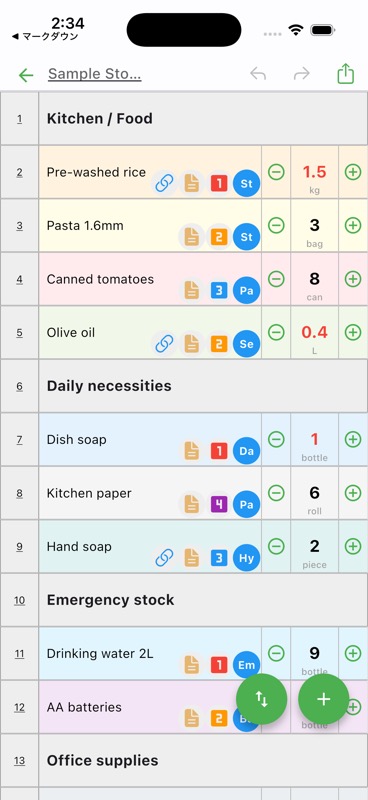
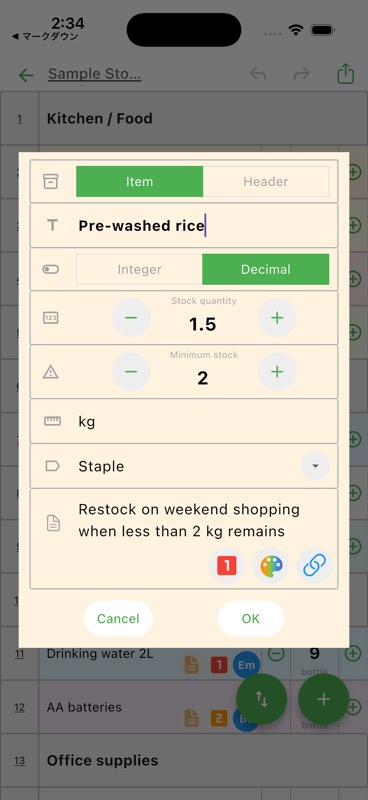
Increase, decrease, or enter stock directly
- Use − or + on an item’s row to change its stock quantity by one.
- When you know the exact count, tap the quantity, enter the number in Stock quantity, then select OK.
Set a minimum stock level and spot items to replenish
- Tap an item name or quantity. Enter the threshold in Minimum stock and select OK.
- The quantity turns red when it falls below the threshold, so you can spot items to replenish in the list.
Group and reorder items
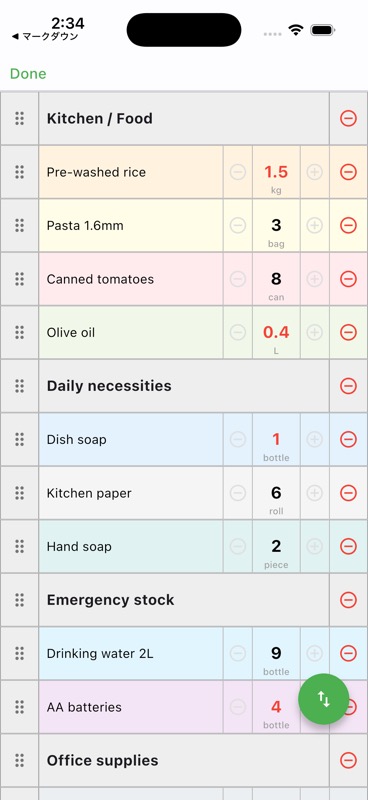
- Open the item you want to use as a heading, select Header, and give it a name.
- Tap the up-and-down arrows in the lower-right corner, then drag the handle on the left of a row. Select Done at the top when you finish.
Export a stock list to CSV or Excel
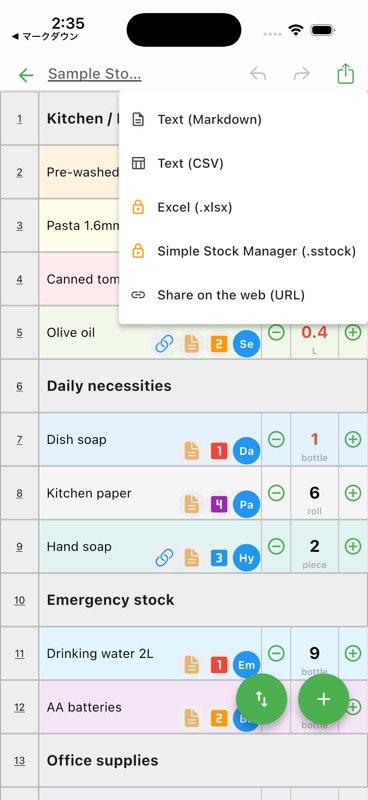
- Open the share menu in the top-right corner. Choose CSV or Excel to work with the quantities in another app.
- Choose the .sstock format if you want to import the file back into the app.
Export formats marked with a lock require Pro.
การซื้อ
ซื้อแพ็กเกจแบบชำระเงิน
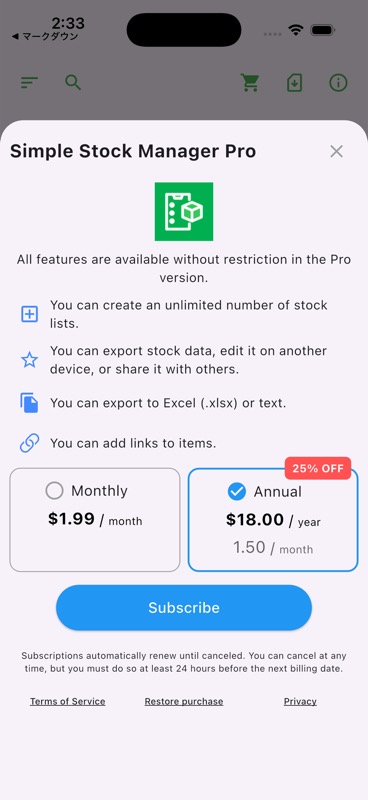
- เลือกไอคอนรถเข็นในรายการไฟล์
- ตรวจสอบแพ็กเกจและราคาบนหน้าจอการซื้อ จากนั้นเลือกแพ็กเกจที่ต้องการซื้อ
กู้คืนการซื้อ
- หากซื้อผ่านร้านค้าแอป ให้ลงชื่อเข้าใช้ด้วยบัญชีร้านค้าที่ใช้ซื้อแพ็กเกจ
- เปิดหน้าจอการซื้อในแอป เลือก «กู้คืนการซื้อ» แล้วตรวจสอบผลลัพธ์
จัดการการซื้อหรือการสมัครสมาชิก
- หากเมนูข้อมูลในรายการไฟล์มีตัวเลือกจัดการการซื้อ ให้เปิดตัวเลือกนั้น
- ใช้ร้านค้าหรือบริการที่คุณซื้อแพ็กเกจเพื่อตรวจสอบหรือยกเลิกการสมัครสมาชิก
บัญชีแบบชำระเงิน
เชื่อมโยงการซื้อกับบัญชี Google
- ลงชื่อเข้าใช้บัญชี Google บนอุปกรณ์ที่มีการซื้อที่ยังใช้งานได้
- หากตัวเลือกเชื่อมโยงการซื้อกับบัญชี Google ปรากฏในเมนู ให้เลือกตัวเลือกนั้นและยืนยันบัญชี
- หากต้องการใช้แพ็กเกจแบบชำระเงินบนอุปกรณ์อื่นที่รองรับ ให้ลงชื่อเข้าใช้ด้วยบัญชี Google ที่เชื่อมโยงไว้
สลับบัญชี Google
- ตรวจสอบว่ากำลังใช้บัญชี Google ใดอยู่ในเมนูข้อมูลของรายการไฟล์
- หากมีตัวเลือกออกจากระบบ ให้เลือกตัวเลือกนั้น จากนั้นเปิด Google Drive และลงชื่อเข้าใช้บัญชีที่ต้องการใช้
บนอุปกรณ์อื่น ให้ใช้บัญชีที่เชื่อมโยงกับการซื้อหรือไฟล์ใน Drive ที่คุณต้องการเข้าถึง