Mndandanda wa mafayilo
Create a stock list
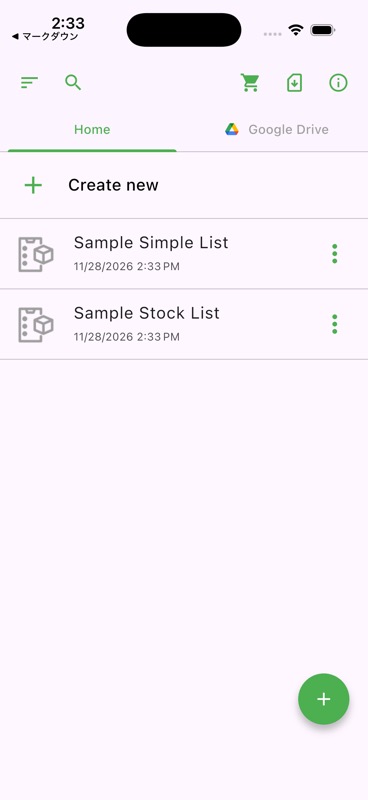
- Select + Create new in the file list and give the list a name, such as the storage location you want to track.
- Select OK to open the stock list.
Kusintha dongosolo la mafayilo
- Gwiritsani ntchito njira yosanja yomwe ili pamwamba pa mndandanda wa mafayilo. Pa sikirini yaying'ono, tsegulani menyu yosanja.
- Sankhani kusanja potengera tsiku limene fayilo inasinthidwa kapena dzina la fayilo.
Search for a file by name
- Open Home or Google Drive, depending on where the file is stored, and select the Search icon.
- Enter part of the name in Search by file name. Select Close to see the full list again.
Kupanga kope la fayilo
- Tsegulani menyu ya madontho atatu ya fayiloyo ndikusankha Pangani kope.
- Tsegulani kope lomwe lawonjezedwa pa mndandanda kuti mulisinthe pamene mukusunga fayilo yoyambirira.
Kuchotsa fayilo
- Tsegulani menyu ya madontho atatu ya fayiloyo ndikusankha Chotsani.
- Yang'anani uthenga wotsimikizira ndikusankha OK.
Pa fayilo yomwe munthu wina wagawana nanu, menyu ikhoza kukhala ndi njira yochotsera kugawana.
Kusintha dzina la fayilo
- Tsegulani menyu ya madontho atatu ya fayiloyo ndikusankha Sinthani dzina.
- Lowetsani dzina latsopano ndikutsimikizira.
Muyenera kukhala ndi chilolezo chosinthira fayilo ya Google Drive yomwe mwagawana nayo kuti musinthe dzina lake.
Import a stock list file
- Select Import in the file list and select OK to open the file picker.
- Choose a Simple Stock List file (.sstock). You can also import a JSON file containing data in the same format.
Sungani ku Google Drive
- Sankhani Google Drive pa mndandanda wa mafayilo ndipo tsatirani malangizo kuti mulumikize akaunti yanu ya Google.
- Pangani fayilo yatsopano kuchokera pa mndandanda wa Google Drive. Ngati njirayi ilipo, mungasamutsenso fayilo yosungidwa pa chipangizo chanu kupita ku Google Drive pogwiritsa ntchito menyu yake ya madontho atatu.
Kuti mutsegule fayiloyo pa chipangizo china, lumikizani akaunti ya Google yomwe munagwiritsa ntchito poisunga.
Samutsani mafayilo pakati pa chipangizo chanu ndi Google Drive
- Mu pulogalamu yomwe mwaika pa chipangizo chanu, lumikizani akaunti yanu ya Google ndipo tsegulani menyu ya madontho atatu ya fayiloyo.
- Sankhani Samutsani ku Google Drive kapena Samutsani ku Home, malinga ndi kumene fayiloyo yasungidwa, ndipo tsimikizirani.
Kusintha mafayilo
Add an item and set its unit
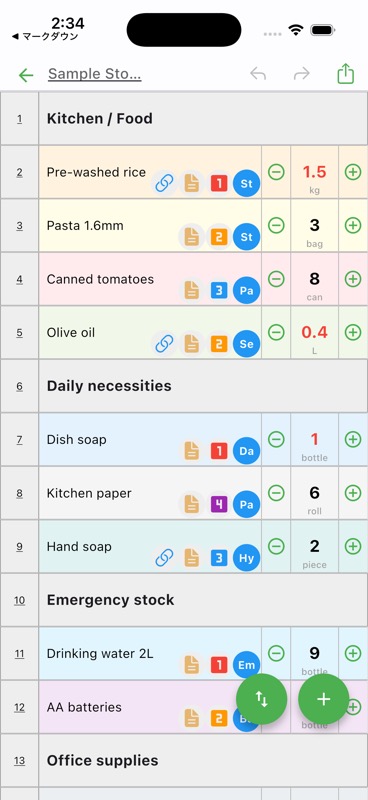
- Tap + in the lower-right corner to add a row at the end of the list. Tap the name in the new row to edit it.
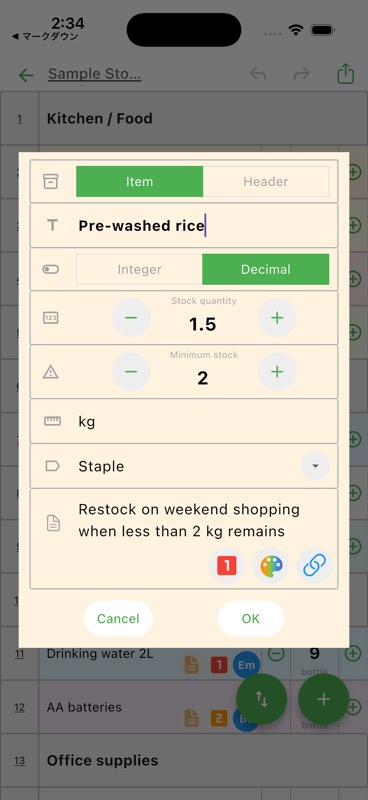
- Enter the item name and a unit such as “pieces” or “boxes,” then select OK. Add a label or note if needed.
Increase, decrease, or enter stock directly
- Use − or + on an item’s row to change its stock quantity by one.
- When you know the exact count, tap the quantity, enter the number in Stock quantity, then select OK.
Set a minimum stock level and spot items to replenish
- Tap an item name or quantity. Enter the threshold in Minimum stock and select OK.
- The quantity turns red when it falls below the threshold, so you can spot items to replenish in the list.
Group and reorder items
- Open the item you want to use as a heading, select Header, and give it a name.
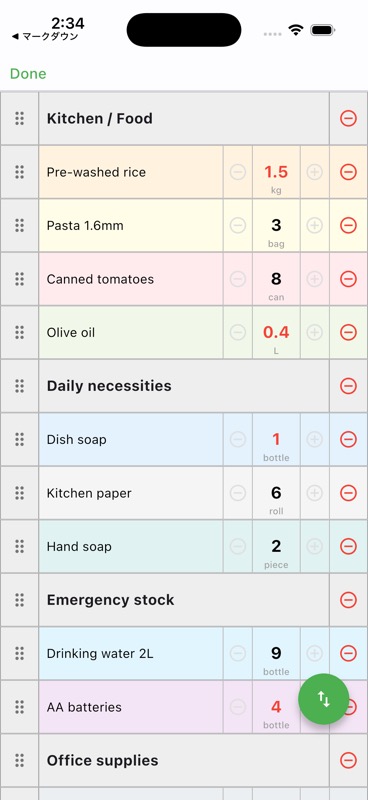
- Tap the up-and-down arrows in the lower-right corner, then drag the handle on the left of a row. Select Done at the top when you finish.
Export a stock list to CSV or Excel
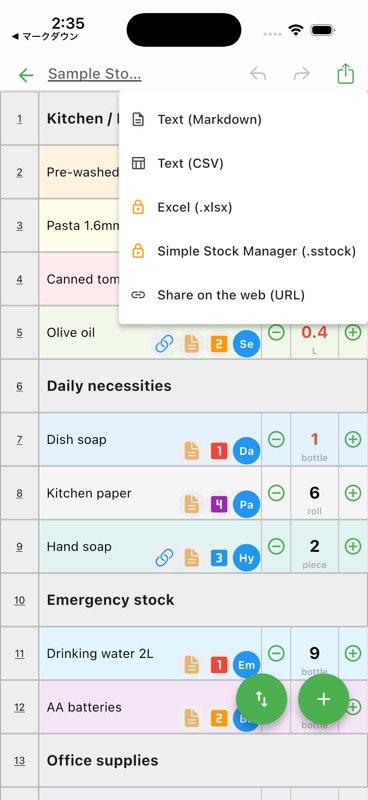
- Open the share menu in the top-right corner. Choose CSV or Excel to work with the quantities in another app.
- Choose the .sstock format if you want to import the file back into the app.
Export formats marked with a lock require Pro.
Zogula
Gulani pulani yolipira
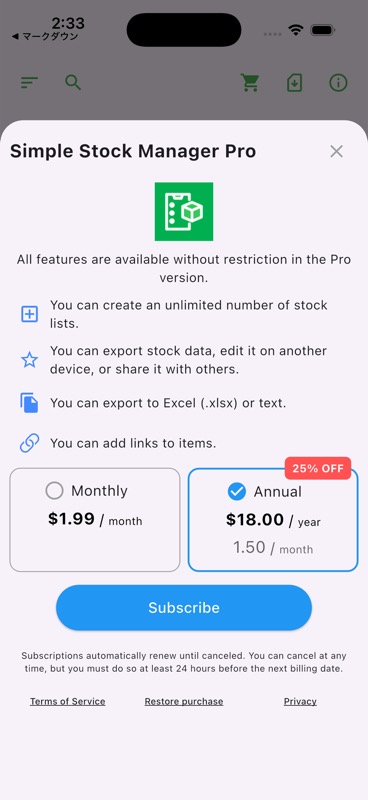
- Sankhani chizindikiro cha dengu logulira pa mndandanda wa mafayilo.
- Onani mapulani ndi mitengo yake pa sikirini yogulira, kenako sankhani pulani yomwe mukufuna kugula.
Bwezeretsani zomwe munagula
- Ngati munagula kudzera m'sitolo ya mapulogalamu, lowani ndi akaunti ya sitolo yomwe munagwiritsa ntchito pogula pulaniyo.
- Tsegulani sikirini yogulira mu pulogalamuyi, sankhani «Bwezeretsani zomwe munagula», ndipo onani zotsatira zake.
Samalirani zomwe munagula kapena zolembetsa zanu
- Ngati menyu ya zambiri pa mndandanda wa mafayilo ili ndi njira yosamalira zogula, tsegulani njirayo.
- Gwiritsani ntchito sitolo kapena sevisi imene munagulako pulaniyo kuti muone kapena kuletsa zolembetsa zanu.
Akaunti yolipira
Lumikizani zomwe munagula ndi akaunti ya Google
- Lowani mu akaunti yanu ya Google pa chipangizo chomwe muli ndi zomwe munagula zomwe zikugwirabe ntchito.
- Ngati njira yolumikiza zomwe munagula ndi akaunti ya Google ikuoneka mu menyu, sankhani njirayo ndipo tsimikizirani akauntiyo.
- Kuti mugwiritse ntchito pulani yanu yolipira pa chipangizo china chomwe chimathandizidwa, lowani ndi akaunti ya Google yolumikizidwayo.
Sinthani akaunti ya Google
- Onani akaunti ya Google yomwe ikugwiritsidwa ntchito mu menyu ya zambiri pa mndandanda wa mafayilo.
- Ngati njira yotulukira mu akaunti ilipo, sankhani njirayo, kenako tsegulani Google Drive ndipo lowani mu akaunti yomwe mukufuna kugwiritsa ntchito.
Pa chipangizo china, gwiritsani ntchito akaunti yolumikizidwa ndi zomwe munagula kapena mafayilo a Drive omwe mukufuna kupeza.