Fayllar ro‘yxati
Create an HTML file
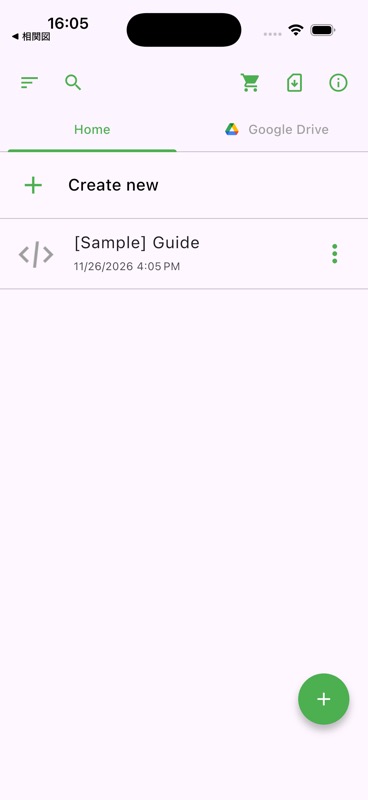
- Select + Create new in the file list.
- Enter a name for the page, then select OK to open the editor.
Fayllarni saralash tartibini o‘zgartirish
- Fayllar ro‘yxatining yuqori qismidagi saralash boshqaruvidan foydalaning. Ixcham ekranda saralash menyusini oching.
- O‘zgartirilgan sana yoki fayl nomi bo‘yicha saralashni tanlang.
Search for a file by name
- Open Home or Google Drive, depending on where the file is stored, and select the Search icon.
- Enter part of the name in Search by file name. Select Close to see the full list again.
Faylni nusxalash
- Faylning uch nuqtali menyusini oching va Nusxalash bandini tanlang.
- Asl faylni saqlab qolgan holda tahrirlash uchun ro‘yxatga qo‘shilgan nusxani oching.
Faylni o‘chirish
- Faylning uch nuqtali menyusini oching va O‘chirish bandini tanlang.
- Tasdiqlash xabarini tekshiring va OK tugmasini tanlang.
Siz bilan ulashilgan fayl uchun menyuda ulashishni bekor qilish bandi bo‘lishi mumkin.
Fayl nomini o‘zgartirish
- Faylning uch nuqtali menyusini oching va Nomini o‘zgartirish bandini tanlang.
- Yangi nomni kiriting va tasdiqlang.
Siz bilan ulashilgan Google Drive faylining nomini o‘zgartirish uchun tahrirlash huquqi kerak.
Import an existing HTML file
- Select Import in the file list, then select OK to open the file picker.
- Choose an HTML file (.html or .htm) and open it from the list.
Google Drive’ga saqlash
- Fayllar ro‘yxatida Google Drive’ni tanlang va Google hisobingizni ulash uchun ko‘rsatmalarga amal qiling.
- Google Drive ro‘yxatidan yangi fayl yarating. Agar tegishli imkoniyat mavjud bo‘lsa, qurilmadagi faylni uning uch nuqtali menyusi orqali Google Drive’ga ko‘chirishingiz ham mumkin.
Faylni boshqa qurilmada ochish uchun uni saqlashda foydalangan Google hisobingizni ulang.
Fayllarni qurilmangiz va Google Drive o‘rtasida ko‘chirish
- O‘rnatilgan ilovada Google hisobingizni ulang va faylning uch nuqtali menyusini oching.
- Fayl qayerda saqlanganiga qarab, Google Drive’ga ko‘chirish yoki Bosh sahifaga ko‘chirish bandini tanlang va tasdiqlang.
Fayllarni tahrirlash
Edit HTML and preview the page
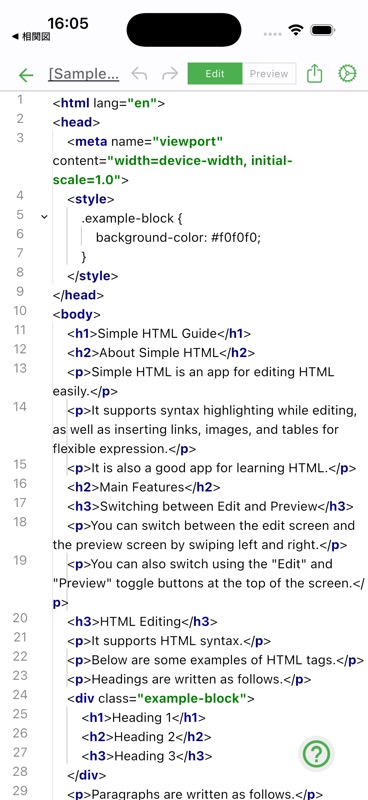
- Select Edit at the top and change the page text or markup. Try changing a heading or paragraph first.
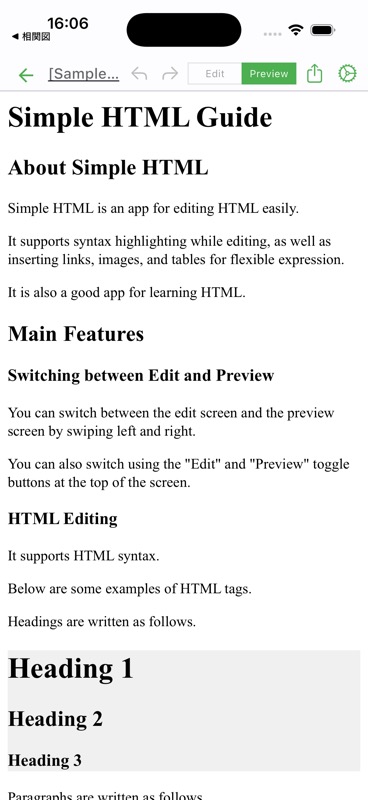
- Switch to Preview to check the headings, links, and layout. Return to Edit to make more changes.
Find and replace text in HTML
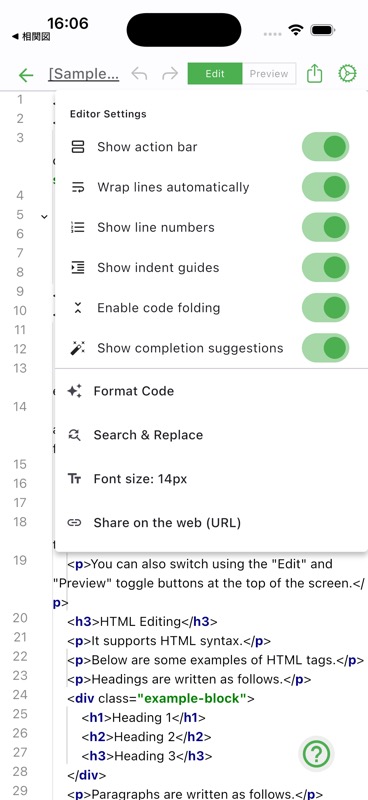
- While in Edit, select the gear icon in the top-right corner and choose Search & Replace in Editor Settings.
- Enter the text to find and move to the previous or next match. Use the Replace icon to open the replacement field, enter the new text, and choose Replace or Replace All.
Format HTML and adjust how lines are displayed
- Open the gear menu in the editor and select Format Code to tidy up indentation.
- Use the word wrap and line number settings to adjust how the code is displayed.
Share the HTML page by URL
- Open the gear menu in the top-right corner and choose Share on the web (URL).
- Copy the generated URL and send it to the recipient. The link shows the page as it was when the URL was created.
A shared URL cannot be revoked. Check what it contains before sending it.
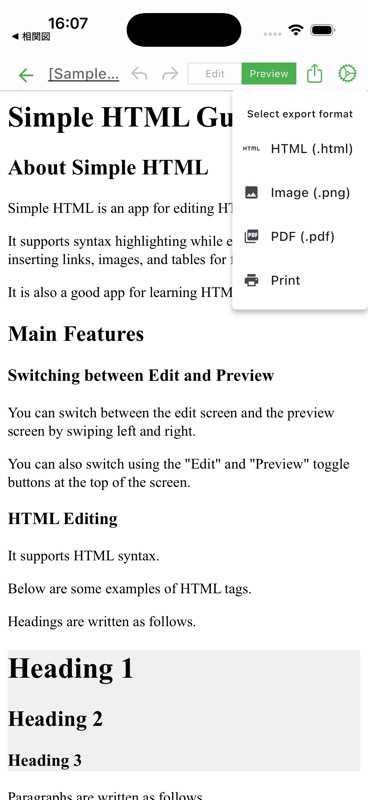
Export a page as HTML, an image, or PDF
- Select the share icon at the top of the screen. Choose HTML (.html) to reopen the file in a browser or edit it later.
- On a phone, choose PNG or PDF to preserve the page’s appearance.
Xaridlar
Pulli tarif rejasini xarid qilish
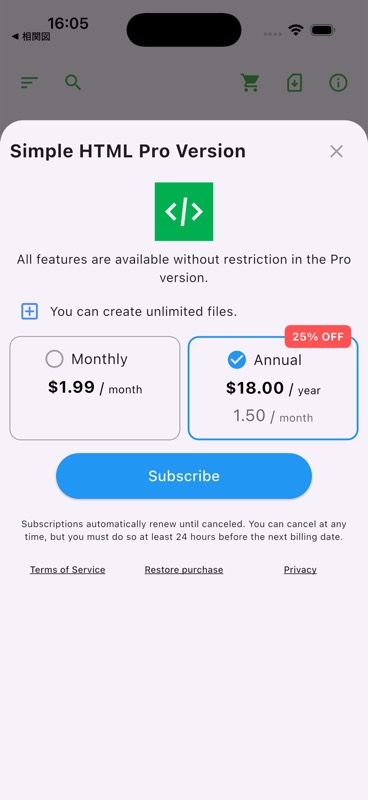
- Fayllar ro‘yxatidagi savat belgisini tanlang.
- Xarid ekranidagi tarif rejalari va narxlarni ko‘rib chiqing, so‘ng xarid qilmoqchi bo‘lgan rejangizni tanlang.
Xaridni tiklash
- Agar ilovalar do‘koni orqali xarid qilgan bo‘lsangiz, tarif rejasini xarid qilishda ishlatgan do‘kon hisobingizga kiring.
- Ilovadagi xarid ekranini oching, «Xaridlarni tiklash» bandini tanlang va natijani tekshiring.
Xarid yoki obunani boshqarish
- Agar fayllar ro‘yxatining ma’lumot menyusida xaridlarni boshqarish bandi mavjud bo‘lsa, uni oching.
- Obunangizni ko‘rib chiqish yoki bekor qilish uchun tarif rejasini xarid qilgan do‘kon yoki xizmatdan foydalaning.
Pulli hisob
Xaridingizni Google hisobiga bog‘lash
- Faol xaridingiz mavjud bo‘lgan qurilmada Google hisobingizga kiring.
- Agar menyuda xaridingizni Google hisobiga bog‘lash bandi paydo bo‘lsa, uni tanlang va hisobni tasdiqlang.
- Pulli tarif rejangizdan boshqa mos qurilmada foydalanish uchun bog‘langan Google hisobingizga kiring.
Google hisobini almashtirish
- Fayllar ro‘yxatining ma’lumot menyusida qaysi Google hisobi faol ekanini tekshiring.
- Agar hisobdan chiqish bandi mavjud bo‘lsa, uni tanlang, so‘ng Google Drive’ni oching va foydalanmoqchi bo‘lgan hisobingizga kiring.
Boshqa qurilmada xarid yoki foydalanmoqchi bo‘lgan Drive fayllaringiz bilan bog‘langan hisobdan foydalaning.