ಫೈಲ್ಗಳ ಪಟ್ಟಿ
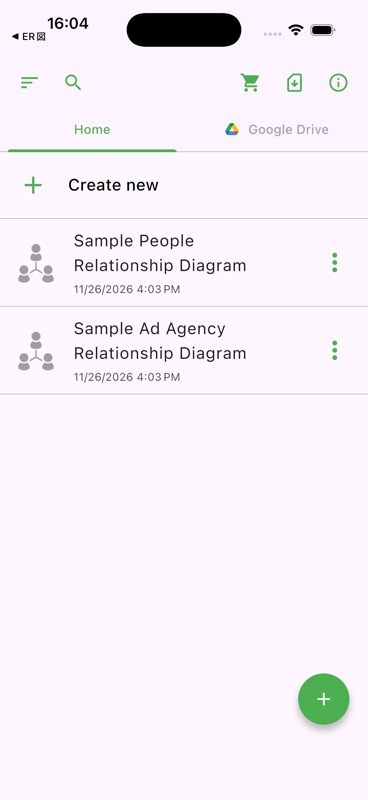
Create a relationship map file
- Select + Create new in the file list.
- Enter a name, then select OK to open the relationship map editor.
ಫೈಲ್ಗಳ ವಿಂಗಡಣೆಯ ಕ್ರಮವನ್ನು ಬದಲಾಯಿಸುವುದು
- ಫೈಲ್ಗಳ ಪಟ್ಟಿಯ ಮೇಲ್ಭಾಗದಲ್ಲಿರುವ ವಿಂಗಡಣೆ ನಿಯಂತ್ರಣವನ್ನು ಬಳಸಿ. ಸಣ್ಣ ಪರದೆಯಲ್ಲಿ ವಿಂಗಡಣೆ ಮೆನುವನ್ನು ತೆರೆಯಿರಿ.
- ಮಾರ್ಪಾಡಿನ ದಿನಾಂಕ ಅಥವಾ ಫೈಲ್ ಹೆಸರಿನ ಪ್ರಕಾರ ವಿಂಗಡಿಸಲು ಆಯ್ಕೆಮಾಡಿ.
Search for a file by name
- Open Home or Google Drive, depending on where the file is stored, and select the Search icon.
- Enter part of the name in Search by file name. Select Close to see the full list again.
ಫೈಲ್ನ ನಕಲು ರಚಿಸುವುದು
- ಫೈಲ್ನ ಮೂರು ಚುಕ್ಕೆಗಳ ಮೆನುವನ್ನು ತೆರೆದು «ನಕಲು ರಚಿಸಿ» ಆಯ್ಕೆಮಾಡಿ.
- ಮೂಲ ಫೈಲ್ ಅನ್ನು ಹಾಗೆಯೇ ಉಳಿಸಿಕೊಂಡು ಸಂಪಾದಿಸಲು ಪಟ್ಟಿಗೆ ಸೇರಿಸಲಾದ ನಕಲನ್ನು ತೆರೆಯಿರಿ.
ಫೈಲ್ ಅಳಿಸುವುದು
- ಫೈಲ್ನ ಮೂರು ಚುಕ್ಕೆಗಳ ಮೆನುವನ್ನು ತೆರೆದು «ಅಳಿಸಿ» ಆಯ್ಕೆಮಾಡಿ.
- ದೃಢೀಕರಣ ಸಂದೇಶವನ್ನು ಪರಿಶೀಲಿಸಿ ಮತ್ತು «ಸರಿ» ಆಯ್ಕೆಮಾಡಿ.
ನಿಮ್ಮೊಂದಿಗೆ ಹಂಚಿಕೊಳ್ಳಲಾದ ಫೈಲ್ಗಾಗಿ, ಮೆನುವಿನಲ್ಲಿ ಹಂಚಿಕೆಯನ್ನು ತೆಗೆದುಹಾಕುವ ಆಯ್ಕೆ ಇರಬಹುದು.
ಫೈಲ್ನ ಹೆಸರನ್ನು ಬದಲಾಯಿಸುವುದು
- ಫೈಲ್ನ ಮೂರು ಚುಕ್ಕೆಗಳ ಮೆನುವನ್ನು ತೆರೆದು «ಹೆಸರು ಬದಲಾಯಿಸಿ» ಆಯ್ಕೆಮಾಡಿ.
- ಹೊಸ ಹೆಸರನ್ನು ನಮೂದಿಸಿ ದೃಢೀಕರಿಸಿ.
ನಿಮ್ಮೊಂದಿಗೆ ಹಂಚಿಕೊಳ್ಳಲಾದ Google Drive ಫೈಲ್ನ ಹೆಸರನ್ನು ಬದಲಾಯಿಸಲು ಸಂಪಾದನೆಯ ಅನುಮತಿ ಅಗತ್ಯವಿದೆ.
Import a Mermaid diagram
- Select Import in the file list and select OK to open the file picker.
- Choose a Mermaid file (.mermaid or .mmd), then open it from the file list.
Google Drive ಗೆ ಉಳಿಸುವುದು
- ಫೈಲ್ ಪಟ್ಟಿಯಲ್ಲಿ Google Drive ಆಯ್ಕೆಮಾಡಿ ಮತ್ತು ನಿಮ್ಮ Google ಖಾತೆಯನ್ನು ಸಂಪರ್ಕಿಸಲು ಸೂಚನೆಗಳನ್ನು ಅನುಸರಿಸಿ.
- Google Drive ಪಟ್ಟಿಯಿಂದ ಹೊಸ ಫೈಲ್ ರಚಿಸಿ. ಆ ಆಯ್ಕೆ ಲಭ್ಯವಿದ್ದರೆ, ಸಾಧನದಲ್ಲಿರುವ ಫೈಲ್ ಅನ್ನು ಅದರ ಮೂರು ಚುಕ್ಕೆಗಳ ಮೆನುವಿನಿಂದ Google Drive ಗೆ ಸ್ಥಳಾಂತರಿಸಬಹುದು.
ಫೈಲ್ ಅನ್ನು ಮತ್ತೊಂದು ಸಾಧನದಲ್ಲಿ ತೆರೆಯಲು, ಅದನ್ನು ಉಳಿಸಲು ಬಳಸಿದ Google ಖಾತೆಯನ್ನು ಸಂಪರ್ಕಿಸಿ.
ನಿಮ್ಮ ಸಾಧನ ಮತ್ತು Google Drive ನಡುವೆ ಫೈಲ್ಗಳನ್ನು ಸ್ಥಳಾಂತರಿಸುವುದು
- ಸಾಧನದಲ್ಲಿ ಸ್ಥಾಪಿಸಿದ ಅಪ್ಲಿಕೇಶನ್ನಲ್ಲಿ ನಿಮ್ಮ Google ಖಾತೆಯನ್ನು ಸಂಪರ್ಕಿಸಿ ಮತ್ತು ಫೈಲ್ನ ಮೂರು ಚುಕ್ಕೆಗಳ ಮೆನುವನ್ನು ತೆರೆಯಿರಿ.
- ಫೈಲ್ ಉಳಿಸಿರುವ ಸ್ಥಳಕ್ಕೆ ಅನುಗುಣವಾಗಿ «Google Drive ಗೆ ಸ್ಥಳಾಂತರಿಸಿ» ಅಥವಾ «Home ಗೆ ಸ್ಥಳಾಂತರಿಸಿ» ಆಯ್ಕೆಮಾಡಿ ಮತ್ತು ದೃಢೀಕರಿಸಿ.
ಫೈಲ್ಗಳ ಸಂಪಾದನೆ
Describe people and relationships to create a map with AI
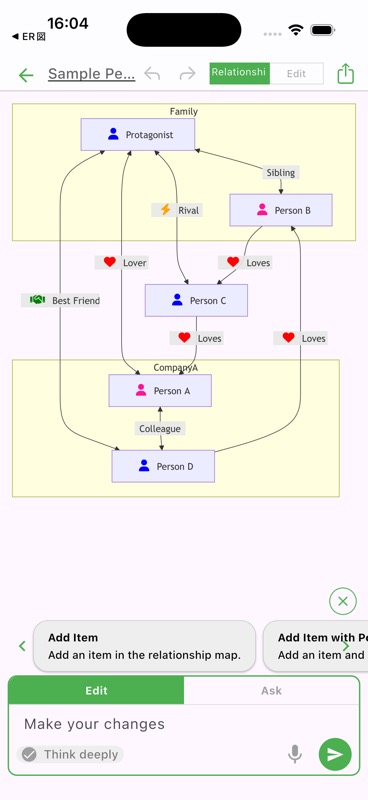
- Choose Relationship Map at the top, tap the input field at the bottom, and choose Edit.
- Describe who is involved and how they are connected. For example, “Mia and Alex are coworkers. Alex assigns work to Jordan.” Then select Send.
- Check the names and connections in the result. Use the same input field to request changes such as “Reverse the direction of the assignment arrow.”
Ask AI about a relationship map
- On the Relationship Map tab, tap the input field at the bottom and choose Ask.
- Send a question such as “Who assigns work to whom in this map?” and read the reply in the chat window.
Edit relationships and labels in Mermaid
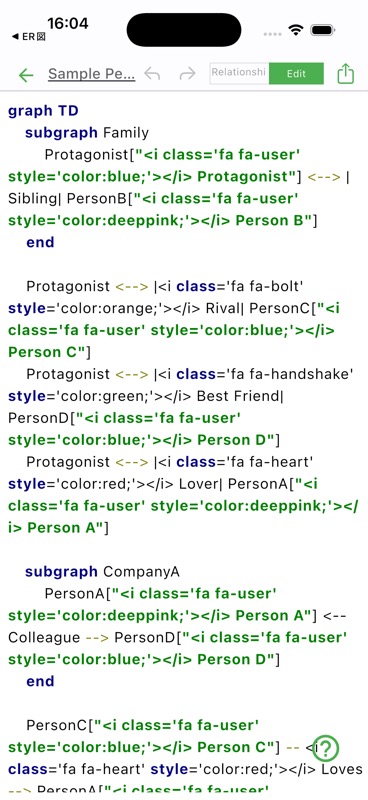
- Choose Edit at the top of the editor to open the Mermaid source.
- Change the direction of a relationship or the label on a line, then switch back to Relationship Map to check the result.
Export the diagram as an image, Mermaid, or HTML
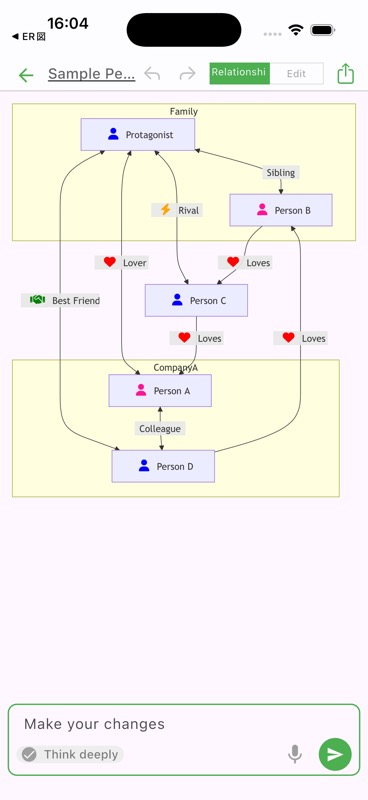
- Select the share icon in the top-right corner of the editor.
- Choose an image to place the diagram in another document, Mermaid (.mermaid) to edit the source later, or HTML to open the file in a browser.
ಖರೀದಿಗಳು
ಪಾವತಿಸಿದ ಯೋಜನೆಯನ್ನು ಖರೀದಿಸಿ
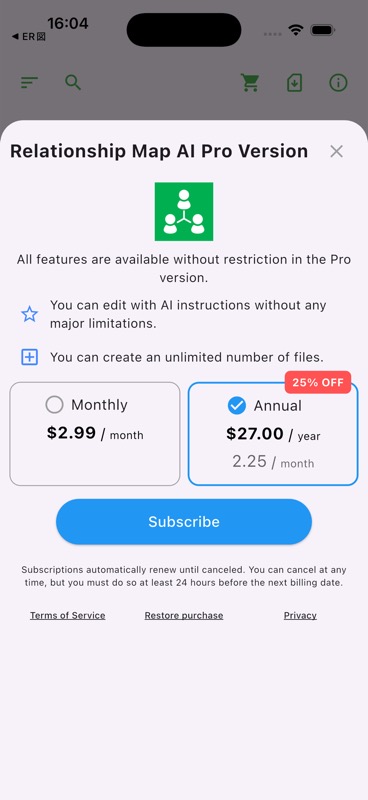
- ಫೈಲ್ ಪಟ್ಟಿಯಲ್ಲಿರುವ ಶಾಪಿಂಗ್ ಕಾರ್ಟ್ ಐಕಾನ್ ಅನ್ನು ಆಯ್ಕೆಮಾಡಿ.
- ಖರೀದಿ ಪರದೆಯಲ್ಲಿ ಯೋಜನೆಗಳು ಮತ್ತು ಬೆಲೆಗಳನ್ನು ಪರಿಶೀಲಿಸಿ, ನಂತರ ನೀವು ಖರೀದಿಸಲು ಬಯಸುವ ಯೋಜನೆಯನ್ನು ಆಯ್ಕೆಮಾಡಿ.
ಖರೀದಿಯನ್ನು ಮರುಸ್ಥಾಪಿಸಿ
- ಆ್ಯಪ್ ಸ್ಟೋರ್ ಮೂಲಕ ಖರೀದಿಸಿದ್ದರೆ, ಯೋಜನೆಯನ್ನು ಖರೀದಿಸಲು ಬಳಸಿದ ಸ್ಟೋರ್ ಖಾತೆಯ ಮೂಲಕ ಸೈನ್ ಇನ್ ಮಾಡಿ.
- ಆ್ಯಪ್ನಲ್ಲಿ ಖರೀದಿ ಪರದೆಯನ್ನು ತೆರೆಯಿರಿ, «ಖರೀದಿಗಳನ್ನು ಮರುಸ್ಥಾಪಿಸಿ» ಆಯ್ಕೆಮಾಡಿ ಮತ್ತು ಫಲಿತಾಂಶವನ್ನು ಪರಿಶೀಲಿಸಿ.
ಖರೀದಿ ಅಥವಾ ಚಂದಾದಾರಿಕೆಯನ್ನು ನಿರ್ವಹಿಸಿ
- ಫೈಲ್ ಪಟ್ಟಿಯ ಮಾಹಿತಿ ಮೆನುವಿನಲ್ಲಿ ಖರೀದಿ ನಿರ್ವಹಣೆಯ ಆಯ್ಕೆ ಲಭ್ಯವಿದ್ದರೆ, ಅದನ್ನು ತೆರೆಯಿರಿ.
- ನಿಮ್ಮ ಚಂದಾದಾರಿಕೆಯನ್ನು ಪರಿಶೀಲಿಸಲು ಅಥವಾ ರದ್ದುಗೊಳಿಸಲು ನೀವು ಯೋಜನೆಯನ್ನು ಖರೀದಿಸಿದ ಸ್ಟೋರ್ ಅಥವಾ ಸೇವೆಯನ್ನು ಬಳಸಿ.
ಪಾವತಿಸಿದ ಖಾತೆ
ನಿಮ್ಮ ಖರೀದಿಯನ್ನು Google ಖಾತೆಗೆ ಲಿಂಕ್ ಮಾಡಿ
- ಸಕ್ರಿಯ ಖರೀದಿಯನ್ನು ಹೊಂದಿರುವ ಸಾಧನದಲ್ಲಿ ನಿಮ್ಮ Google ಖಾತೆಗೆ ಸೈನ್ ಇನ್ ಮಾಡಿ.
- ನಿಮ್ಮ ಖರೀದಿಯನ್ನು Google ಖಾತೆಗೆ ಲಿಂಕ್ ಮಾಡುವ ಆಯ್ಕೆ ಮೆನುವಿನಲ್ಲಿ ಕಾಣಿಸಿದರೆ, ಅದನ್ನು ಆಯ್ಕೆಮಾಡಿ ಮತ್ತು ಖಾತೆಯನ್ನು ದೃಢೀಕರಿಸಿ.
- ಬೆಂಬಲಿತ ಮತ್ತೊಂದು ಸಾಧನದಲ್ಲಿ ನಿಮ್ಮ ಪಾವತಿಸಿದ ಯೋಜನೆಯನ್ನು ಬಳಸಲು, ಲಿಂಕ್ ಮಾಡಿದ Google ಖಾತೆಯ ಮೂಲಕ ಸೈನ್ ಇನ್ ಮಾಡಿ.
Google ಖಾತೆಗಳನ್ನು ಬದಲಾಯಿಸಿ
- ಫೈಲ್ ಪಟ್ಟಿಯ ಮಾಹಿತಿ ಮೆನುವಿನಲ್ಲಿ ಯಾವ Google ಖಾತೆ ಸಕ್ರಿಯವಾಗಿದೆ ಎಂಬುದನ್ನು ಪರಿಶೀಲಿಸಿ.
- ಸೈನ್ ಔಟ್ ಮಾಡುವ ಆಯ್ಕೆ ಲಭ್ಯವಿದ್ದರೆ ಅದನ್ನು ಆಯ್ಕೆಮಾಡಿ, ನಂತರ Google Drive ತೆರೆಯಿರಿ ಮತ್ತು ನೀವು ಬಳಸಲು ಬಯಸುವ ಖಾತೆಗೆ ಸೈನ್ ಇನ್ ಮಾಡಿ.
ಬೇರೆ ಸಾಧನದಲ್ಲಿ, ಖರೀದಿಗೆ ಅಥವಾ ನೀವು ಪ್ರವೇಶಿಸಲು ಬಯಸುವ Drive ಫೈಲ್ಗಳಿಗೆ ಸಂಬಂಧಿಸಿದ ಖಾತೆಯನ್ನು ಬಳಸಿ.