ఫైళ్ల జాబితా
Create a tournament bracket
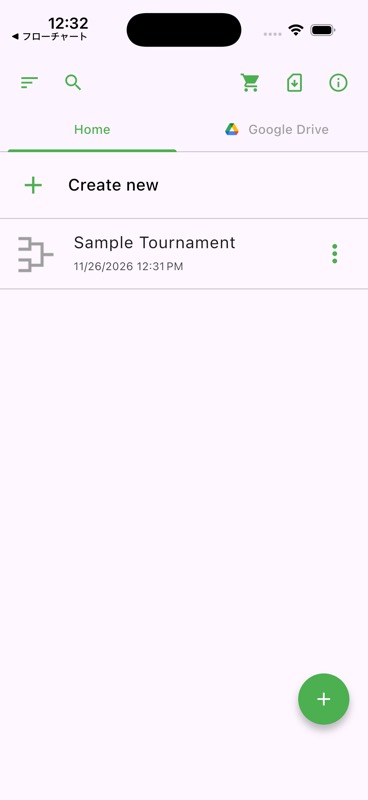
- Select the + Create new row in the file list.
- Enter a name, such as the event name, and select OK to open the bracket.
ఫైళ్ల క్రమబద్ధీకరణ విధానాన్ని మార్చడం
- ఫైళ్ల జాబితా ఎగువన ఉన్న క్రమబద్ధీకరణ నియంత్రణను ఉపయోగించండి. చిన్న స్క్రీన్లో క్రమబద్ధీకరణ మెనూను తెరవండి.
- సవరించిన తేదీ లేదా ఫైల్ పేరు ఆధారంగా క్రమబద్ధీకరించడానికి ఎంచుకోండి.
Search for a file by name
- Open Home or Google Drive, depending on where the file is stored, and select the Search icon.
- Enter part of the name in Search by file name. Select Close to see the full list again.
ఫైల్ నకలును సృష్టించడం
- ఫైల్కు సంబంధించిన మూడు చుక్కల మెనూను తెరిచి, నకలు చేయి ఎంపికను ఎంచుకోండి.
- అసలు ఫైల్ను అలాగే ఉంచి సవరించడానికి జాబితాకు జోడించిన నకలును తెరవండి.
ఫైల్ను తొలగించడం
- ఫైల్కు సంబంధించిన మూడు చుక్కల మెనూను తెరిచి, తొలగించు ఎంపికను ఎంచుకోండి.
- నిర్ధారణ సందేశాన్ని తనిఖీ చేసి, OK ఎంచుకోండి.
మీతో షేర్ చేసిన ఫైల్కు సంబంధించి, షేరింగ్ను తీసివేసే ఎంపిక మెనూలో ఉండవచ్చు.
ఫైల్ పేరు మార్చడం
- ఫైల్లోని మూడు చుక్కల మెనూను తెరిచి, పేరు మార్చు ఎంపికను ఎంచుకోండి.
- కొత్త పేరును నమోదు చేసి నిర్ధారించండి.
మీతో భాగస్వామ్యం చేసిన Google Drive ఫైల్ పేరును మార్చడానికి సవరణ అనుమతి అవసరం.
Import a tournament bracket
- Select Import in the file list and select OK to open the file picker.
- Choose an iTournament file (.itourn).
Google Driveలో సేవ్ చేయడం
- ఫైల్ జాబితాలో Google Driveను ఎంచుకుని, మీ Google ఖాతాను అనుసంధానించడానికి చూపబడే సూచనలను అనుసరించండి.
- Google Drive జాబితా నుండి కొత్త ఫైల్ను సృష్టించండి. ఆ ఎంపిక అందుబాటులో ఉంటే, పరికరంలో సేవ్ చేసిన ఫైల్ను దాని మూడు చుక్కల మెనూ ద్వారా Google Driveకు కూడా తరలించవచ్చు.
మరో పరికరంలో ఫైల్ను తెరవడానికి, దాన్ని సేవ్ చేయడానికి ఉపయోగించిన Google ఖాతాను అనుసంధానించండి.
మీ పరికరం మరియు Google Drive మధ్య ఫైళ్లను తరలించడం
- ఇన్స్టాల్ చేసిన యాప్లో మీ Google ఖాతాను అనుసంధానించి, ఫైల్లోని మూడు చుక్కల మెనూను తెరవండి.
- ఫైల్ సేవ్ చేసిన స్థానాన్ని బట్టి, «Google Driveకు తరలించు» లేదా «హోమ్కు తరలించు» ఎంపికను ఎంచుకుని నిర్ధారించండి.
ఫైళ్లను సవరించడం
Enter players or teams
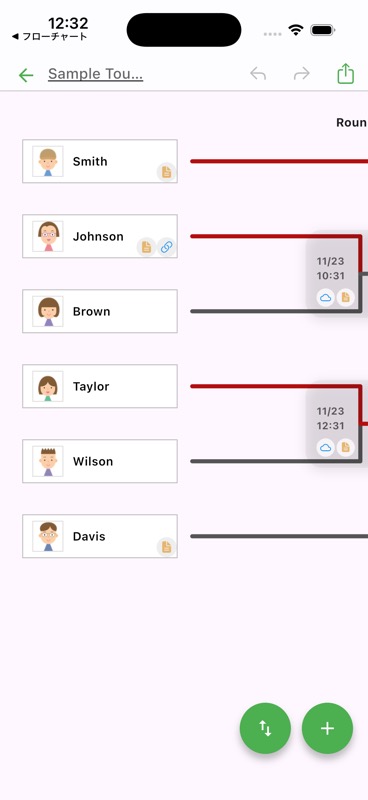
- Select a first-round slot in the bracket to open Team Edit.
- Enter a name and select OK. If you need more slots, use + at the bottom of the editor to expand the bracket.
Swap players or teams in the bracket
- Use the up-and-down arrows at the bottom of the editor to open the team list.
- Select the arrows next to one team, then select the arrows next to the team that should swap places with it.
Record scores and the winner
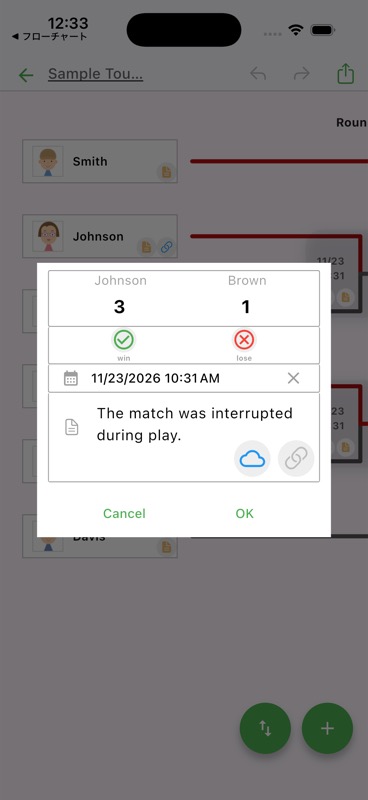
- Once both teams are known, tap the date and score area on the match card in the bracket.
- Enter both scores. Use Win Loss Settings to review or change the winner if needed, then select OK and check the next round.
Export a tournament bracket
- Select Export in the top-right corner of the editor.
- Choose Image (.png) to distribute the bracket, CSV or Excel for analysis, or iTournament (.itourn) to reimport it later.
Export formats marked with a lock require Pro.
కొనుగోళ్లు
చెల్లింపు ప్లాన్ను కొనుగోలు చేయడం
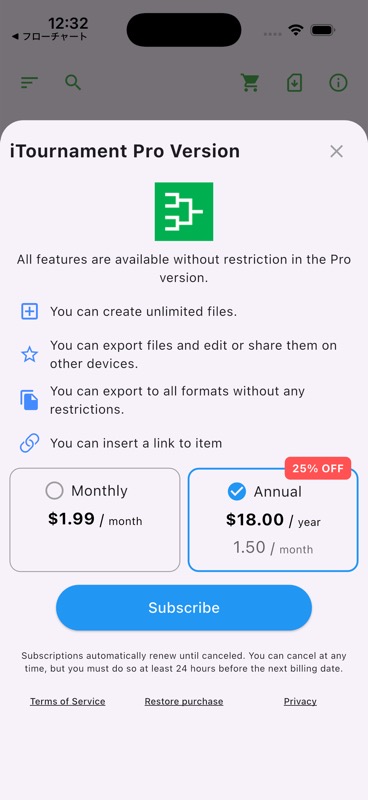
- ఫైల్ల జాబితాలో షాపింగ్ కార్ట్ చిహ్నాన్ని ఎంచుకోండి.
- కొనుగోలు స్క్రీన్లో ప్లాన్లు మరియు ధరలను పరిశీలించి, మీరు కొనాలనుకునే ప్లాన్ను ఎంచుకోండి.
కొనుగోలును పునరుద్ధరించడం
- యాప్ స్టోర్ ద్వారా కొనుగోలు చేసి ఉంటే, ప్లాన్ను కొనడానికి ఉపయోగించిన స్టోర్ ఖాతాతో సైన్ ఇన్ చేయండి.
- యాప్లో కొనుగోలు స్క్రీన్ను తెరిచి, «కొనుగోళ్లను పునరుద్ధరించు» ఎంపికను ఎంచుకుని, ఫలితాన్ని తనిఖీ చేయండి.
కొనుగోలు లేదా సబ్స్క్రిప్షన్ను నిర్వహించడం
- ఫైల్ల జాబితాలోని సమాచార మెనూలో కొనుగోలు నిర్వహణ ఎంపిక ఉంటే, దాన్ని తెరవండి.
- మీ సబ్స్క్రిప్షన్ను పరిశీలించడానికి లేదా రద్దు చేయడానికి, ప్లాన్ను కొనుగోలు చేసిన స్టోర్ లేదా సేవను ఉపయోగించండి.
చెల్లింపు ఖాతా
మీ కొనుగోలును Google ఖాతాకు లింక్ చేయడం
- మీ కొనుగోలు సక్రియంగా ఉన్న పరికరంలో మీ Google ఖాతాతో సైన్ ఇన్ చేయండి.
- మీ కొనుగోలును Google ఖాతాకు లింక్ చేసే ఎంపిక మెనూలో కనిపిస్తే, దాన్ని ఎంచుకుని ఖాతాను నిర్ధారించండి.
- మద్దతు ఉన్న మరో పరికరంలో మీ చెల్లింపు ప్లాన్ను ఉపయోగించడానికి, లింక్ చేసిన Google ఖాతాతో సైన్ ఇన్ చేయండి.
Google ఖాతాలను మార్చడం
- ఫైల్ల జాబితాలోని సమాచార మెనూలో ప్రస్తుతం ఏ Google ఖాతా సక్రియంగా ఉందో తనిఖీ చేయండి.
- సైన్ అవుట్ ఎంపిక అందుబాటులో ఉంటే, దాన్ని ఎంచుకుని, తర్వాత Google Driveను తెరిచి, మీరు ఉపయోగించాలనుకునే ఖాతాతో సైన్ ఇన్ చేయండి.
మరో పరికరంలో, కొనుగోలుతో లేదా మీరు యాక్సెస్ చేయాలనుకునే Drive ఫైల్లతో అనుబంధించబడిన ఖాతాను ఉపయోగించండి.