ගොනු ලැයිස්තුව
Create a relationship map file
- Select + Create new in the file list.
- Enter a name, then select OK to open the relationship map editor.
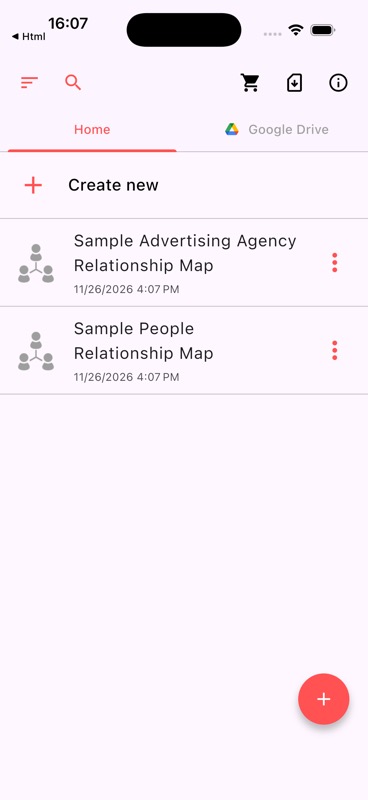
ගොනු පෙළගැස්වීමේ අනුපිළිවෙළ වෙනස් කිරීම
- ගොනු ලැයිස්තුවේ ඉහළින් ඇති පෙළගැස්වීමේ පාලකය භාවිත කරන්න. කුඩා තිරයකදී පෙළගැස්වීමේ මෙනුව විවෘත කරන්න.
- වෙනස් කළ දිනය හෝ ගොනුවේ නම අනුව පෙළගැස්වීම තෝරන්න.
Search for a file by name
- Open Home or Google Drive, depending on where the file is stored, and select the Search icon.
- Enter part of the name in Search by file name. Select Close to see the full list again.
ගොනුවක පිටපතක් සෑදීම
- ගොනුවේ තිත් තුනේ මෙනුව විවෘත කර «පිටපතක් සාදන්න» තෝරන්න.
- මුල් ගොනුව එලෙසම තබාගෙන සංස්කරණය කිරීමට ලැයිස්තුවට එක් වූ පිටපත විවෘත කරන්න.
ගොනුවක් මකා දැමීම
- ගොනුවේ තිත් තුනේ මෙනුව විවෘත කර «මකන්න» තෝරන්න.
- තහවුරු කිරීමේ පණිවිඩය පරීක්ෂා කර OK තෝරන්න.
ඔබ සමඟ බෙදා ගත් ගොනුවක් සඳහා, මෙනුවේ බෙදා ගැනීම ඉවත් කිරීමේ විකල්පයක් තිබිය හැකිය.
ගොනුවක නම වෙනස් කිරීම
- ගොනුවේ තිත් තුනේ මෙනුව විවෘත කර «නම වෙනස් කරන්න» තෝරන්න.
- නව නම ඇතුළත් කර තහවුරු කරන්න.
ඔබ සමඟ බෙදාගෙන ඇති Google Drive ගොනුවක නම වෙනස් කිරීමට සංස්කරණ අවසරය අවශ්ය වේ.
Import a Simple Relationship Map file
- Select Import in the file list, then select OK to open the file picker.
- Choose a Simple Relationship Map (.srelationship) file. You can also import a JSON file containing data in the same format.
Google Drive වෙත සුරකින්න
- ගොනු ලැයිස්තුවේ Google Drive තෝරා ඔබේ Google ගිණුම සම්බන්ධ කිරීමට තිරයේ දැක්වෙන උපදෙස් අනුගමනය කරන්න.
- Google Drive ලැයිස්තුවෙන් නව ගොනුවක් සාදන්න. එම විකල්පය තිබේ නම්, උපාංගයේ ඇති ගොනුවක් එහි තිත් තුනේ මෙනුවෙන් Google Drive වෙත ගෙන යාමට ද හැකිය.
වෙනත් උපාංගයක ගොනුව විවෘත කිරීමට එය සුරැකීමට භාවිත කළ Google ගිණුම සම්බන්ධ කරන්න.
ඔබේ උපාංගය සහ Google Drive අතර ගොනු ගෙන යන්න
- ස්ථාපනය කළ යෙදුම තුළ ඔබේ Google ගිණුම සම්බන්ධ කර ගොනුවේ තිත් තුනේ මෙනුව විවෘත කරන්න.
- ගොනුව සුරැකී ඇති ස්ථානය අනුව «Google Drive වෙත ගෙන යන්න» හෝ «මුල් පිටුව වෙත ගෙන යන්න» තෝරා තහවුරු කරන්න.
ගොනු සංස්කරණය
Add people or items
- Select + at the bottom of the editor to add an item. If another item is selected, the app also connects it to the new item.
- Tap the selected item again or select the pencil icon at the bottom, then enter a name or label.
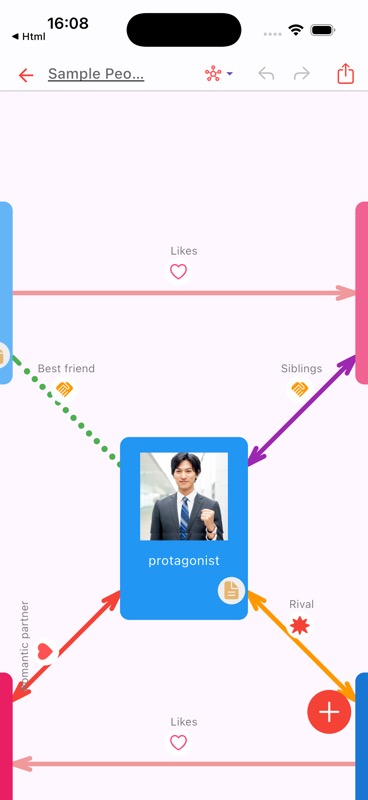
Connect existing items with a line
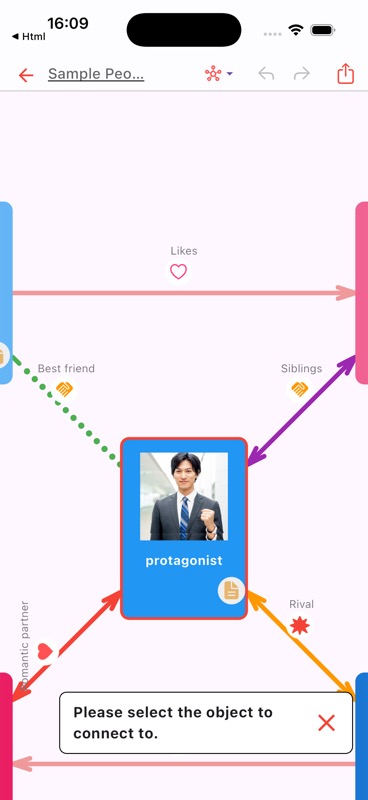
- Tap the item where the connection should start, then select Connection Line at the bottom of the screen.
- Tap the item you want to connect it to. To add a label, tap the new line to select it, then tap it again and enter a relationship such as “Coworkers” or “Assigns work.”
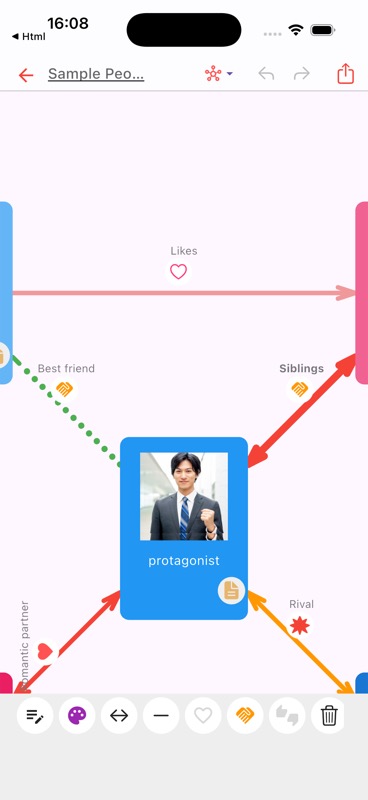
Change the arrow or line style
- Tap a connection line to select it, then use the arrow or line style button at the bottom.
- Each tap cycles through the available styles. Check the arrow direction and whether the line is solid or dashed.
Export a map as an image, Mermaid, or an app file
- Select the share icon in the top-right corner. Choose an image to send a copy of the map, or Mermaid (.mermaid) to use it in a Mermaid editor.
- Choose Simple Relationship Chart (.srelationship) if you want to import the map back into the app for editing.
Export formats marked with a lock require Pro.
මිලදී ගැනීම්
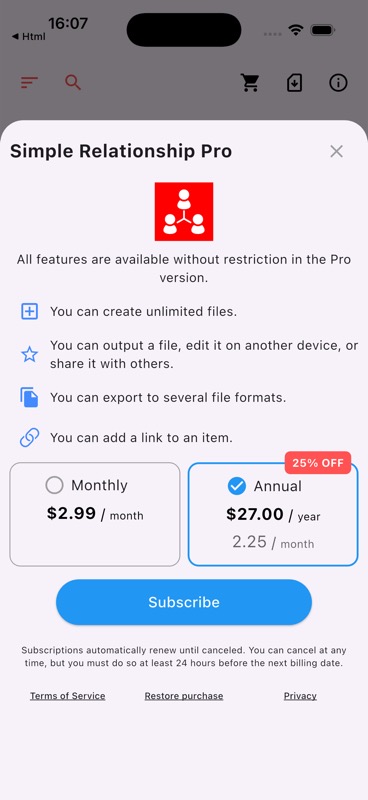
ගෙවන සැලසුමක් මිලදී ගන්න
- ගොනු ලැයිස්තුවේ සාප්පු කරත්ත නිරූපකය තෝරන්න.
- මිලදී ගැනීමේ තිරයේ සැලසුම් සහ මිල ගණන් පරීක්ෂා කර, ඔබට මිලදී ගැනීමට අවශ්ය සැලසුම තෝරන්න.
මිලදී ගැනීමක් ප්රතිසාධනය කරන්න
- යෙදුම් වෙළඳසැලකින් මිලදී ගත්තේ නම්, සැලසුම මිලදී ගැනීමට භාවිත කළ වෙළඳසැල් ගිණුමෙන් පුරනය වන්න.
- යෙදුමේ මිලදී ගැනීමේ තිරය විවෘත කර, «මිලදී ගැනීම් ප්රතිසාධනය කරන්න» තෝරා ප්රතිඵලය පරීක්ෂා කරන්න.
මිලදී ගැනීමක් හෝ දායකත්වයක් කළමනාකරණය කරන්න
- ගොනු ලැයිස්තුවේ තොරතුරු මෙනුවේ මිලදී ගැනීම් කළමනාකරණය කිරීමේ විකල්පයක් තිබේ නම්, එය විවෘත කරන්න.
- ඔබේ දායකත්වය පරීක්ෂා කිරීමට හෝ අවලංගු කිරීමට සැලසුම මිලදී ගත් වෙළඳසැල හෝ සේවාව භාවිත කරන්න.
ගෙවන ගිණුම
ඔබේ මිලදී ගැනීම Google ගිණුමකට සම්බන්ධ කරන්න
- ඔබේ මිලදී ගැනීම සක්රියව ඇති උපාංගයෙන් ඔබේ Google ගිණුමට පුරනය වන්න.
- ඔබේ මිලදී ගැනීම Google ගිණුමකට සම්බන්ධ කිරීමේ විකල්පය මෙනුවේ දිස් වේ නම්, එය තෝරා ගිණුම තහවුරු කරන්න.
- ඔබේ ගෙවන සැලසුම වෙනත් සහාය දක්වන උපාංගයක භාවිත කිරීමට, සම්බන්ධ කළ Google ගිණුමෙන් පුරනය වන්න.
Google ගිණුම් මාරු කරන්න
- ගොනු ලැයිස්තුවේ තොරතුරු මෙනුවෙන් සක්රිය Google ගිණුම කුමක්දැයි පරීක්ෂා කරන්න.
- වරනය වීමේ විකල්පය තිබේ නම්, එය තෝරන්න. ඉන්පසු Google Drive විවෘත කර ඔබට භාවිත කිරීමට අවශ්ය ගිණුමෙන් පුරනය වන්න.
වෙනත් උපාංගයකදී, මිලදී ගැනීම සමඟ හෝ ඔබට ප්රවේශ වීමට අවශ්ය Drive ගොනු සමඟ සම්බන්ධ ගිණුම භාවිත කරන්න.