ଫାଇଲ୍ ତାଲିକା
Create a relationship map file
- Select + Create new in the file list.
- Enter a name, then select OK to open the relationship map editor.
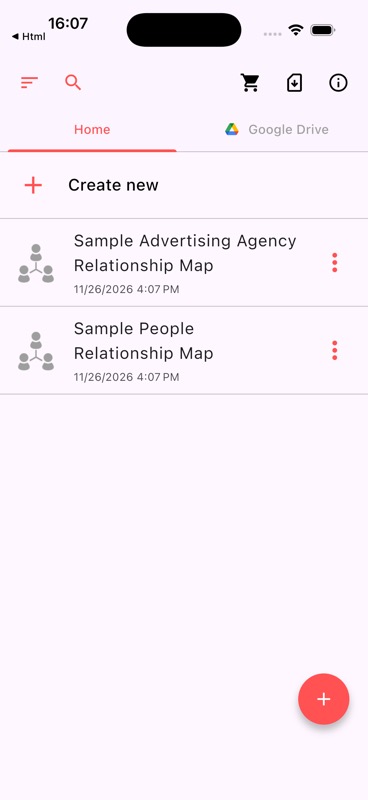
ଫାଇଲ୍ଗୁଡ଼ିକର ସଜାଣି କ୍ରମ ବଦଳାନ୍ତୁ
- ଫାଇଲ୍ ତାଲିକାର ଉପରେ ଥିବା ସଜାଣି ବିକଳ୍ପ ବ୍ୟବହାର କରନ୍ତୁ। ଛୋଟ ସ୍କ୍ରିନ୍ରେ ସଜାଣି ମେନୁ ଖୋଲନ୍ତୁ।
- ପରିବର୍ତ୍ତନ ତାରିଖ କିମ୍ବା ଫାଇଲ୍ ନାମ ଅନୁସାରେ ସଜାଇବାକୁ ବାଛନ୍ତୁ।
Search for a file by name
- Open Home or Google Drive, depending on where the file is stored, and select the Search icon.
- Enter part of the name in Search by file name. Select Close to see the full list again.
ଏକ ଫାଇଲ୍ର ନକଲ କରନ୍ତୁ
- ଫାଇଲ୍ର ତିନି ବିନ୍ଦୁ ମେନୁ ଖୋଲନ୍ତୁ ଏବଂ ‘ନକଲ କରନ୍ତୁ’ ବାଛନ୍ତୁ।
- ମୂଳ ଫାଇଲ୍କୁ ଅପରିବର୍ତ୍ତିତ ରଖି ସମ୍ପାଦନା କରିବା ପାଇଁ ତାଲିକାରେ ଯୋଡ଼ାଯାଇଥିବା ନକଲଟି ଖୋଲନ୍ତୁ।
ଏକ ଫାଇଲ୍ ଡିଲିଟ୍ କରନ୍ତୁ
- ଫାଇଲ୍ର ତିନି ବିନ୍ଦୁ ମେନୁ ଖୋଲନ୍ତୁ ଏବଂ ‘ଡିଲିଟ୍ କରନ୍ତୁ’ ବାଛନ୍ତୁ।
- ନିଶ୍ଚିତକରଣ ସନ୍ଦେଶ ଯାଞ୍ଚ କରନ୍ତୁ ଏବଂ OK ବାଛନ୍ତୁ।
ଆପଣଙ୍କ ସହ ସେୟାର୍ କରାଯାଇଥିବା ଫାଇଲ୍ ପାଇଁ ମେନୁରେ ସେୟାରିଂ ହଟାଇବାର ବିକଳ୍ପ ଥାଇପାରେ।
ଏକ ଫାଇଲ୍ର ନାମ ବଦଳାନ୍ତୁ
- ଫାଇଲର ତିନି-ବିନ୍ଦୁ ମେନୁ ଖୋଲନ୍ତୁ ଏବଂ ନାମ ବଦଳାଇବା ବିକଳ୍ପ ବାଛନ୍ତୁ।
- ନୂଆ ନାମ ଲେଖନ୍ତୁ ଏବଂ ସୁନିଶ୍ଚିତ କରନ୍ତୁ।
ଆପଣଙ୍କ ସହ ସେୟାର କରାଯାଇଥିବା Google Drive ଫାଇଲର ନାମ ବଦଳାଇବା ପାଇଁ ସମ୍ପାଦନ ଅନୁମତି ଆବଶ୍ୟକ।
Import a Simple Relationship Map file
- Select Import in the file list, then select OK to open the file picker.
- Choose a Simple Relationship Map (.srelationship) file. You can also import a JSON file containing data in the same format.
Google Driveରେ ସେଭ୍ କରନ୍ତୁ
- ଫାଇଲ୍ ତାଲିକାରେ Google Drive ବାଛନ୍ତୁ ଏବଂ ନିଜ Google ଆକାଉଣ୍ଟ ସଂଯୋଗ କରିବା ପାଇଁ ସ୍କ୍ରିନର ନିର୍ଦ୍ଦେଶ ଅନୁସରଣ କରନ୍ତୁ।
- Google Drive ତାଲିକାରୁ ଏକ ନୂଆ ଫାଇଲ୍ ତିଆରି କରନ୍ତୁ। ବିକଳ୍ପଟି ଉପଲବ୍ଧ ଥିଲେ, ସ୍ଥାନୀୟ ଫାଇଲର ତିନି-ବିନ୍ଦୁ ମେନୁରୁ ତାହାକୁ Google Driveକୁ ମଧ୍ୟ ସ୍ଥାନାନ୍ତର କରିପାରିବେ।
ଅନ୍ୟ ଡିଭାଇସରେ ଫାଇଲ୍ ଖୋଲିବା ପାଇଁ ତାହା ସେଭ୍ କରିବାରେ ବ୍ୟବହାର କରିଥିବା Google ଆକାଉଣ୍ଟ ସଂଯୋଗ କରନ୍ତୁ।
ନିଜ ଡିଭାଇସ୍ ଓ Google Drive ମଧ୍ୟରେ ଫାଇଲ୍ ସ୍ଥାନାନ୍ତର କରନ୍ତୁ
- ଇନଷ୍ଟଲ୍ କରାଯାଇଥିବା ଆପରେ ନିଜ Google ଆକାଉଣ୍ଟ ସଂଯୋଗ କରନ୍ତୁ ଏବଂ ଫାଇଲର ତିନି-ବିନ୍ଦୁ ମେନୁ ଖୋଲନ୍ତୁ।
- ଫାଇଲ୍ କେଉଁଠି ସେଭ୍ ହୋଇଛି ତାହା ଅନୁସାରେ Google Driveକୁ ସ୍ଥାନାନ୍ତର କରନ୍ତୁ କିମ୍ବା Homeକୁ ସ୍ଥାନାନ୍ତର କରନ୍ତୁ ବିକଳ୍ପ ବାଛନ୍ତୁ ଏବଂ ସୁନିଶ୍ଚିତ କରନ୍ତୁ।
ଫାଇଲ୍ ସମ୍ପାଦନା
Add people or items
- Select + at the bottom of the editor to add an item. If another item is selected, the app also connects it to the new item.
- Tap the selected item again or select the pencil icon at the bottom, then enter a name or label.
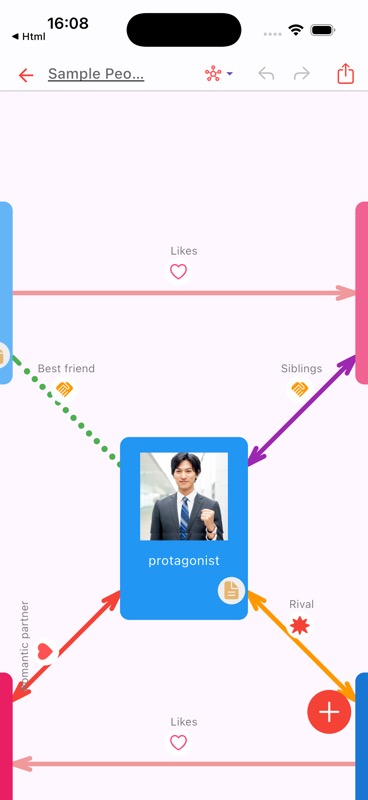
Connect existing items with a line
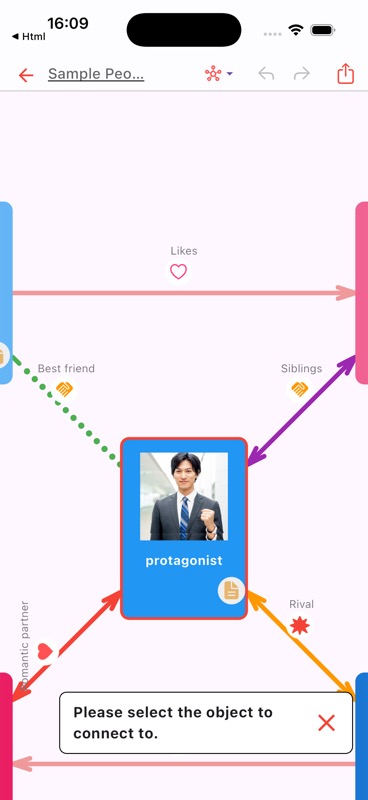
- Tap the item where the connection should start, then select Connection Line at the bottom of the screen.
- Tap the item you want to connect it to. To add a label, tap the new line to select it, then tap it again and enter a relationship such as “Coworkers” or “Assigns work.”
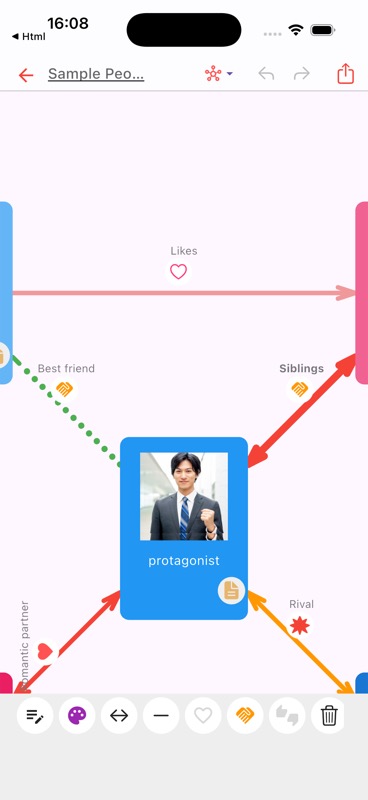
Change the arrow or line style
- Tap a connection line to select it, then use the arrow or line style button at the bottom.
- Each tap cycles through the available styles. Check the arrow direction and whether the line is solid or dashed.
Export a map as an image, Mermaid, or an app file
- Select the share icon in the top-right corner. Choose an image to send a copy of the map, or Mermaid (.mermaid) to use it in a Mermaid editor.
- Choose Simple Relationship Chart (.srelationship) if you want to import the map back into the app for editing.
Export formats marked with a lock require Pro.
କ୍ରୟ
ଏକ ଦେୟଯୁକ୍ତ ପ୍ଲାନ୍ କିଣନ୍ତୁ
- ଫାଇଲ୍ ତାଲିକାରେ କାର୍ଟ ଆଇକନ୍ ଚୟନ କରନ୍ତୁ।
- କ୍ରୟ ସ୍କ୍ରିନ୍ରେ ପ୍ଲାନ୍ ଓ ମୂଲ୍ୟଗୁଡ଼ିକ ଯାଞ୍ଚ କରନ୍ତୁ, ତାପରେ କିଣିବାକୁ ଚାହୁଁଥିବା ପ୍ଲାନ୍ ଚୟନ କରନ୍ତୁ।
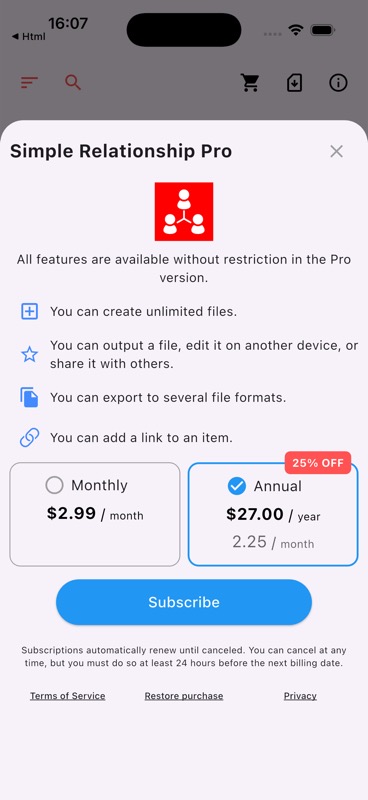
କ୍ରୟ ପୁନରୁଦ୍ଧାର କରନ୍ତୁ
- ଆପ୍ ଷ୍ଟୋର୍ରୁ କିଣିଥିଲେ, ପ୍ଲାନ୍ କିଣିବା ପାଇଁ ବ୍ୟବହାର କରିଥିବା ଷ୍ଟୋର୍ ଆକାଉଣ୍ଟରେ ସାଇନ୍ ଇନ୍ କରନ୍ତୁ।
- ଆପ୍ର କ୍ରୟ ସ୍କ୍ରିନ୍ ଖୋଲନ୍ତୁ, «କ୍ରୟ ପୁନରୁଦ୍ଧାର କରନ୍ତୁ» ଚୟନ କରନ୍ତୁ ଓ ଫଳାଫଳ ଯାଞ୍ଚ କରନ୍ତୁ।
କ୍ରୟ କିମ୍ବା ସବ୍ସ୍କ୍ରିପ୍ସନ୍ ପରିଚାଳନା କରନ୍ତୁ
- ଫାଇଲ୍ ତାଲିକାର ସୂଚନା ମେନୁରେ କ୍ରୟ ପରିଚାଳନା ବିକଳ୍ପ ଥିଲେ, ତାହା ଖୋଲନ୍ତୁ।
- ସବ୍ସ୍କ୍ରିପ୍ସନ୍ ଯାଞ୍ଚ କିମ୍ବା ବାତିଲ୍ କରିବା ପାଇଁ ଯେଉଁ ଷ୍ଟୋର୍ କିମ୍ବା ସେବାରୁ ପ୍ଲାନ୍ କିଣିଥିଲେ, ତାହା ବ୍ୟବହାର କରନ୍ତୁ।
ଦେୟଯୁକ୍ତ ଆକାଉଣ୍ଟ
ଆପଣଙ୍କ କ୍ରୟକୁ ଏକ Google ଆକାଉଣ୍ଟ ସହ ଲିଙ୍କ୍ କରନ୍ତୁ
- ଯେଉଁ ଡିଭାଇସ୍ରେ ଆପଣଙ୍କ କ୍ରୟ ସକ୍ରିୟ ଅଛି, ସେଠାରେ ନିଜ Google ଆକାଉଣ୍ଟରେ ସାଇନ୍ ଇନ୍ କରନ୍ତୁ।
- ମେନୁରେ କ୍ରୟକୁ Google ଆକାଉଣ୍ଟ ସହ ଲିଙ୍କ୍ କରିବାର ବିକଳ୍ପ ଦେଖାଗଲେ, ତାହା ଚୟନ କରନ୍ତୁ ଓ ଆକାଉଣ୍ଟ ନିଶ୍ଚିତ କରନ୍ତୁ।
- ଅନ୍ୟ ଏକ ସମର୍ଥିତ ଡିଭାଇସ୍ରେ ନିଜ ଦେୟଯୁକ୍ତ ପ୍ଲାନ୍ ବ୍ୟବହାର କରିବା ପାଇଁ ଲିଙ୍କ୍ କରାଯାଇଥିବା Google ଆକାଉଣ୍ଟରେ ସାଇନ୍ ଇନ୍ କରନ୍ତୁ।
Google ଆକାଉଣ୍ଟ ବଦଳାନ୍ତୁ
- ଫାଇଲ୍ ତାଲିକାର ସୂଚନା ମେନୁରେ କେଉଁ Google ଆକାଉଣ୍ଟ ସକ୍ରିୟ ଅଛି ଯାଞ୍ଚ କରନ୍ତୁ।
- ସାଇନ୍ ଆଉଟ୍ ବିକଳ୍ପ ଉପଲବ୍ଧ ଥିଲେ ତାହା ଚୟନ କରନ୍ତୁ, ତାପରେ Google Drive ଖୋଲି ବ୍ୟବହାର କରିବାକୁ ଚାହୁଁଥିବା ଆକାଉଣ୍ଟରେ ସାଇନ୍ ଇନ୍ କରନ୍ତୁ।
ଅନ୍ୟ ଏକ ଡିଭାଇସ୍ରେ କ୍ରୟ ସହ ଜଡ଼ିତ କିମ୍ବା ଆପଣ ଖୋଲିବାକୁ ଚାହୁଁଥିବା Drive ଫାଇଲ୍ଗୁଡ଼ିକ ସହ ଜଡ଼ିତ ଆକାଉଣ୍ଟ ବ୍ୟବହାର କରନ୍ତୁ।