Àtòjọ fáìlì
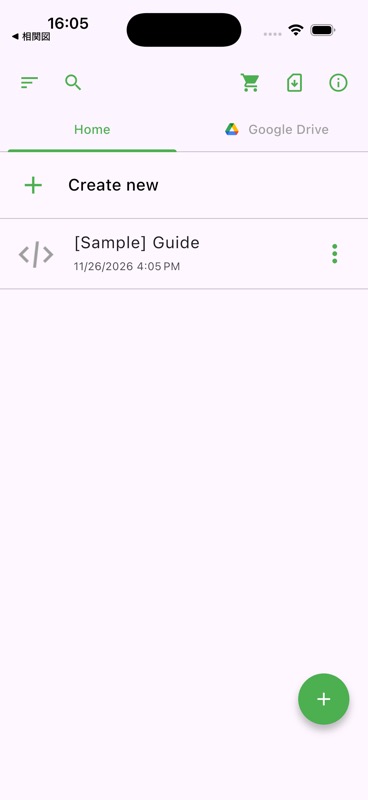
Create an HTML file
- Select + Create new in the file list.
- Enter a name for the page, then select OK to open the editor.
Yí ètò ìtòlẹ́sẹẹsẹ fáìlì padà
- Lo ohun ìṣàkóso ìtòlẹ́sẹẹsẹ ní òkè àtòjọ fáìlì. Lójú ìbòjú kékeré, ṣí àkójọ aṣayan ìtòlẹ́sẹẹsẹ.
- Yan ìtòlẹ́sẹẹsẹ nípa ọjọ́ àtúnṣe tàbí orúkọ fáìlì.
Search for a file by name
- Open Home or Google Drive, depending on where the file is stored, and select the Search icon.
- Enter part of the name in Search by file name. Select Close to see the full list again.
Ṣẹ̀dá ẹ̀dà fáìlì kan
- Ṣí àkójọ aṣayan fáìlì tó ní àmì onídòtì mẹ́ta, kí o sì yan Ṣẹ̀dá ẹ̀dà.
- Ṣí ẹ̀dà tí a fi kún àtòjọ láti ṣàtúnṣe rẹ̀ láìyí fáìlì àkọ́kọ́ padà.
Pa fáìlì kan rẹ́
- Ṣí àkójọ aṣayan fáìlì tó ní àmì onídòtì mẹ́ta, kí o sì yan Parẹ́.
- Ṣàyẹ̀wò ìbéèrè ìmúdájú, kí o sì yan OK.
Fún fáìlì tí ẹlòmíràn pín pẹ̀lú rẹ, àkójọ aṣayan lè ní aṣayan láti yọ ìpínpín náà kúrò.
Yí orúkọ fáìlì padà
- Ṣí àkójọ aṣàyàn àmì ẹ̀yọ mẹ́ta (…) ti fáìlì náà, kí o sì yan Yí orúkọ padà.
- Tẹ orúkọ tuntun náà, kí o sì fìdí rẹ̀ múlẹ̀.
O nílò àṣẹ àtúnṣe láti yí orúkọ fáìlì Google Drive tí a pín pẹ̀lú rẹ padà.
Import an existing HTML file
- Select Import in the file list, then select OK to open the file picker.
- Choose an HTML file (.html or .htm) and open it from the list.
Fi pamọ́ sí Google Drive
- Yan Google Drive nínú àtòjọ fáìlì, kí o sì tẹ̀lé àwọn ìtọ́sọ́nà láti so àkọọ́lẹ̀ Google rẹ pọ̀.
- Ṣẹ̀dá fáìlì tuntun láti inú àtòjọ Google Drive. Bí aṣàyàn náà bá wà, o tún lè gbé fáìlì inú ẹ̀rọ rẹ lọ sí Google Drive láti inú àkójọ aṣàyàn àmì ẹ̀yọ mẹ́ta (…) rẹ̀.
Láti ṣí fáìlì náà lórí ẹ̀rọ mìíràn, so àkọọ́lẹ̀ Google tí o lò láti fi í pamọ́ pọ̀.
Gbé àwọn fáìlì láàárín ẹ̀rọ rẹ àti Google Drive
- Nínú ohun èlò tí o ti fi sórí ẹ̀rọ rẹ, so àkọọ́lẹ̀ Google rẹ pọ̀, kí o sì ṣí àkójọ aṣàyàn àmì ẹ̀yọ mẹ́ta (…) ti fáìlì náà.
- Yan Gbé lọ sí Google Drive tàbí Gbé lọ sí Home, gẹ́gẹ́ bí ibi tí fáìlì náà wà, kí o sì fìdí rẹ̀ múlẹ̀.
Ṣíṣe àtúnṣe sí àwọn fáìlì
Edit HTML and preview the page
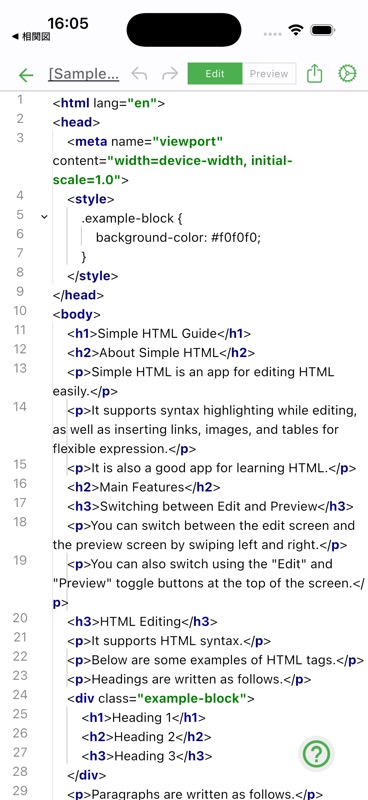
- Select Edit at the top and change the page text or markup. Try changing a heading or paragraph first.
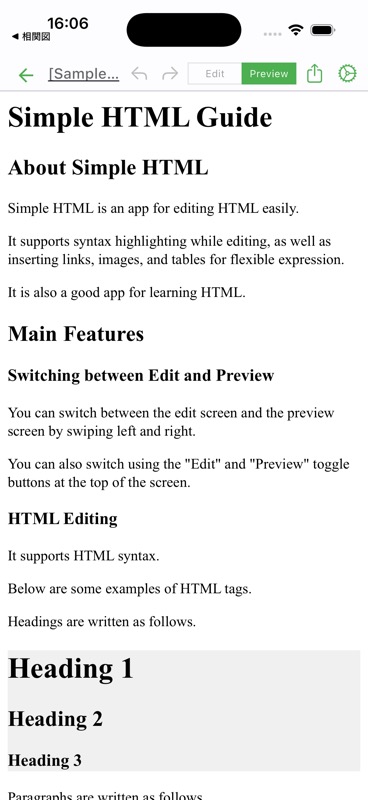
- Switch to Preview to check the headings, links, and layout. Return to Edit to make more changes.
Find and replace text in HTML
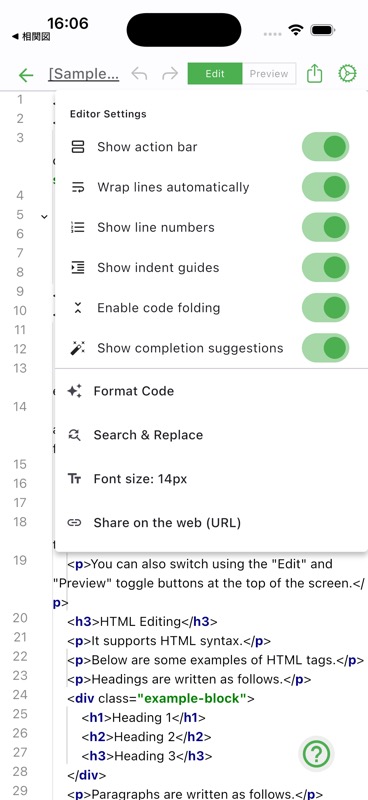
- While in Edit, select the gear icon in the top-right corner and choose Search & Replace in Editor Settings.
- Enter the text to find and move to the previous or next match. Use the Replace icon to open the replacement field, enter the new text, and choose Replace or Replace All.
Format HTML and adjust how lines are displayed
- Open the gear menu in the editor and select Format Code to tidy up indentation.
- Use the word wrap and line number settings to adjust how the code is displayed.
Share the HTML page by URL
- Open the gear menu in the top-right corner and choose Share on the web (URL).
- Copy the generated URL and send it to the recipient. The link shows the page as it was when the URL was created.
A shared URL cannot be revoked. Check what it contains before sending it.
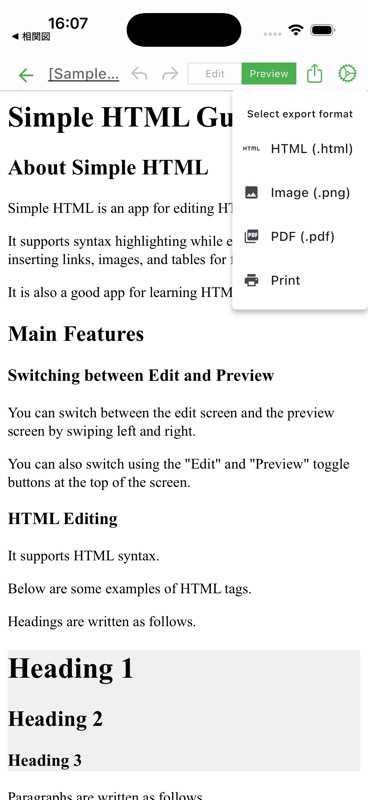
Export a page as HTML, an image, or PDF
- Select the share icon at the top of the screen. Choose HTML (.html) to reopen the file in a browser or edit it later.
- On a phone, choose PNG or PDF to preserve the page’s appearance.
Àwọn ìrà
Ra ètò tí a ń sanwó fún
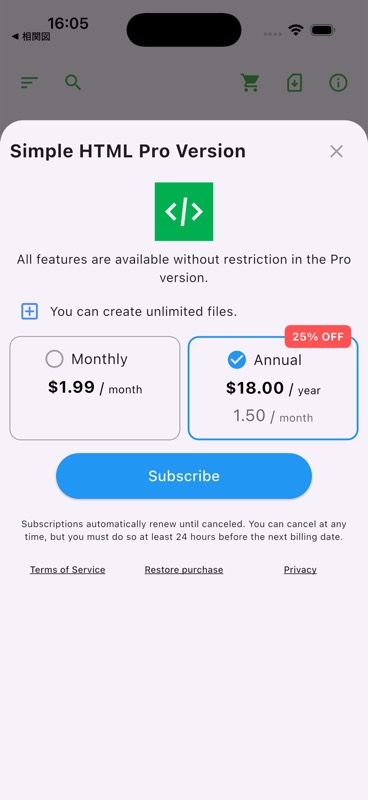
- Yan àmì kẹ̀kẹ́ ìtajà nínú àtòjọ fáìlì.
- Ṣàyẹ̀wò àwọn ètò àti iye owó wọn lójú ìbòjú ìràjà, lẹ́yìn náà yan ètò tí o fẹ́ rà.
Mú ohun tí o rà padà
- Bí o bá ra ètò náà ní ilé ìtajà áàpù, wọlé pẹ̀lú àkọọ́lẹ̀ ilé ìtajà tí o fi rà á.
- Ṣí ojú ìbòjú ìràjà nínú áàpù, yan “Mú àwọn ohun tí o rà padà”, kí o sì ṣàyẹ̀wò àbájáde rẹ̀.
Ṣàkóso ohun tí o rà tàbí ìforúkọsílẹ̀ aláwoṣù rẹ
- Bí àkójọ àṣàyàn ìwífún nínú àtòjọ fáìlì bá ní àṣàyàn fún ṣíṣàkóso ohun tí o rà, ṣí i.
- Lo ilé ìtajà tàbí iṣẹ́ tí o ti ra ètò náà láti ṣàyẹ̀wò tàbí fagilé ìforúkọsílẹ̀ rẹ.
Àkọọ́lẹ̀ tí a sanwó fún
So ohun tí o rà mọ́ àkọọ́lẹ̀ Google
- Wọlé sí àkọọ́lẹ̀ Google rẹ lórí ẹ̀rọ tí ohun tí o rà ṣì ń ṣiṣẹ́ lórí rẹ̀.
- Bí àṣàyàn láti so ohun tí o rà mọ́ àkọọ́lẹ̀ Google bá farahàn nínú àkójọ àṣàyàn, yàn án, kí o sì jẹ́rìí sí àkọọ́lẹ̀ náà.
- Láti lo ètò tí o sanwó fún lórí ẹ̀rọ mìíràn tí a ṣe àtìlẹ́yìn fún, wọlé pẹ̀lú àkọọ́lẹ̀ Google tí a ti so mọ́ ọn.
Yí àkọọ́lẹ̀ Google padà
- Ṣàyẹ̀wò àkọọ́lẹ̀ Google tí o ń lò lọ́wọ́lọ́wọ́ nínú àkójọ àṣàyàn ìwífún ti àtòjọ fáìlì.
- Bí àṣàyàn láti jáde kúrò ní àkọọ́lẹ̀ bá wà, yàn án, lẹ́yìn náà ṣí Google Drive kí o sì wọlé sí àkọọ́lẹ̀ tí o fẹ́ lò.
Lórí ẹ̀rọ mìíràn, lo àkọọ́lẹ̀ tí a so mọ́ ohun tí o rà tàbí àwọn fáìlì Drive tí o fẹ́ wọlé sí.