Senarai fail
Create an HTML file
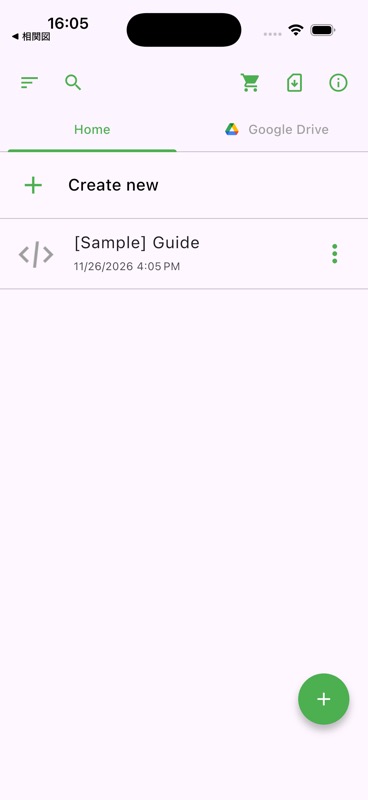
- Select + Create new in the file list.
- Enter a name for the page, then select OK to open the editor.
Tukar susunan fail
- Gunakan kawalan pengisihan di bahagian atas senarai fail. Pada skrin kecil, buka menu pengisihan.
- Pilih untuk mengisih mengikut tarikh pengubahsuaian atau nama fail.
Search for a file by name
- Open Home or Google Drive, depending on where the file is stored, and select the Search icon.
- Enter part of the name in Search by file name. Select Close to see the full list again.
Gandakan fail
- Buka menu tiga titik pada fail dan pilih Gandakan.
- Buka salinan yang ditambahkan pada senarai untuk menyuntingnya tanpa mengubah fail asal.
Padam fail
- Buka menu tiga titik pada fail dan pilih Padam.
- Semak mesej pengesahan dan pilih OK.
Bagi fail yang dikongsi dengan anda, menu mungkin menawarkan pilihan untuk membuang perkongsian tersebut.
Namakan semula fail
- Buka menu tiga titik fail dan pilih Namakan semula.
- Masukkan nama baharu dan sahkan.
Anda memerlukan akses penyuntingan untuk menamakan semula fail Google Drive yang dikongsi dengan anda.
Import an existing HTML file
- Select Import in the file list, then select OK to open the file picker.
- Choose an HTML file (.html or .htm) and open it from the list.
Simpan ke Google Drive
- Pilih Google Drive dalam senarai fail dan ikut arahan untuk menyambungkan Akaun Google anda.
- Cipta fail baharu daripada senarai Google Drive. Jika pilihan tersebut tersedia, anda juga boleh mengalihkan fail setempat ke Google Drive melalui menu tiga titiknya.
Untuk membuka fail pada peranti lain, sambungkan Akaun Google yang anda gunakan untuk menyimpannya.
Alihkan fail antara peranti anda dan Google Drive
- Dalam aplikasi yang dipasang, sambungkan Akaun Google anda dan buka menu tiga titik fail.
- Pilih Alih ke Google Drive atau Alih ke Laman Utama, bergantung pada lokasi fail disimpan, kemudian sahkan.
Penyuntingan fail
Edit HTML and preview the page
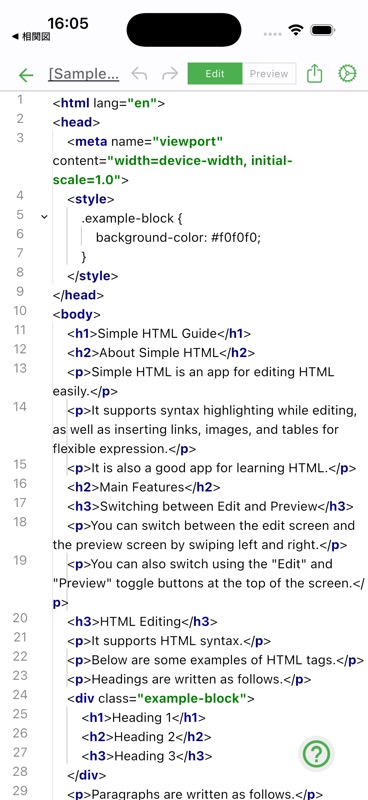
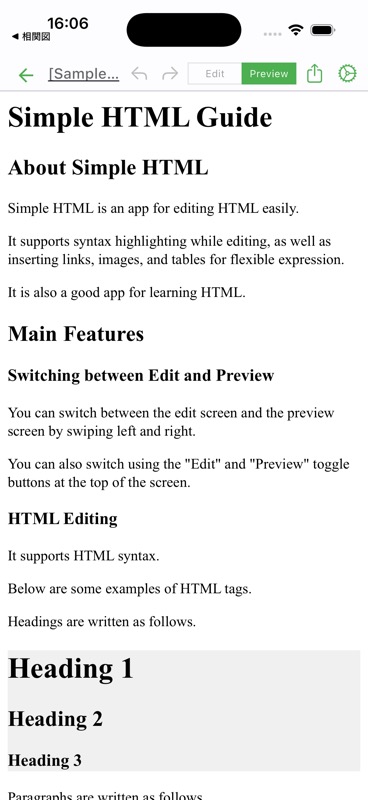
- Select Edit at the top and change the page text or markup. Try changing a heading or paragraph first.
- Switch to Preview to check the headings, links, and layout. Return to Edit to make more changes.
Find and replace text in HTML
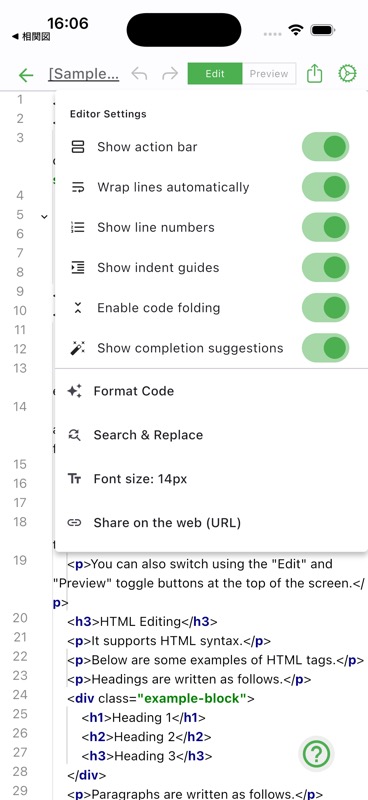
- While in Edit, select the gear icon in the top-right corner and choose Search & Replace in Editor Settings.
- Enter the text to find and move to the previous or next match. Use the Replace icon to open the replacement field, enter the new text, and choose Replace or Replace All.
Format HTML and adjust how lines are displayed
- Open the gear menu in the editor and select Format Code to tidy up indentation.
- Use the word wrap and line number settings to adjust how the code is displayed.
Share the HTML page by URL
- Open the gear menu in the top-right corner and choose Share on the web (URL).
- Copy the generated URL and send it to the recipient. The link shows the page as it was when the URL was created.
A shared URL cannot be revoked. Check what it contains before sending it.
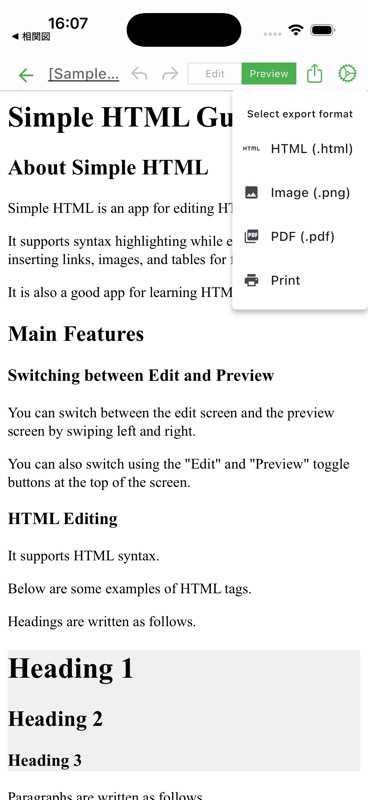
Export a page as HTML, an image, or PDF
- Select the share icon at the top of the screen. Choose HTML (.html) to reopen the file in a browser or edit it later.
- On a phone, choose PNG or PDF to preserve the page’s appearance.
Pembelian
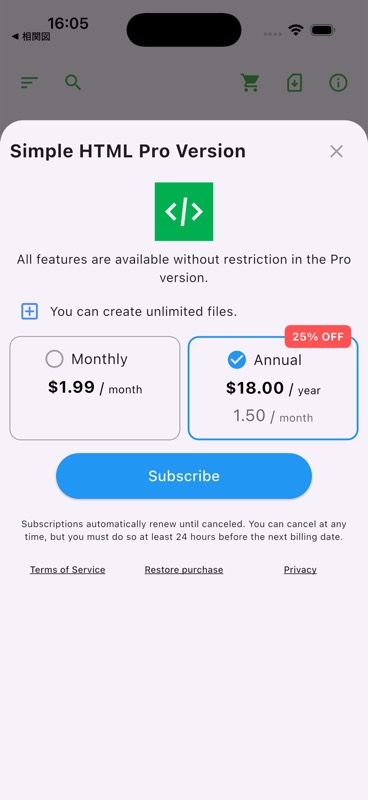
Beli pelan berbayar
- Pilih ikon troli dalam senarai fail.
- Semak pelan dan harga pada skrin pembelian, kemudian pilih pelan yang ingin anda beli.
Pulihkan pembelian
- Jika pembelian dibuat melalui gedung aplikasi, log masuk dengan akaun gedung yang anda gunakan untuk membeli pelan tersebut.
- Buka skrin pembelian dalam aplikasi, pilih Pulihkan Pembelian dan semak hasilnya.
Urus pembelian atau langganan
- Jika menu maklumat dalam senarai fail menyediakan pilihan pengurusan pembelian, buka pilihan tersebut.
- Gunakan gedung atau perkhidmatan tempat anda membeli pelan untuk menyemak atau membatalkan langganan anda.
Akaun berbayar
Pautkan pembelian anda kepada Akaun Google
- Log masuk ke Akaun Google anda pada peranti yang mempunyai pembelian aktif.
- Jika pilihan untuk memautkan pembelian anda kepada Akaun Google muncul dalam menu, pilih pilihan itu dan sahkan akaun tersebut.
- Untuk menggunakan pelan berbayar anda pada peranti lain yang disokong, log masuk dengan Akaun Google yang telah dipautkan.
Tukar Akaun Google
- Semak Akaun Google yang sedang aktif dalam menu maklumat senarai fail.
- Jika pilihan untuk log keluar tersedia, pilih pilihan itu, kemudian buka Google Drive dan log masuk ke akaun yang ingin anda gunakan.
Pada peranti lain, gunakan akaun yang dikaitkan dengan pembelian atau fail Drive yang ingin anda akses.