ફાઇલોની સૂચિ
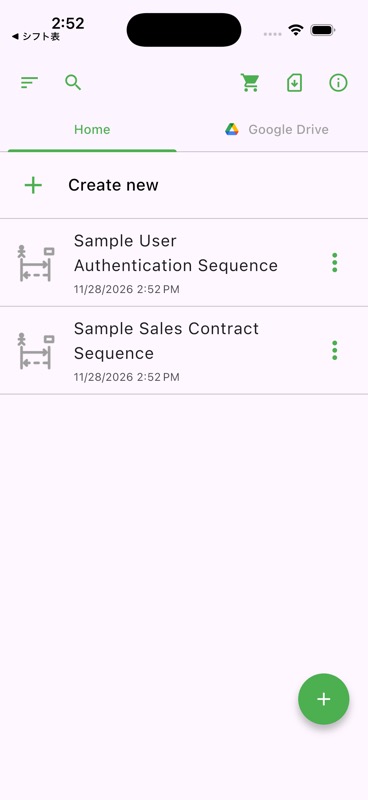
Create a sequence diagram file
- Select + Create new in the file list.
- Enter a name and select OK to open the sequence diagram editor.
ફાઇલોનો ક્રમ બદલો
- ફાઇલોની સૂચિની ટોચ પરના ગોઠવણી નિયંત્રણનો ઉપયોગ કરો. નાની સ્ક્રીન પર ગોઠવણીનું મેનૂ ખોલો.
- ફેરફારની તારીખ અથવા ફાઇલના નામ મુજબ ગોઠવવાનું પસંદ કરો.
Search for a file by name
- Open Home or Google Drive, depending on where the file is stored, and select the Search icon.
- Enter part of the name in Search by file name. Select Close to see the full list again.
ફાઇલની નકલ બનાવો
- ફાઇલનું ત્રણ ટપકાંવાળું મેનૂ ખોલો અને નકલ બનાવો વિકલ્પ પસંદ કરો.
- મૂળ ફાઇલને જાળવી રાખીને સંપાદન કરવા માટે સૂચિમાં ઉમેરાયેલી નકલ ખોલો.
ફાઇલ કાઢી નાખો
- ફાઇલનું ત્રણ ટપકાંવાળું મેનૂ ખોલો અને કાઢી નાખો વિકલ્પ પસંદ કરો.
- પુષ્ટિકરણ સંદેશ તપાસો અને OK પસંદ કરો.
તમારી સાથે શેર કરવામાં આવેલી ફાઇલ માટે મેનૂમાં શેરિંગ દૂર કરવાનો વિકલ્પ હોઈ શકે છે.
ફાઇલનું નામ બદલો
- ફાઇલનું ત્રણ ટપકાંવાળું મેનૂ ખોલો અને નામ બદલો પસંદ કરો.
- નવું નામ દાખલ કરો અને પુષ્ટિ કરો.
તમારી સાથે શેર કરેલી Google Drive ફાઇલનું નામ બદલવા માટે સંપાદનની પરવાનગી જરૂરી છે.
Import a Mermaid diagram
- Select Import in the file list and select OK to open the file picker.
- Choose a Mermaid file (.mermaid or .mmd), then open it from the file list.
Google Driveમાં સાચવો
- ફાઇલની સૂચિમાં Google Drive પસંદ કરો અને તમારું Google એકાઉન્ટ જોડવા માટે સૂચનાઓ અનુસરો.
- Google Driveની સૂચિમાંથી નવી ફાઇલ બનાવો. જો વિકલ્પ ઉપલબ્ધ હોય, તો સ્થાનિક ફાઇલને તેના ત્રણ ટપકાંવાળા મેનૂમાંથી Google Driveમાં પણ ખસેડી શકો છો.
બીજા ઉપકરણ પર ફાઇલ ખોલવા માટે, તેને સાચવવા માટે વાપરેલું Google એકાઉન્ટ જોડો.
તમારા ઉપકરણ અને Google Drive વચ્ચે ફાઇલો ખસેડો
- ઇન્સ્ટોલ કરેલી એપ્લિકેશનમાં તમારું Google એકાઉન્ટ જોડો અને ફાઇલનું ત્રણ ટપકાંવાળું મેનૂ ખોલો.
- ફાઇલ ક્યાં સાચવેલી છે તેના આધારે Google Driveમાં ખસેડો અથવા હોમમાં ખસેડો પસંદ કરો અને પુષ્ટિ કરો.
ફાઇલોનું સંપાદન
Describe participants and their messages to create a sequence diagram
- Open Sequence at the top, tap the input field at the bottom, and choose Edit.
- Describe the participants and messages in order. For example, “The customer sends an order to the store. The store checks stock with the warehouse, then confirms the order to the customer.” Select Send.
- Review who sends each message and check the direction and order of the arrows.
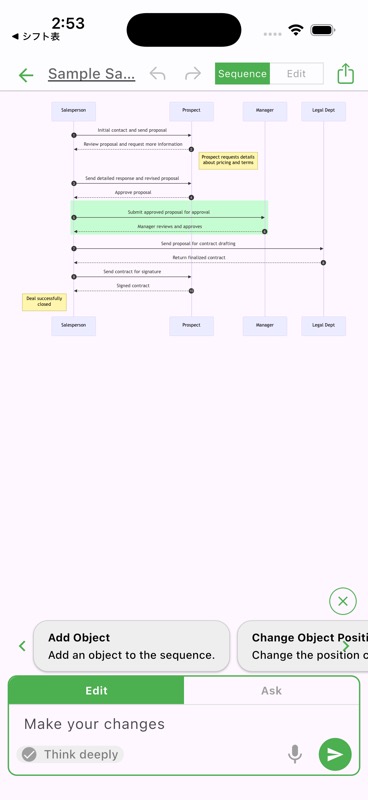
Ask AI about the sequence diagram
- On Sequence, tap the input field at the bottom and choose Ask.
- Send a question such as “Who does the store contact after checking stock?” and read the reply in the chat window.
Edit participants and messages in Mermaid
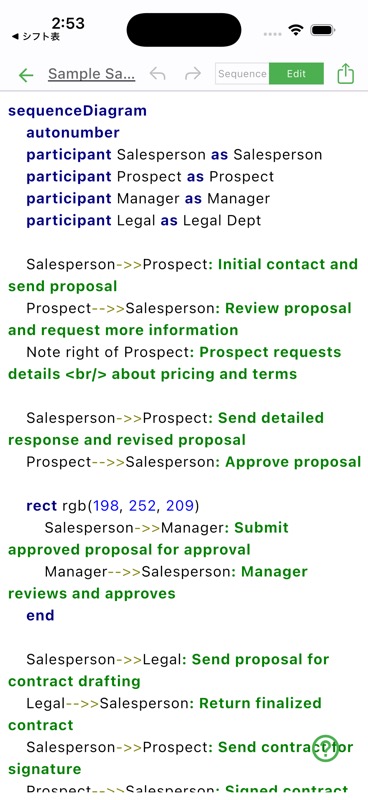
- Choose Edit at the top to open the Mermaid source.
- Update participant names, message text, or message order. Switch back to Sequence to check the diagram.
Export the diagram as an image, Mermaid, or HTML
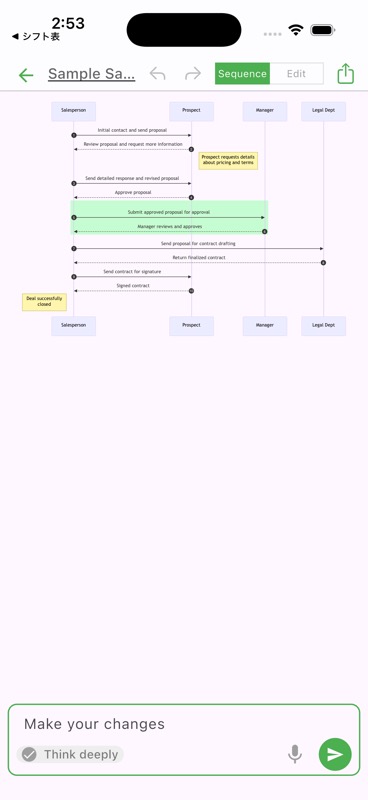
- Select the share icon in the top-right corner of the editor.
- Choose an image to place the diagram in another document, Mermaid (.mermaid) to edit the source later, or HTML to open the file in a browser.
ખરીદીઓ
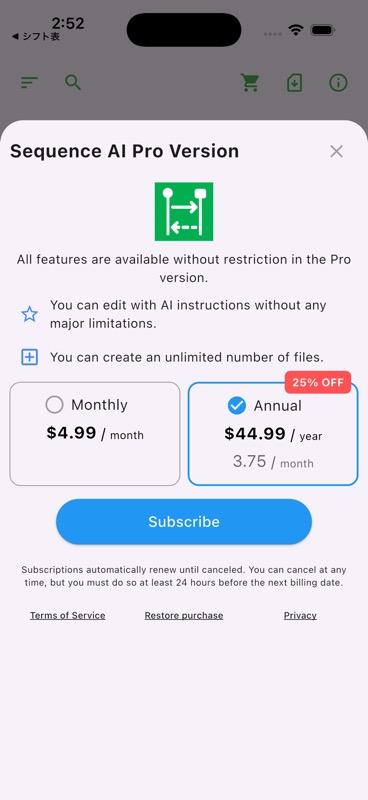
પેઇડ પ્લાન ખરીદો
- ફાઇલ સૂચિમાં શોપિંગ કાર્ટનું આઇકન પસંદ કરો.
- ખરીદી સ્ક્રીન પર પ્લાન અને કિંમતો તપાસો, પછી તમે જે પ્લાન ખરીદવા માંગો છો તે પસંદ કરો.
ખરીદી પુનઃસ્થાપિત કરો
- જો તમે એપ સ્ટોરમાંથી ખરીદી કરી હોય, તો પ્લાન ખરીદવા માટે વાપરેલા સ્ટોર એકાઉન્ટથી સાઇન ઇન કરો.
- એપમાં ખરીદી સ્ક્રીન ખોલો, «ખરીદીઓ પુનઃસ્થાપિત કરો» પસંદ કરો અને પરિણામ તપાસો.
ખરીદી અથવા સબ્સ્ક્રિપ્શન મેનેજ કરો
- જો ફાઇલ સૂચિના માહિતી મેનૂમાં ખરીદી મેનેજ કરવાનો વિકલ્પ હોય, તો તેને ખોલો.
- તમારું સબ્સ્ક્રિપ્શન તપાસવા અથવા રદ કરવા માટે તમે જ્યાંથી પ્લાન ખરીદ્યો હતો તે સ્ટોર અથવા સેવાનો ઉપયોગ કરો.
સશુલ્ક ખાતું
તમારી ખરીદીને Google એકાઉન્ટ સાથે લિંક કરો
- જે ડિવાઇસ પર તમારી ખરીદી સક્રિય છે તેના પર તમારા Google એકાઉન્ટમાં સાઇન ઇન કરો.
- જો મેનૂમાં તમારી ખરીદીને Google એકાઉન્ટ સાથે લિંક કરવાનો વિકલ્પ દેખાય, તો તેને પસંદ કરો અને એકાઉન્ટની પુષ્ટિ કરો.
- બીજા સમર્થિત ડિવાઇસ પર તમારો પેઇડ પ્લાન વાપરવા માટે લિંક કરેલા Google એકાઉન્ટથી સાઇન ઇન કરો.
Google એકાઉન્ટ બદલો
- ફાઇલ સૂચિના માહિતી મેનૂમાં કયું Google એકાઉન્ટ સક્રિય છે તે તપાસો.
- જો સાઇન આઉટ કરવાનો વિકલ્પ ઉપલબ્ધ હોય, તો તેને પસંદ કરો, પછી Google Drive ખોલો અને તમે જે એકાઉન્ટ વાપરવા માંગો છો તેમાં સાઇન ઇન કરો.
બીજા ડિવાઇસ પર, ખરીદી સાથે અથવા તમે ઍક્સેસ કરવા માંગો છો તે Drive ફાઇલો સાથે સંકળાયેલા એકાઉન્ટનો ઉપયોગ કરો.