Uluhlu lweefayile
Create a Gantt chart
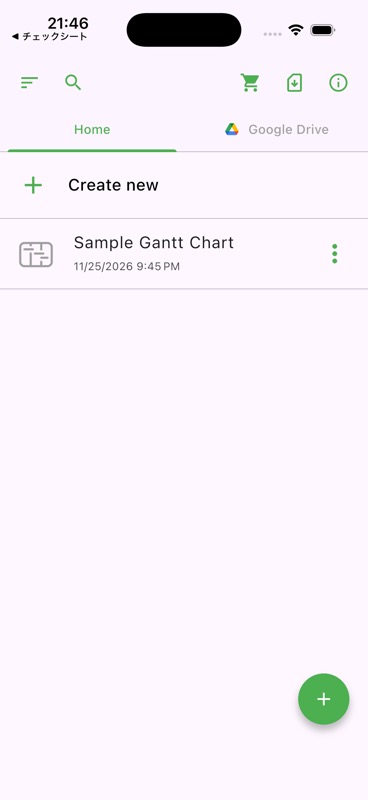
- Tap the + Create new row in the file list.
- Enter a name and select OK to open the chart.
Ukutshintsha indlela yokuhlela ngokulandelelana iifayile
- Sebenzisa isilawuli sokuhlela ngokulandelelana esiphezulu kuluhlu lweefayile. Kwisikrini esincinci, vula imenyu yokuhlela ngokulandelelana.
- Khetha ukulandelelanisa ngokomhla wokugqibela wokulungiswa okanye ngegama lefayile.
Search for a file by name
- Open Home or Google Drive, depending on where the file is stored, and select the Search icon.
- Enter part of the name in Search by file name. Select Close to see the full list again.
Ukwenza ikopi yefayile
- Vula imenyu yamachaphaza amathathu yefayile uze ukhethe Yenza ikopi.
- Vula ikopi eyongezwe kuluhlu ukuze uyihlele ngoxa ugcina ifayile yoqobo.
Ukucima ifayile
- Vula imenyu yamachaphaza amathathu yefayile uze ukhethe Cima.
- Jonga umyalezo wokuqinisekisa uze ukhethe u-OK.
Kwifayile ekwabelwana ngayo nawe, imenyu isenokuba nokhetho lokurhoxisa ukwabelana ngayo.
Ukutshintsha igama lefayile
- Vula imenyu yamachaphaza amathathu yefayile uze ukhethe ukuthiya ngokutsha.
- Faka igama elitsha uze uqinisekise.
Kufuneka ube nemvume yokuhlela ukuze uthiye ngokutsha ifayile yeGoogle Drive ekwabelwana ngayo nawe.
Import a Gantt chart
- Select Import in the file list, then select OK to open the file picker.
- Choose an iGanttChart file (.igantt).
Gcina kuGoogle Drive
- Khetha iGoogle Drive kuluhlu lweefayile uze ulandele imiyalelo yokudibanisa iAkhawunti yakho kaGoogle.
- Yenza ifayile entsha kuluhlu lweGoogle Drive. Ukuba olu khetho luyafumaneka, ungahambisa nefayile egcinwe kwisixhobo sakho iye kuGoogle Drive usebenzisa imenyu yayo yamachaphaza amathathu.
Ukuvula ifayile kwesinye isixhobo, dibanisa iAkhawunti kaGoogle obuyisebenzisile ukuyigcina.
Hambisa iifayile phakathi kwesixhobo sakho neGoogle Drive
- Kwi-app efakiweyo, dibanisa iAkhawunti yakho kaGoogle uze uvule imenyu yamachaphaza amathathu yefayile.
- Khetha Hambisa kuGoogle Drive okanye Hambisa kuKhaya, kuxhomekeke apho ifayile igcinwe khona, uze uqinisekise.
Ukuhlela iifayile
Add tasks and subtasks
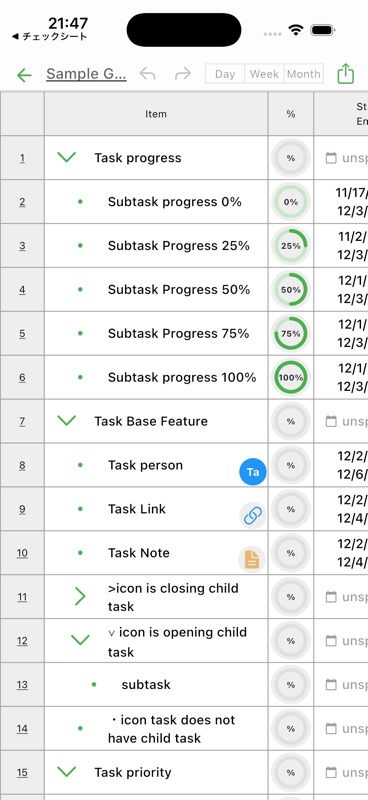
- Tap the row number of an existing task and choose Add Sibling Task or Add Child Task.
- Use a sibling task for work at the same level, or a child task to break the selected task into smaller steps.
Set a task’s dates
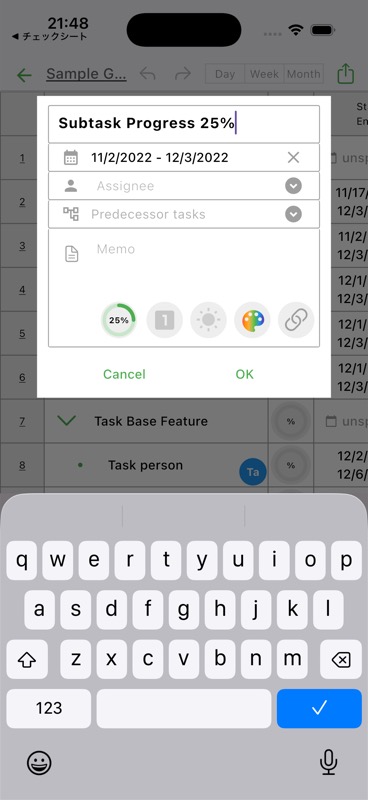
- Tap the task name to open the task editor.
- Tap Date Setting or the displayed date range. Choose the start and end dates, then select OK in the task editor.
Set dependencies with predecessor tasks
- Tap the name of the task that comes later to open its editor.
- Under Predecessor tasks, select the work that needs to finish first. Set dates on both tasks to see the link in the chart.
- To remove the dependencies, select Clear selection.
Update task progress
- In the task editor, tap the circular indicator in the lower-right corner of the note field until it shows the current completion level.
- Update it as work progresses, then review the dates and completion level in the chart.
Export a Gantt chart
- Open Export in the top-right corner of the editor.
- Choose Image (.png) or PDF to share or print the chart. For Excel or for later reimport into iGanttChart, choose the corresponding export format.
Export formats marked with a lock require Pro.
Izinto ezithengiweyo
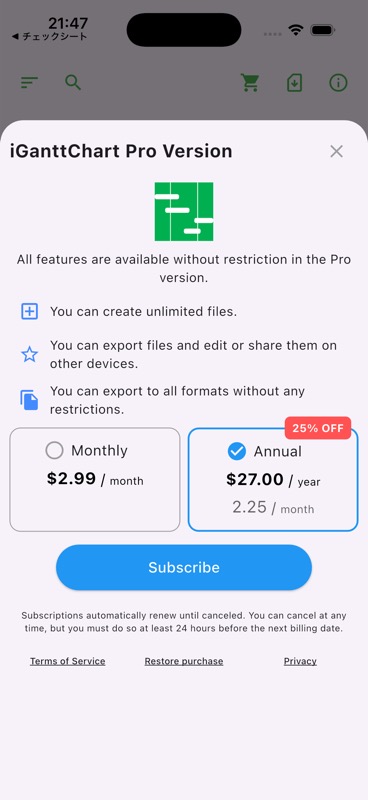
Thenga isicwangciso esihlawulelwayo
- Khetha i-ayikhoni yenqwelo yokuthenga kuluhlu lweefayile.
- Jonga izicwangciso namaxabiso kwisikrini sokuthenga, uze ukhethe isicwangciso ofuna ukusithenga.
Buyisela ukuthenga
- Ukuba uthenge kwivenkile yee-app, ngena ngeakhawunti yevenkile oyisebenzisileyo ukuthenga isicwangciso.
- Vula isikrini sokuthenga kwi-app, ukhethe Ukubuyisela izinto ezithengiweyo, uze ujonge iziphumo.
Lawula ukuthenga okanye umrhumo
- Ukuba imenyu yolwazi kuluhlu lweefayile inenketho yokulawula ukuthenga, yivule.
- Sebenzisa ivenkile okanye inkonzo othenge kuyo isicwangciso ukuze ujonge okanye urhoxise umrhumo wakho.
Iakhawunti ehlawulelwayo
Qhagamshela ukuthenga kwakho kwiakhawunti kaGoogle
- Ngena kwiakhawunti yakho kaGoogle kwisixhobo apho unokuthenga okusasebenzayo.
- Ukuba inketho yokuqhagamshela ukuthenga kwakho kwiakhawunti kaGoogle iyavela kwimenyu, yikhethe uze uqinisekise iakhawunti.
- Ukuze usebenzise isicwangciso sakho esihlawulelwayo kwesinye isixhobo esixhaswayo, ngena ngeakhawunti kaGoogle eqhagamshelweyo.
Tshintsha iakhawunti kaGoogle
- Jonga ukuba yeyiphi iakhawunti kaGoogle esebenzayo kwimenyu yolwazi kuluhlu lweefayile.
- Ukuba ikhona inketho yokuphuma kwiakhawunti, yikhethe, emva koko uvule iGoogle Drive uze ungene kwiakhawunti ofuna ukuyisebenzisa.
Kwesinye isixhobo, sebenzisa iakhawunti enxulumene nokuthenga okanye neefayile zeDrive ofuna ukufikelela kuzo.