Failu saraksts
Create a Gantt chart
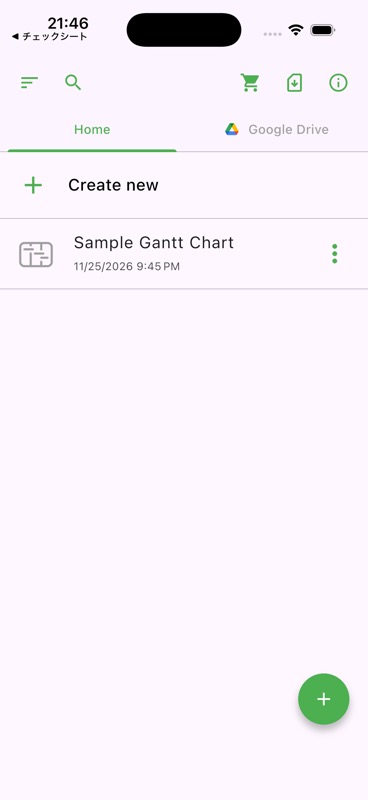
- Tap the + Create new row in the file list.
- Enter a name and select OK to open the chart.
Mainīt failu kārtošanas secību
- Izmantojiet kārtošanas vadīklu failu saraksta augšdaļā. Mazā ekrānā atveriet kārtošanas izvēlni.
- Izvēlieties kārtošanu pēc modificēšanas datuma vai faila nosaukuma.
Search for a file by name
- Open Home or Google Drive, depending on where the file is stored, and select the Search icon.
- Enter part of the name in Search by file name. Select Close to see the full list again.
Dublēt failu
- Atveriet faila trīs punktu izvēlni un atlasiet “Dublēt”.
- Atveriet sarakstam pievienoto kopiju, lai to rediģētu, saglabājot oriģinālu.
Dzēst failu
- Atveriet faila trīs punktu izvēlni un atlasiet “Dzēst”.
- Pārbaudiet apstiprinājuma ziņojumu un atlasiet “OK”.
Ja fails ir kopīgots ar jums, izvēlnē var būt pieejama iespēja noņemt kopīgošanu.
Pārdēvēt failu
- Atveriet faila trīs punktu izvēlni un atlasiet “Pārdēvēt”.
- Ievadiet jauno nosaukumu un apstipriniet.
Lai pārdēvētu ar jums kopīgotu Google Drive failu, nepieciešama rediģēšanas atļauja.
Import a Gantt chart
- Select Import in the file list, then select OK to open the file picker.
- Choose an iGanttChart file (.igantt).
Saglabāt Google Drive
- Failu sarakstā izvēlieties Google Drive un izpildiet norādījumus, lai piesaistītu savu Google kontu.
- Izveidojiet jaunu failu Google Drive sarakstā. Ja šī iespēja ir pieejama, varat arī pārvietot lokāli saglabātu failu uz Google Drive, izmantojot tā trīs punktu izvēlni.
Lai atvērtu failu citā ierīcē, piesaistiet Google kontu, kuru izmantojāt tā saglabāšanai.
Pārvietot failus starp ierīci un Google Drive
- Instalētajā lietotnē piesaistiet savu Google kontu un atveriet faila trīs punktu izvēlni.
- Atkarībā no faila saglabāšanas vietas izvēlieties “Pārvietot uz Google Drive” vai “Pārvietot uz sākumvietu (Home)” un apstipriniet.
Failu rediģēšana
Add tasks and subtasks
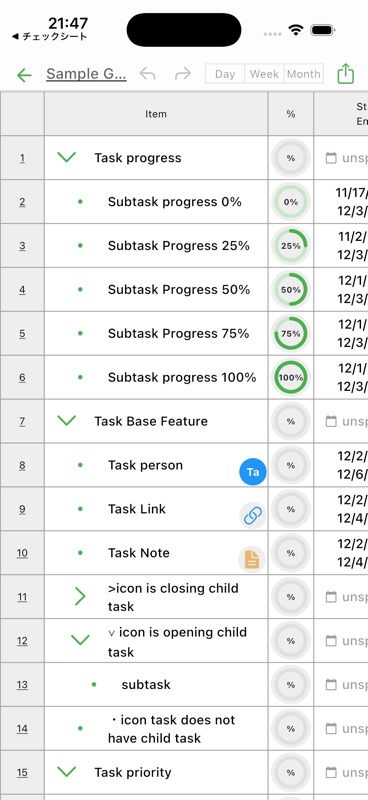
- Tap the row number of an existing task and choose Add Sibling Task or Add Child Task.
- Use a sibling task for work at the same level, or a child task to break the selected task into smaller steps.
Set a task’s dates
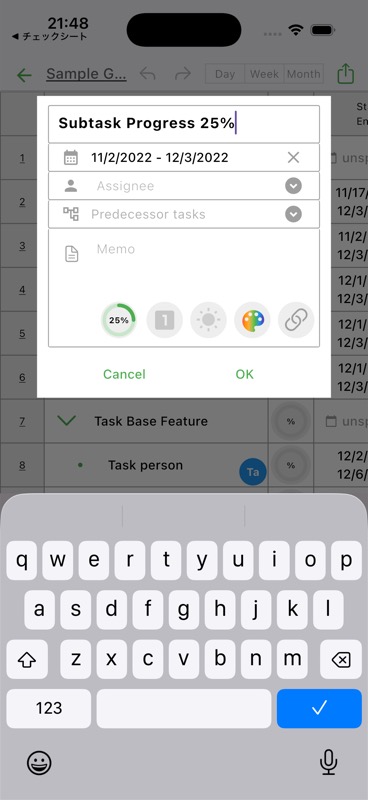
- Tap the task name to open the task editor.
- Tap Date Setting or the displayed date range. Choose the start and end dates, then select OK in the task editor.
Set dependencies with predecessor tasks
- Tap the name of the task that comes later to open its editor.
- Under Predecessor tasks, select the work that needs to finish first. Set dates on both tasks to see the link in the chart.
- To remove the dependencies, select Clear selection.
Update task progress
- In the task editor, tap the circular indicator in the lower-right corner of the note field until it shows the current completion level.
- Update it as work progresses, then review the dates and completion level in the chart.
Export a Gantt chart
- Open Export in the top-right corner of the editor.
- Choose Image (.png) or PDF to share or print the chart. For Excel or for later reimport into iGanttChart, choose the corresponding export format.
Export formats marked with a lock require Pro.
Pirkumi
Iegādāties maksas plānu
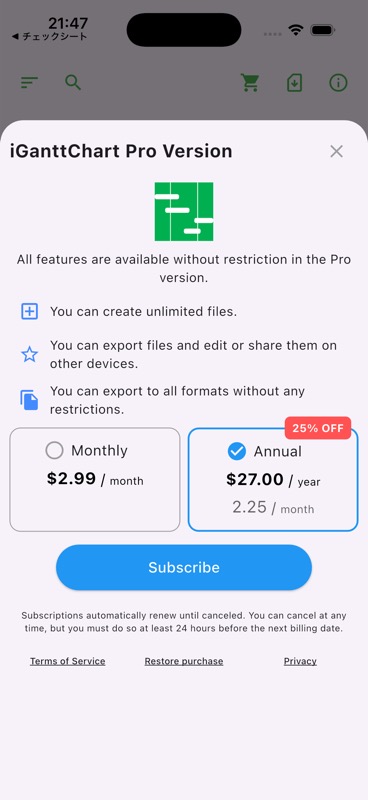
- Failu sarakstā atlasiet iepirkumu groza ikonu.
- Pirkuma ekrānā pārskatiet plānus un cenas, pēc tam atlasiet plānu, kuru vēlaties iegādāties.
Atjaunot pirkumu
- Ja pirkumu veicāt lietotņu veikalā, pierakstieties ar veikala kontu, kuru izmantojāt plāna iegādei.
- Lietotnē atveriet pirkuma ekrānu, atlasiet „Atjaunot pirkumus“ un pārbaudiet rezultātu.
Pārvaldīt pirkumu vai abonementu
- Ja failu saraksta informācijas izvēlnē ir pieejama pirkumu pārvaldības opcija, atveriet to.
- Lai pārskatītu vai atceltu abonementu, izmantojiet veikalu vai pakalpojumu, kurā iegādājāties plānu.
Maksas konts
Saistīt pirkumu ar Google kontu
- Ierīcē, kurā jums ir aktīvs pirkums, pierakstieties savā Google kontā.
- Ja izvēlnē parādās opcija saistīt pirkumu ar Google kontu, atlasiet to un apstipriniet kontu.
- Lai izmantotu maksas plānu citā atbalstītā ierīcē, pierakstieties ar saistīto Google kontu.
Pārslēgties starp Google kontiem
- Failu saraksta informācijas izvēlnē pārbaudiet, kurš Google konts pašlaik ir aktīvs.
- Ja ir pieejama izrakstīšanās opcija, atlasiet to, pēc tam atveriet Google Drive un pierakstieties kontā, kuru vēlaties izmantot.
Citā ierīcē izmantojiet kontu, kas ir saistīts ar pirkumu vai Drive failiem, kuriem vēlaties piekļūt.