ລາຍການໄຟລ໌
Create a Gantt chart
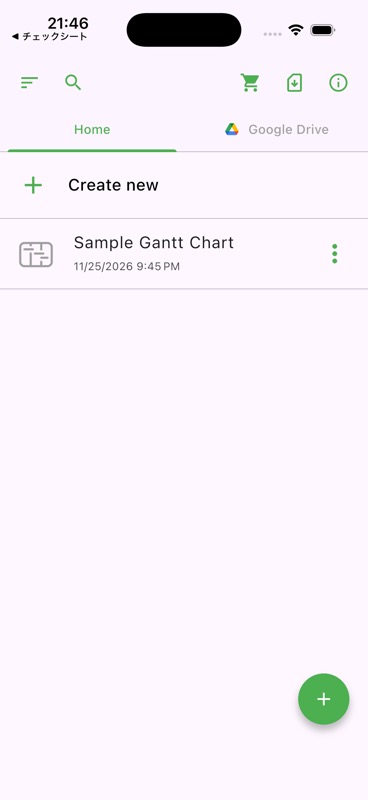
- Tap the + Create new row in the file list.
- Enter a name and select OK to open the chart.
ປ່ຽນລຳດັບການຈັດລຽງໄຟລ໌
- ໃຊ້ຕົວຄວບຄຸມການຈັດລຽງຢູ່ດ້ານເທິງຂອງລາຍການໄຟລ໌. ຖ້າໜ້າຈໍມີຂະໜາດນ້ອຍ ໃຫ້ເປີດເມນູຈັດລຽງ.
- ເລືອກຈັດລຽງຕາມວັນທີແກ້ໄຂ ຫຼືຊື່ໄຟລ໌.
Search for a file by name
- Open Home or Google Drive, depending on where the file is stored, and select the Search icon.
- Enter part of the name in Search by file name. Select Close to see the full list again.
ສ້າງສຳເນົາໄຟລ໌
- ເປີດເມນູສາມຈຸດຂອງໄຟລ໌ ແລ້ວເລືອກ «ສ້າງສຳເນົາ».
- ເປີດສຳເນົາທີ່ຖືກເພີ່ມໃສ່ລາຍການ ເພື່ອແກ້ໄຂໂດຍຍັງຄົງເກັບໄຟລ໌ຕົ້ນສະບັບໄວ້.
ລຶບໄຟລ໌
- ເປີດເມນູສາມຈຸດຂອງໄຟລ໌ ແລ້ວເລືອກ «ລຶບ».
- ກວດເບິ່ງຂໍ້ຄວາມຢືນຢັນ ແລ້ວເລືອກ «OK».
ສຳລັບໄຟລ໌ທີ່ມີຄົນແບ່ງປັນໃຫ້ທ່ານ ເມນູອາດມີຕົວເລືອກໃຫ້ຍົກເລີກການແບ່ງປັນ.
ປ່ຽນຊື່ໄຟລ໌
- ເປີດເມນູສາມຈຸດຂອງໄຟລ໌ ແລ້ວເລືອກ «ປ່ຽນຊື່».
- ປ້ອນຊື່ໃໝ່ ແລ້ວຢືນຢັນ.
ທ່ານຕ້ອງມີສິດແກ້ໄຂເພື່ອປ່ຽນຊື່ໄຟລ໌ Google Drive ທີ່ແບ່ງປັນໃຫ້ທ່ານ.
Import a Gantt chart
- Select Import in the file list, then select OK to open the file picker.
- Choose an iGanttChart file (.igantt).
ບັນທຶກໄວ້ໃນ Google Drive
- ເລືອກ Google Drive ໃນລາຍຊື່ໄຟລ໌ ແລ້ວເຮັດຕາມຄຳແນະນຳເພື່ອເຊື່ອມຕໍ່ບັນຊີ Google ຂອງທ່ານ.
- ສ້າງໄຟລ໌ໃໝ່ຈາກລາຍຊື່ Google Drive. ຫາກມີຕົວເລືອກນີ້ ທ່ານຍັງສາມາດຍ້າຍໄຟລ໌ໃນອຸປະກອນໄປຫາ Google Drive ຜ່ານເມນູສາມຈຸດຂອງໄຟລ໌ໄດ້.
ເພື່ອເປີດໄຟລ໌ໃນອຸປະກອນອື່ນ ໃຫ້ເຊື່ອມຕໍ່ບັນຊີ Google ທີ່ທ່ານໃຊ້ບັນທຶກໄຟລ໌ນັ້ນ.
ຍ້າຍໄຟລ໌ລະຫວ່າງອຸປະກອນຂອງທ່ານກັບ Google Drive
- ໃນແອັບທີ່ຕິດຕັ້ງແລ້ວ ໃຫ້ເຊື່ອມຕໍ່ບັນຊີ Google ຂອງທ່ານ ແລ້ວເປີດເມນູສາມຈຸດຂອງໄຟລ໌.
- ເລືອກ «ຍ້າຍໄປ Google Drive» ຫຼື «ຍ້າຍໄປໜ້າຫຼັກ» ຕາມບ່ອນທີ່ບັນທຶກໄຟລ໌ ແລ້ວຢືນຢັນ.
ການແກ້ໄຂໄຟລ໌
Add tasks and subtasks
- Tap the row number of an existing task and choose Add Sibling Task or Add Child Task.
- Use a sibling task for work at the same level, or a child task to break the selected task into smaller steps.
Set a task’s dates
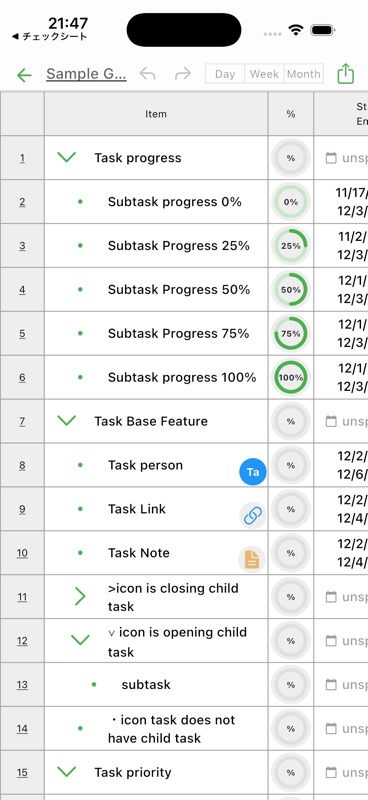
- Tap the task name to open the task editor.
- Tap Date Setting or the displayed date range. Choose the start and end dates, then select OK in the task editor.
Set dependencies with predecessor tasks
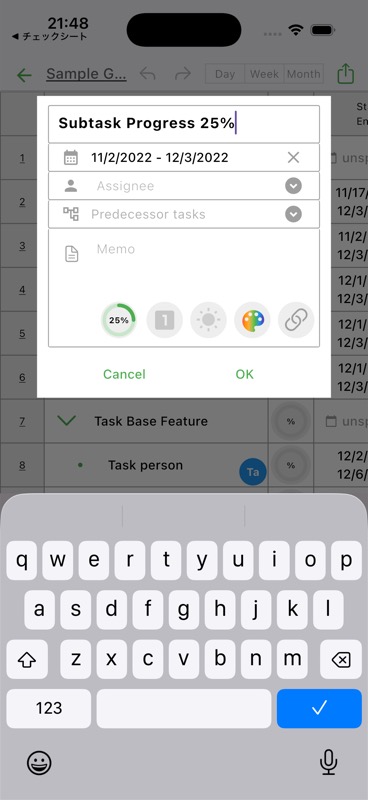
- Tap the name of the task that comes later to open its editor.
- Under Predecessor tasks, select the work that needs to finish first. Set dates on both tasks to see the link in the chart.
- To remove the dependencies, select Clear selection.
Update task progress
- In the task editor, tap the circular indicator in the lower-right corner of the note field until it shows the current completion level.
- Update it as work progresses, then review the dates and completion level in the chart.
Export a Gantt chart
- Open Export in the top-right corner of the editor.
- Choose Image (.png) or PDF to share or print the chart. For Excel or for later reimport into iGanttChart, choose the corresponding export format.
Export formats marked with a lock require Pro.
ການຊື້
ຊື້ແຜນແບບເສຍຄ່າ
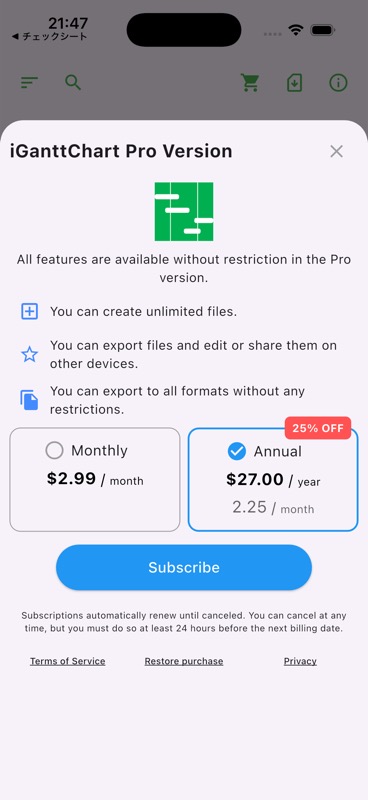
- ເລືອກໄອຄອນກະຕ່າໃນລາຍການໄຟລ໌.
- ກວດເບິ່ງແຜນ ແລະ ລາຄາໃນໜ້າຈໍການຊື້ ແລ້ວເລືອກແຜນທີ່ທ່ານຕ້ອງການຊື້.
ກູ້ຄືນການຊື້
- ຖ້າທ່ານຊື້ແຜນຜ່ານຮ້ານແອັບ, ໃຫ້ເຂົ້າສູ່ລະບົບດ້ວຍບັນຊີຮ້ານທີ່ທ່ານໃຊ້ຊື້ແຜນນັ້ນ.
- ເປີດໜ້າຈໍການຊື້ໃນແອັບ, ເລືອກ «ກູ້ຄືນການຊື້» ແລ້ວກວດເບິ່ງຜົນ.
ຈັດການການຊື້ ຫຼື ການສະໝັກໃຊ້ບໍລິການ
- ຖ້າເມນູຂໍ້ມູນໃນລາຍການໄຟລ໌ມີຕົວເລືອກຈັດການການຊື້, ໃຫ້ເປີດຕົວເລືອກນັ້ນ.
- ໃຊ້ຮ້ານ ຫຼື ບໍລິການທີ່ທ່ານຊື້ແຜນເພື່ອກວດເບິ່ງ ຫຼື ຍົກເລີກການສະໝັກໃຊ້ບໍລິການຂອງທ່ານ.
ບັນຊີແບບເສຍເງິນ
ເຊື່ອມໂຍງການຊື້ກັບບັນຊີ Google
- ເຂົ້າສູ່ບັນຊີ Google ຂອງທ່ານໃນອຸປະກອນທີ່ມີການຊື້ທີ່ຍັງໃຊ້ງານໄດ້.
- ຖ້າຕົວເລືອກເຊື່ອມໂຍງການຊື້ກັບບັນຊີ Google ປາກົດຢູ່ໃນເມນູ, ໃຫ້ເລືອກຕົວເລືອກນັ້ນ ແລະ ຢືນຢັນບັນຊີ.
- ເພື່ອໃຊ້ແຜນແບບເສຍຄ່າໃນອຸປະກອນອື່ນທີ່ຮອງຮັບ, ໃຫ້ເຂົ້າສູ່ລະບົບດ້ວຍບັນຊີ Google ທີ່ເຊື່ອມໂຍງໄວ້.
ສະຫຼັບບັນຊີ Google
- ກວດເບິ່ງວ່າບັນຊີ Google ໃດກຳລັງໃຊ້ງານຢູ່ໃນເມນູຂໍ້ມູນຂອງລາຍການໄຟລ໌.
- ຖ້າມີຕົວເລືອກອອກຈາກລະບົບ, ໃຫ້ເລືອກຕົວເລືອກນັ້ນ, ຈາກນັ້ນເປີດ Google Drive ແລະ ເຂົ້າສູ່ບັນຊີທີ່ທ່ານຕ້ອງການໃຊ້.
ໃນອຸປະກອນອື່ນ, ໃຫ້ໃຊ້ບັນຊີທີ່ເຊື່ອມໂຍງກັບການຊື້ ຫຼື ໄຟລ໌ໃນ Drive ທີ່ທ່ານຕ້ອງການເຂົ້າເຖິງ.