फाइल सूची
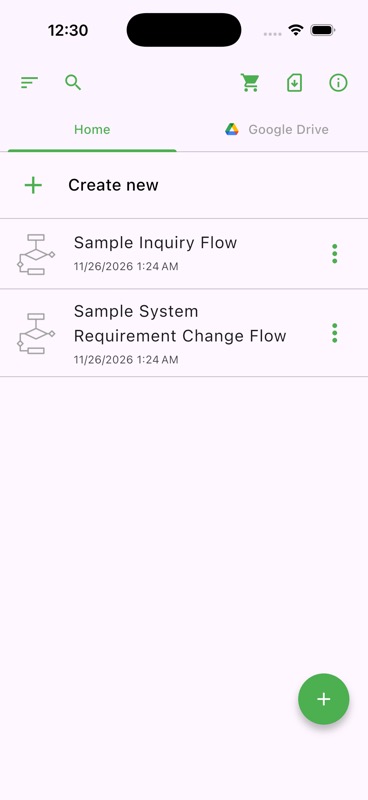
Create a flowchart file
- Open Home or Google Drive and select the + Create new row in the file list.
- Enter a name and select OK to open the editor.
फाइलहरूको क्रम परिवर्तन गर्ने
- फाइल सूचीको माथि रहेको क्रमबद्ध गर्ने विकल्प प्रयोग गर्नुहोस्। सानो स्क्रिनमा क्रमबद्ध गर्ने मेनु खोल्नुहोस्।
- परिमार्जन मिति वा फाइलको नामअनुसार क्रमबद्ध गर्ने विकल्प छान्नुहोस्।
Search for a file by name
- Open Home or Google Drive, depending on where the file is stored, and select the Search icon.
- Enter part of the name in Search by file name. Select Close to see the full list again.
फाइलको प्रतिलिपि बनाउने
- फाइलको तीन थोप्ला भएको मेनु खोल्नुहोस् र प्रतिलिपि बनाउनुहोस् भन्ने विकल्प छान्नुहोस्।
- मूल फाइल जस्ताको तस्तै राखेर सम्पादन गर्न सूचीमा थपिएको प्रतिलिपि खोल्नुहोस्।
फाइल मेटाउने
- फाइलको तीन थोप्ला भएको मेनु खोल्नुहोस् र मेटाउनुहोस् भन्ने विकल्प छान्नुहोस्।
- पुष्टि सन्देश जाँच गर्नुहोस् र OK छान्नुहोस्।
तपाईंसँग साझा गरिएको फाइलका लागि मेनुमा साझेदारी हटाउने विकल्प देखिन सक्छ।
फाइलको नाम परिवर्तन गर्ने
- फाइलको तीनवटा थोप्ला भएको मेनु खोल्नुहोस् र नाम परिवर्तन गर्नुहोस् भन्ने विकल्प छान्नुहोस्।
- नयाँ नाम प्रविष्ट गर्नुहोस् र पुष्टि गर्नुहोस्।
तपाईंसँग साझा गरिएको Google Drive फाइलको नाम परिवर्तन गर्न सम्पादन गर्ने अनुमति चाहिन्छ।
Import a Mermaid flowchart
- Select Import in the file list and select OK to open the file picker.
- Choose a Mermaid flowchart file (.mermaid or .mmd).
Google Drive मा सुरक्षित गर्नुहोस्
- फाइल सूचीमा Google Drive छान्नुहोस् र आफ्नो Google खाता जोड्न देखाइएका निर्देशनहरू पालना गर्नुहोस्।
- Google Drive को सूचीबाट नयाँ फाइल सिर्जना गर्नुहोस्। विकल्प उपलब्ध भएमा स्थानीय फाइलको तीनवटा थोप्ला भएको मेनुबाट त्यसलाई Google Drive मा सार्न पनि सक्नुहुन्छ।
अर्को उपकरणमा फाइल खोल्न त्यसलाई सुरक्षित गर्दा प्रयोग गर्नुभएको Google खाता जोड्नुहोस्।
आफ्नो उपकरण र Google Drive बीच फाइलहरू सार्नुहोस्
- स्थापना गरिएको एपमा आफ्नो Google खाता जोड्नुहोस् र फाइलको तीनवटा थोप्ला भएको मेनु खोल्नुहोस्।
- फाइल सुरक्षित गरिएको स्थानअनुसार Google Drive मा सार्नुहोस् वा Home मा सार्नुहोस् भन्ने विकल्प छान्नुहोस् र पुष्टि गर्नुहोस्।
फाइलहरू सम्पादन गर्ने
Ask AI to create or revise a flowchart
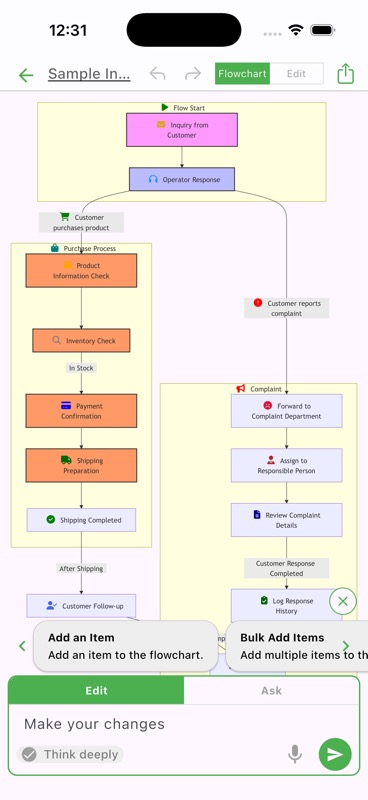
- Select Flowchart at the top of the editor and tap the input field at the bottom, then choose Edit.
- Describe the steps or decisions you want, such as “Receive an inquiry, review it, and send a reply,” then select Send.
- Review the generated diagram. To add a step or revise a branch, send another instruction from the same input area.
Ask AI a question about the diagram
- Tap the input field below the flowchart, then choose Ask.
- Send a question such as “Explain the conditions for the branches in this diagram” and read the reply in the chat window.
Edit Mermaid directly and preview the diagram
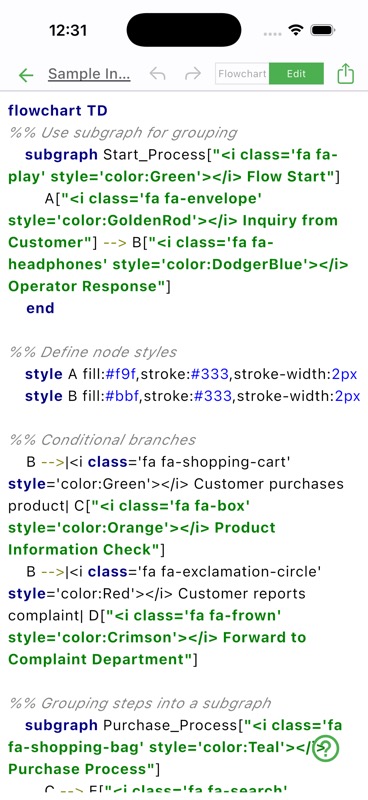
- Choose Edit at the top of the editor and change the Mermaid source.
- Switch back to Flowchart at the top to see the updated diagram.
Export the diagram as an image, Mermaid, or HTML
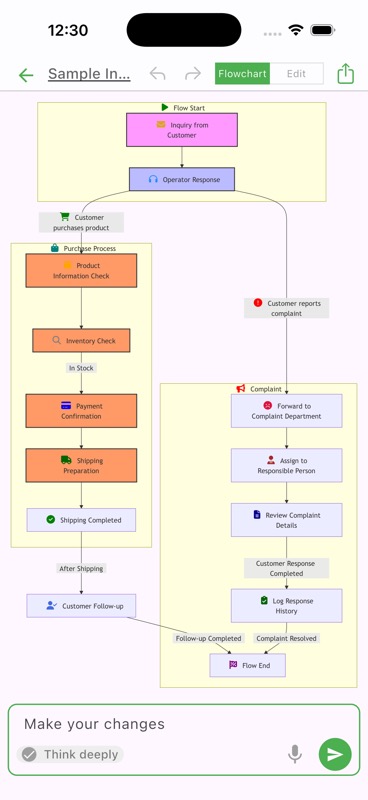
- Select the share icon in the top-right corner of the editor.
- Choose an image to place the diagram in another document, Mermaid (.mermaid) to edit the source later, or HTML to open the file in a browser.
खरिदहरू
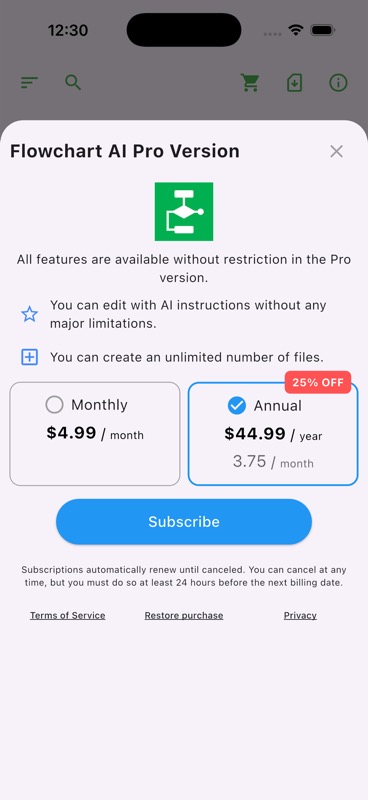
सशुल्क योजना किन्नुहोस्
- फाइल सूचीमा कार्टको आइकन चयन गर्नुहोस्।
- खरिद स्क्रिनमा योजना र मूल्यहरू हेर्नुहोस्, त्यसपछि आफूले किन्न चाहेको योजना चयन गर्नुहोस्।
खरिद पुनर्स्थापना गर्नुहोस्
- एप स्टोरबाट खरिद गर्नुभएको भए, योजना किन्न प्रयोग गरेको स्टोर खाताबाट साइन इन गर्नुहोस्।
- एपमा खरिद स्क्रिन खोल्नुहोस्, «खरिदहरू पुनर्स्थापना गर्नुहोस्» चयन गर्नुहोस् र नतिजा जाँच गर्नुहोस्।
खरिद वा सदस्यता व्यवस्थापन गर्नुहोस्
- फाइल सूचीको जानकारी मेनुमा खरिद व्यवस्थापन गर्ने विकल्प उपलब्ध भएमा, त्यसलाई खोल्नुहोस्।
- आफ्नो सदस्यता हेर्न वा रद्द गर्न योजना किनेको स्टोर वा सेवा प्रयोग गर्नुहोस्।
सशुल्क खाता
आफ्नो खरिदलाई Google खातासँग जोड्नुहोस्
- सक्रिय खरिद भएको उपकरणमा आफ्नो Google खातामा साइन इन गर्नुहोस्।
- मेनुमा आफ्नो खरिदलाई Google खातासँग जोड्ने विकल्प देखिएमा, त्यसलाई चयन गर्नुहोस् र खाता पुष्टि गर्नुहोस्।
- अर्को समर्थित उपकरणमा सशुल्क योजना प्रयोग गर्न, जोडिएको Google खाताबाट साइन इन गर्नुहोस्।
Google खाता बदल्नुहोस्
- फाइल सूचीको जानकारी मेनुमा कुन Google खाता सक्रिय छ भनेर जाँच गर्नुहोस्।
- साइन आउट गर्ने विकल्प उपलब्ध भएमा त्यसलाई चयन गर्नुहोस्, त्यसपछि Google Drive खोल्नुहोस् र आफूले प्रयोग गर्न चाहेको खातामा साइन इन गर्नुहोस्।
अर्को उपकरणमा, खरिदसँग सम्बन्धित वा तपाईंले खोल्न चाहेका Drive फाइलहरूसँग सम्बन्धित खाता प्रयोग गर्नुहोस्।