फ़ाइलों की सूची
Create a relationship map file
- Select + Create new in the file list.
- Enter a name, then select OK to open the relationship map editor.
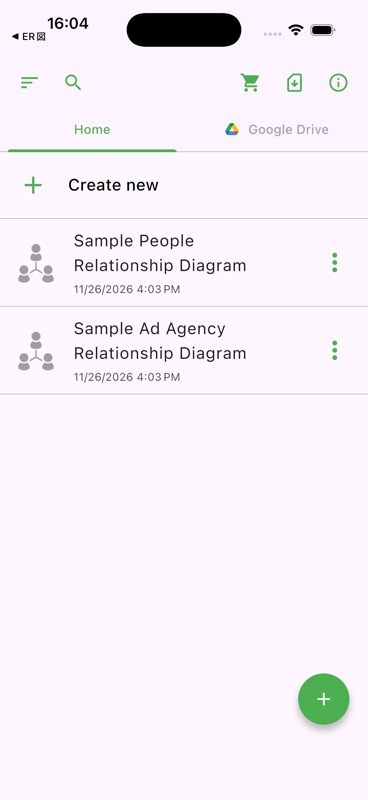
फ़ाइलों का क्रम बदलें
- फ़ाइल सूची के ऊपर दिए गए क्रम निर्धारण नियंत्रण का उपयोग करें। छोटी स्क्रीन पर क्रम निर्धारण मेनू खोलें।
- संशोधन की तारीख या फ़ाइल के नाम के अनुसार क्रमबद्ध करने का विकल्प चुनें।
Search for a file by name
- Open Home or Google Drive, depending on where the file is stored, and select the Search icon.
- Enter part of the name in Search by file name. Select Close to see the full list again.
फ़ाइल की प्रतिलिपि बनाएँ
- फ़ाइल का तीन बिंदुओं वाला मेनू खोलें और प्रतिलिपि बनाएँ चुनें।
- मूल फ़ाइल को सुरक्षित रखते हुए संपादन करने के लिए सूची में जोड़ी गई प्रतिलिपि खोलें।
फ़ाइल हटाएँ
- फ़ाइल का तीन बिंदुओं वाला मेनू खोलें और हटाएँ चुनें।
- पुष्टिकरण संदेश की जाँच करें और OK चुनें।
आपके साथ साझा की गई फ़ाइल के मेनू में साझाकरण हटाने का विकल्प दिखाई दे सकता है।
फ़ाइल का नाम बदलें
- फ़ाइल का तीन-बिंदु वाला मेनू खोलें और नाम बदलें चुनें।
- नया नाम दर्ज करें और पुष्टि करें।
आपके साथ साझा की गई Google Drive फ़ाइल का नाम बदलने के लिए संपादन की अनुमति आवश्यक है।
Import a Mermaid diagram
- Select Import in the file list and select OK to open the file picker.
- Choose a Mermaid file (.mermaid or .mmd), then open it from the file list.
Google Drive में सहेजें
- फ़ाइल सूची में Google Drive चुनें और अपना Google खाता कनेक्ट करने के लिए निर्देशों का पालन करें।
- Google Drive की सूची से नई फ़ाइल बनाएँ। यदि विकल्प उपलब्ध है, तो आप स्थानीय फ़ाइल को उसके तीन-बिंदु वाले मेनू से Google Drive में स्थानांतरित भी कर सकते हैं।
किसी अन्य डिवाइस पर फ़ाइल खोलने के लिए उस Google खाते को कनेक्ट करें जिसका उपयोग आपने फ़ाइल सहेजने के लिए किया था।
अपने डिवाइस और Google Drive के बीच फ़ाइलें स्थानांतरित करें
- इंस्टॉल किए गए ऐप में अपना Google खाता कनेक्ट करें और फ़ाइल का तीन-बिंदु वाला मेनू खोलें।
- फ़ाइल कहाँ सहेजी गई है, इसके आधार पर Google Drive में स्थानांतरित करें या होम में स्थानांतरित करें चुनें और पुष्टि करें।
फ़ाइलों का संपादन
Describe people and relationships to create a map with AI
- Choose Relationship Map at the top, tap the input field at the bottom, and choose Edit.
- Describe who is involved and how they are connected. For example, “Mia and Alex are coworkers. Alex assigns work to Jordan.” Then select Send.
- Check the names and connections in the result. Use the same input field to request changes such as “Reverse the direction of the assignment arrow.”
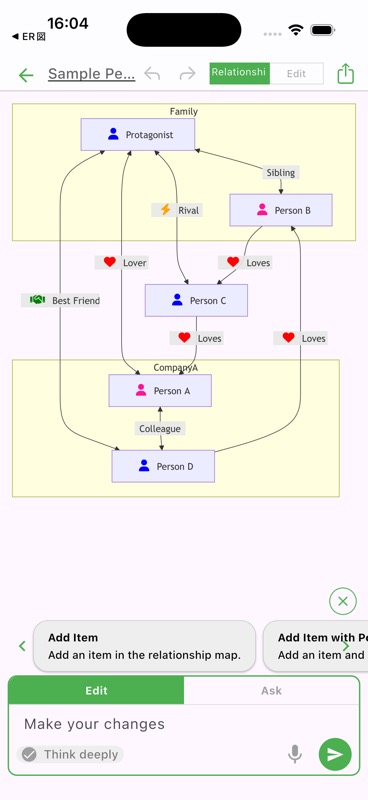
Ask AI about a relationship map
- On the Relationship Map tab, tap the input field at the bottom and choose Ask.
- Send a question such as “Who assigns work to whom in this map?” and read the reply in the chat window.
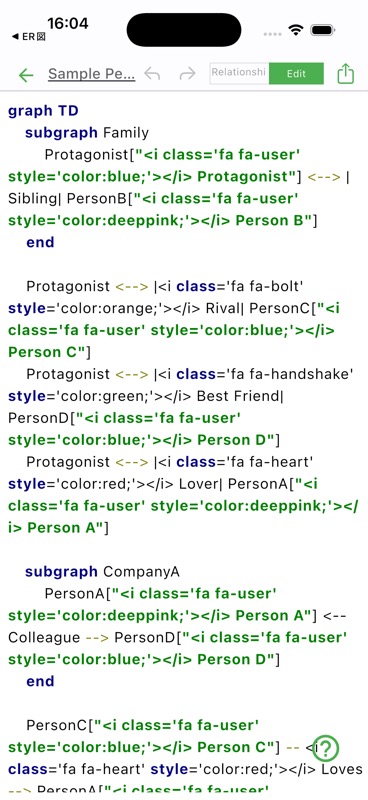
Edit relationships and labels in Mermaid
- Choose Edit at the top of the editor to open the Mermaid source.
- Change the direction of a relationship or the label on a line, then switch back to Relationship Map to check the result.
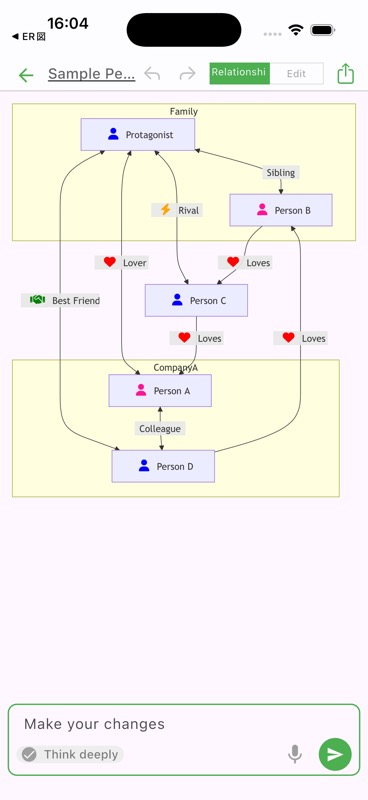
Export the diagram as an image, Mermaid, or HTML
- Select the share icon in the top-right corner of the editor.
- Choose an image to place the diagram in another document, Mermaid (.mermaid) to edit the source later, or HTML to open the file in a browser.
खरीदारी
सशुल्क प्लान खरीदें
- फ़ाइल सूची में शॉपिंग कार्ट आइकन चुनें।
- खरीदारी स्क्रीन पर प्लान और उनकी कीमतें देखें, फिर वह प्लान चुनें जिसे आप खरीदना चाहते हैं।
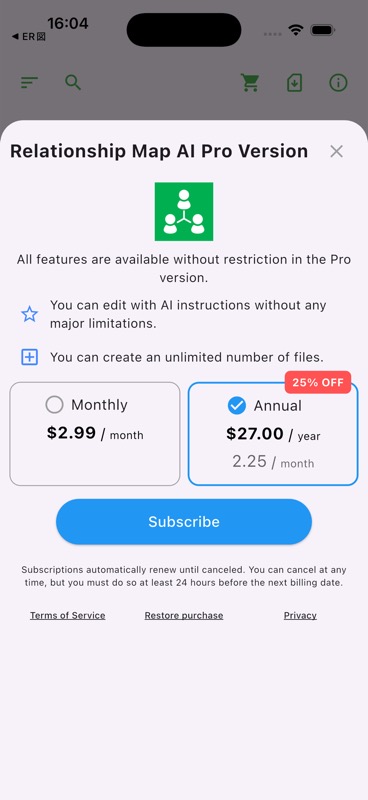
खरीदारी बहाल करें
- अगर आपने ऐप स्टोर से प्लान खरीदा है, तो उसी स्टोर खाते से साइन इन करें जिससे आपने प्लान खरीदा था।
- ऐप में खरीदारी स्क्रीन खोलें, ‘खरीदारियाँ बहाल करें’ चुनें और परिणाम देखें।
खरीदारी या सदस्यता प्रबंधित करें
- अगर फ़ाइल सूची के जानकारी मेनू में खरीदारी प्रबंधन का विकल्प उपलब्ध है, तो उसे खोलें।
- अपनी सदस्यता की जानकारी देखने या उसे रद्द करने के लिए उस स्टोर या सेवा का उपयोग करें जहाँ से आपने प्लान खरीदा था।
सशुल्क खाता
अपनी खरीदारी को Google खाते से लिंक करें
- उस डिवाइस पर अपने Google खाते से साइन इन करें जिस पर आपकी खरीदारी सक्रिय है।
- अगर मेनू में खरीदारी को Google खाते से लिंक करने का विकल्प दिखाई देता है, तो उसे चुनें और खाते की पुष्टि करें।
- किसी अन्य समर्थित डिवाइस पर अपने सशुल्क प्लान का उपयोग करने के लिए लिंक किए गए Google खाते से साइन इन करें।
Google खाते बदलें
- फ़ाइल सूची के जानकारी मेनू में देखें कि कौन-सा Google खाता सक्रिय है।
- अगर साइन आउट करने का विकल्प उपलब्ध है, तो उसे चुनें। फिर Google Drive खोलें और उस खाते से साइन इन करें जिसका आप उपयोग करना चाहते हैं।
किसी दूसरे डिवाइस पर उस खाते का उपयोग करें जो खरीदारी या उन Drive फ़ाइलों से जुड़ा है जिन्हें आप खोलना चाहते हैं।