Daftar file
Create a check sheet
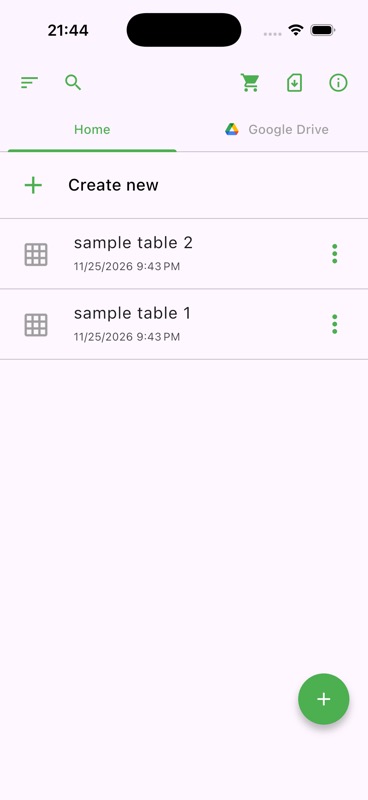
- Tap the + Create new row in the file list.
- Enter a name and select OK to open the editor.
Mengubah urutan file
- Gunakan kontrol pengurutan di bagian atas daftar file. Pada layar kecil, buka menu pengurutan.
- Pilih pengurutan berdasarkan tanggal perubahan atau nama file.
Search for a file by name
- Open Home or Google Drive, depending on where the file is stored, and select the Search icon.
- Enter part of the name in Search by file name. Select Close to see the full list again.
Menduplikasi file
- Buka menu tiga titik pada file dan pilih Duplikat.
- Buka salinan yang ditambahkan ke daftar untuk mengeditnya tanpa mengubah file asli.
Menghapus file
- Buka menu tiga titik pada file dan pilih Hapus.
- Periksa pesan konfirmasi dan pilih OK.
Untuk file yang dibagikan kepada Anda, menu mungkin menyediakan opsi untuk menghapus akses berbagi.
Mengganti nama file
- Buka menu tiga titik pada file, lalu pilih Ganti Nama.
- Masukkan nama baru, lalu konfirmasi.
Anda memerlukan izin pengeditan untuk mengganti nama file Google Drive yang dibagikan kepada Anda.
Import a check sheet
- Select Import in the file list, then select OK to open the file picker.
- Choose a CheckTable file (.scsheet) or a comma-separated CSV file.
Menyimpan ke Google Drive
- Pilih Google Drive dalam daftar file, lalu ikuti petunjuk untuk menghubungkan Akun Google Anda.
- Buat file baru dari daftar Google Drive. Jika opsinya tersedia, Anda juga dapat memindahkan file lokal ke Google Drive melalui menu tiga titiknya.
Untuk membuka file di perangkat lain, hubungkan Akun Google yang Anda gunakan untuk menyimpannya.
Memindahkan file antara perangkat dan Google Drive
- Di aplikasi yang telah diinstal, hubungkan Akun Google Anda dan buka menu tiga titik pada file.
- Pilih Pindahkan ke Google Drive atau Pindahkan ke Beranda, sesuai lokasi penyimpanan file, lalu konfirmasi.
Mengedit file
Tick or clear a cell
- Tap a cell to cycle through the marks configured for the sheet.
- Where right-click is available, open Change mark from the cell menu to pick a mark directly. Select Clear there to remove the mark.
Choose the marks used in the sheet
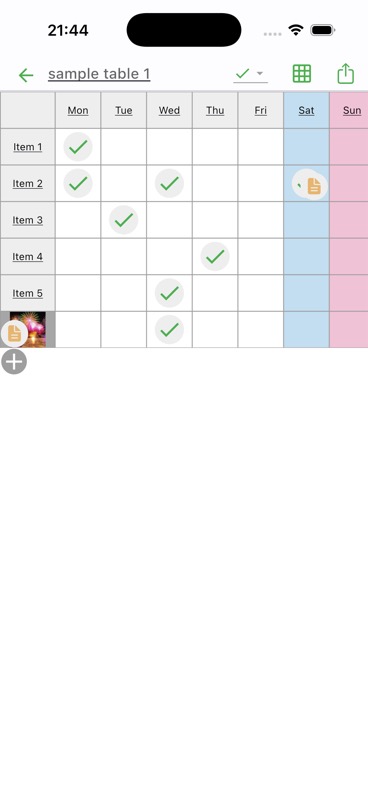
- Tap the marks and downward arrow at the top of the editor.
- Choose the set you want to use. Tap a cell to cycle through the selected marks.
Edit row and column labels
- Tap a row or column label.
- Change the label and select OK. Use + at the edge of the sheet to add a row or column.
Add a note, color, or link to a cell
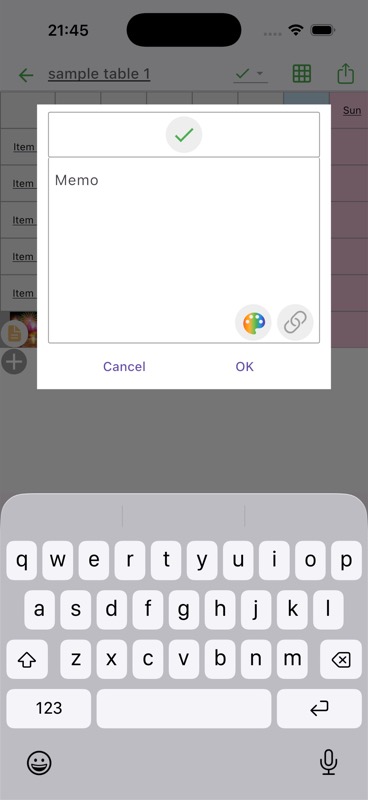
- Press and hold a cell to open the cell editor.
- Enter a note or select the color or link icon. Select OK to apply your changes.
Clear every check mark
- Open the table menu by selecting the grid icon at the top right of the editor.
- Select Clear all checks and then select OK in the confirmation.
This resets the marks while keeping the rows, columns, and cell content.
Export a check sheet
- Select the share icon in the top-right corner of the editor.
- Choose Image (.png) or PDF to preserve the appearance, or CSV or Excel for use in another app. To reimport the file later, select CheckTable (.scsheet).
Export formats marked with a lock require Pro.
Pembelian
Membeli paket berbayar
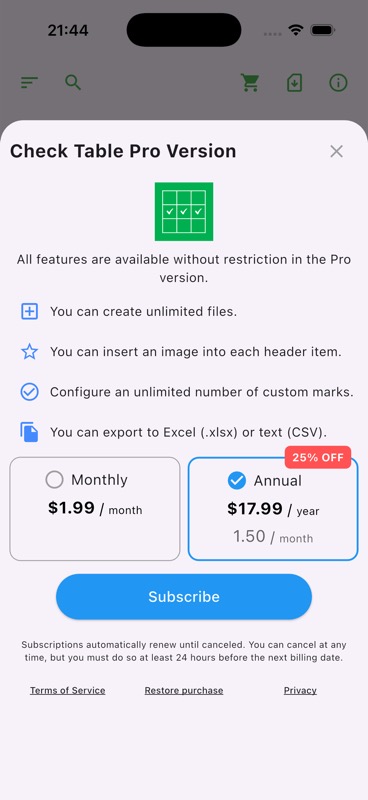
- Pilih ikon keranjang di daftar file.
- Tinjau paket dan harga di layar pembelian, lalu pilih paket yang ingin Anda beli.
Memulihkan pembelian
- Jika pembelian dilakukan melalui toko aplikasi, masuk dengan akun toko yang Anda gunakan untuk membeli paket.
- Buka layar pembelian di aplikasi, pilih Pulihkan Pembelian, lalu periksa hasilnya.
Mengelola pembelian atau langganan
- Jika menu informasi pada daftar file menyediakan opsi pengelolaan pembelian, buka opsi tersebut.
- Gunakan toko atau layanan tempat Anda membeli paket untuk meninjau atau membatalkan langganan.
Akun berbayar
Menautkan pembelian ke akun Google
- Masuk ke akun Google Anda di perangkat yang memiliki pembelian aktif.
- Jika opsi untuk menautkan pembelian ke akun Google muncul di menu, pilih opsi tersebut dan konfirmasikan akun.
- Untuk menggunakan paket berbayar di perangkat lain yang didukung, masuk dengan akun Google yang telah ditautkan.
Beralih akun Google
- Periksa akun Google yang aktif di menu informasi pada daftar file.
- Jika opsi keluar tersedia, pilih opsi tersebut, lalu buka Google Drive dan masuk ke akun yang ingin Anda gunakan.
Di perangkat lain, gunakan akun yang terkait dengan pembelian atau file Drive yang ingin Anda akses.