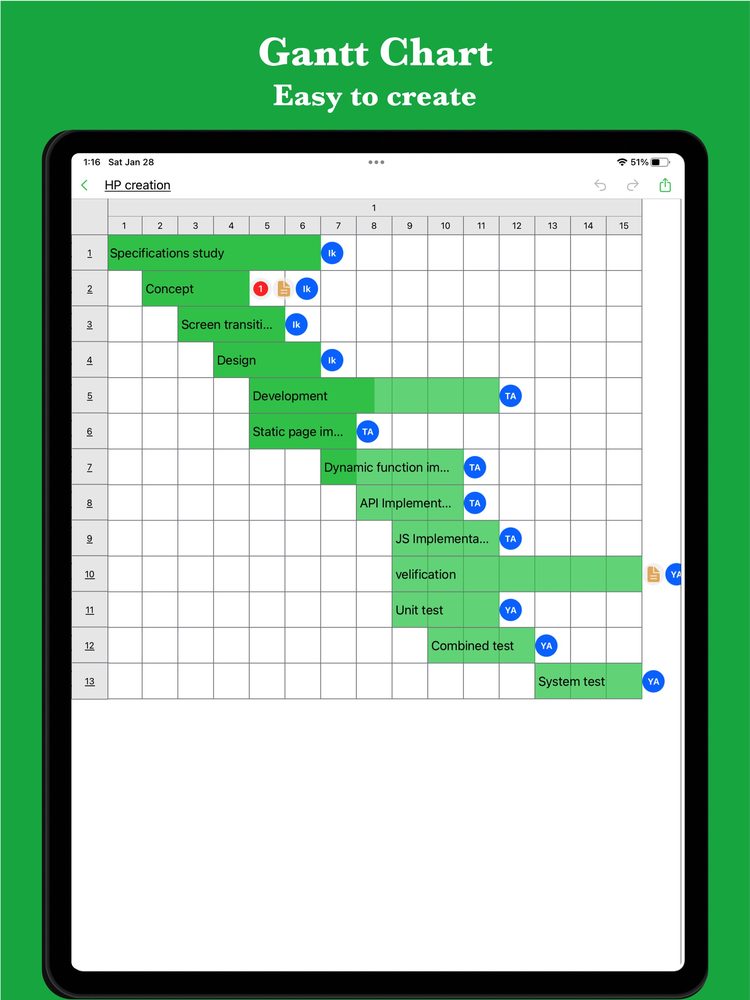
Read a task from left to right
Each row represents a task or group of tasks. The left edge of a bar marks the start and the right edge marks the finish. Tasks with overlapping bars occupy some of the same dates; that alone does not mean the same person can do them together.
If the web app asks you to sign in, download the sample file and import it into iGanttChart.
Six terms to know
Start and finish dates
The planned boundaries of a task. Confirm whether a tool includes the finish date when it counts days.
Duration
The span between start and finish. It may include non-working days or waiting time depending on the calendar used.
Effort
The work required, often expressed in hours or person-days. It is not the same as the number of dates covered by the bar.
Dependency
A condition linking tasks, such as a review that cannot begin until a draft is ready. Automatic date changes depend on the tool and settings.
Milestone
A key point such as an approval or release. It is often drawn as a diamond; a one-day task is not automatically a zero-duration milestone.
Progress
An agreed measure of completion. Decide how to judge it; elapsed time alone does not prove the work is complete.
Do not read more into the chart than it shows
A long bar does not establish a critical path, and a red bar does not always mean a delay. Use the chart legend and written notes to understand the intended meaning. If no dependencies or resources are recorded, ask about them rather than assuming the picture contains that analysis.
Create your own Gantt chart
Choose a Gantt chart app for your plan. Explore manual editing and AI-assisted planning on the app pages.